Create your first literature note
A hands-on walkthrough: open your Zotero library in Obsidian, read a paper beside it, and write a literature note with its metadata and annotations.
This tutorial walks you from your Zotero library to your first literature note. You will open the library in Obsidian, read a paper's PDF with your Zotero highlights on the page, and then write a note for the paper beside it. By the end, you will have a Markdown note with the paper's title, a link back to Zotero, and the annotations you made on the PDF.
Before you start
Install ZotLit. ZotLit finds your Zotero database automatically from your Zotero profile, and Zotero does not need to be open.
Open your library
Open the Library View
On a new install, ZotLit opens the Library View for you, in a tab titled Zotero library. Otherwise, select the ZotLit icon in the ribbon, or open the command palette (Ctrl+P on Windows/Linux, Cmd+P on macOS) and run:
A setup banner may sit above the list. You can leave it there for now: once its Connect to Zotero step is done, ZotLit is reading your library.
If the view shows Zotero not found instead of your papers, select Locate data folder and choose your Zotero data folder.
Find a paper you have highlighted
For this tutorial, choose a paper that already has annotations, the highlights and notes you made in the Zotero PDF reader. That way you can see them in Obsidian.
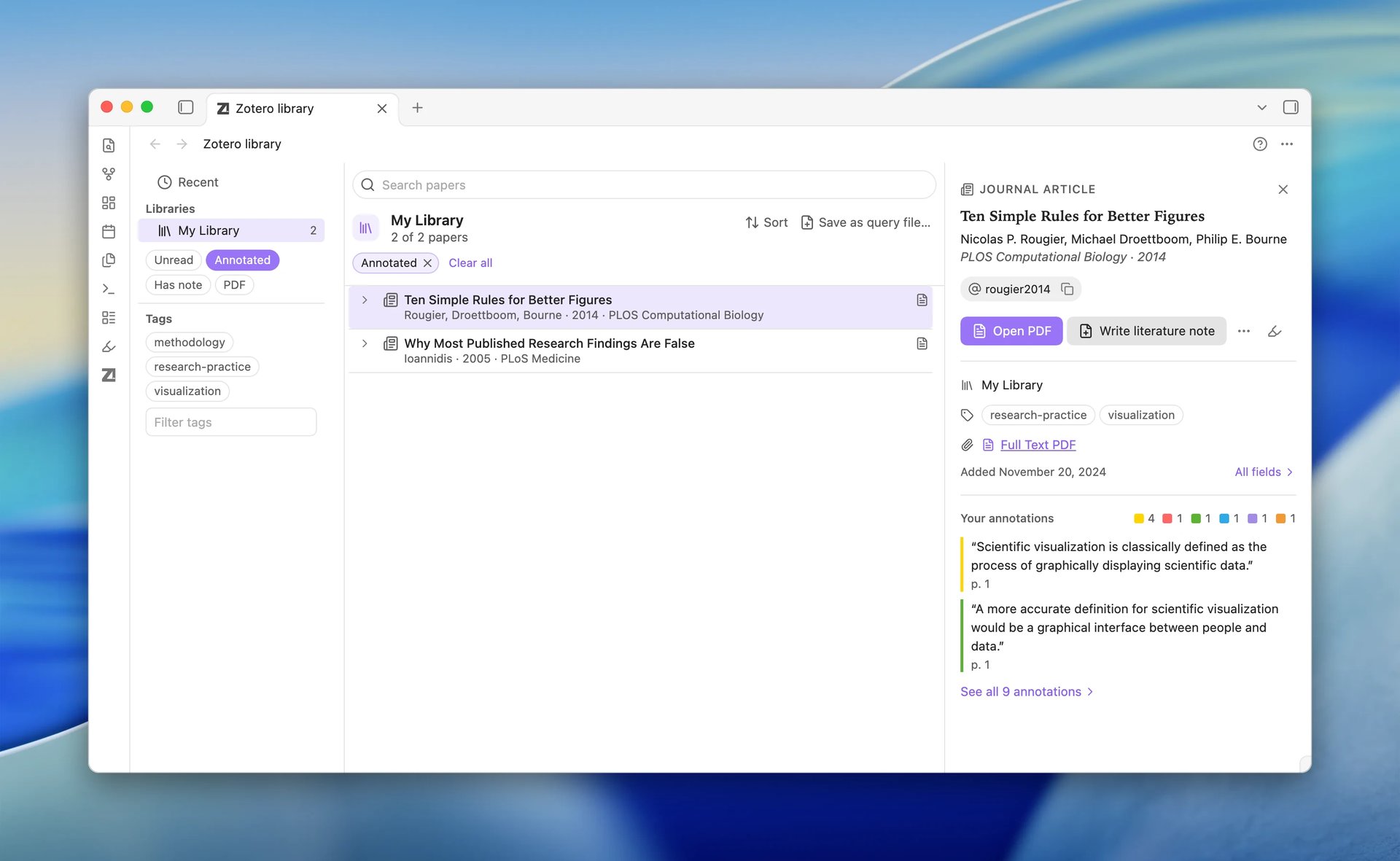
In the buttons below the tree on the left, select Annotated. The list now shows only the papers you have annotated. To look for one paper, type part of its title in the Search papers box.
Select the paper
Click the paper's row. The Reading Card opens on the right of the view, laid out like the paper's first page: its title, authors, and journal, then its abstract when Zotero has one, and last its annotations, with the first two quoted; select the link under them to show them all. On a narrow pane, it opens over the list.
Read the paper
Open the PDF beside the library
Right-click the paper's row and choose Open PDF to the right.
The PDF opens in a new pane to the right of the library. ZotLit does not copy the file into your vault.
See your highlights
The highlights and notes you made in Zotero are already on the page, in the same colors. The Zotero annotations view also opens in the right sidebar and lists each annotation as a card.
Write the note
Write the note in a new tab
Click the paper's row in the library again. Then press Ctrl+Enter (Cmd+Enter on macOS).
ZotLit writes the literature note and opens it in a new tab in front of the library. The PDF stays in its pane on the right, so you can read on one side and write on the other. You will see a brief notice: Literature note created.
If ZotLit asks which profile to use, choose Default.
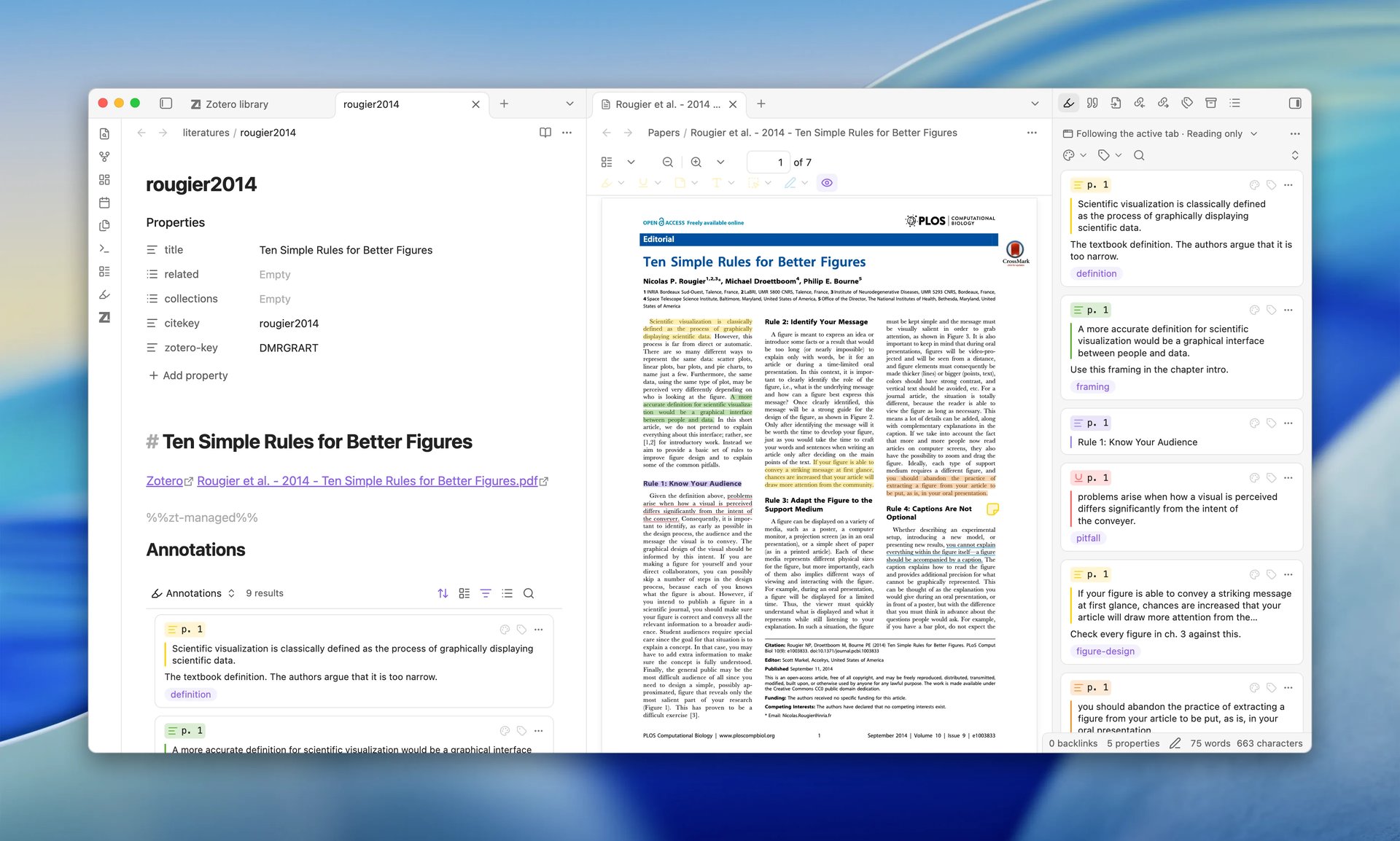
Plain Enter writes the same note, but opens it in the pane beside the library, in place of the PDF.
See the result
The note appears in a literatures folder in your vault (the default location). It contains:
- A heading with the paper's title
- A link back to the item in Zotero
- Links to its attached files
- An Annotations section with your PDF highlights and notes
The note's filename is the item's citation key by default.
ZotLit built this note from the Default profile, the built-in one that decides a note's name, folder, properties, and body. Read about profiles to see what you can change.
What you are looking at
ZotLit writes this body once, when it creates the note. From then on the body is yours to edit. The Annotations section is a live view, so new highlights appear without an update. When you update the note later, ZotLit refreshes its properties and leaves the body as you wrote it.
For more on how this works, see Literature notes and the managed region.
Opening an existing note
Back in the library, the paper's row now shows that it has a literature note. Select the row and press Enter again, and ZotLit opens the existing note instead of creating a duplicate.
You can also reach any paper's note without the library: run ZotLit: Open literature note quick switcher from the command palette and search for the paper.
What's next
Now that you have a literature note with annotations, the next lesson shows you how to change how those annotations look.
Customize your annotations
Edit a template to change how callouts render, then update the note in place.
Browse your library in the Library View
Every control of the Library View: the tree, Recent, search, filters, the Reading Card, and the row menu.
Open an item's PDF in Obsidian
Every way to open a paper's PDF in Obsidian, and what you see when it opens.
Last updated on