Changelog
Every ZotLit release, newest first. Companion releases are noted with the plugin version they shipped beside.
Default note body is written once, child notes import only on request
ZotLit copies text from Zotero to Obsidian only when you ask. There is no automatic sync in either direction.
Breaking Changes
The default literature note body is yours after creation
A new literature note made with the default template is written once, as a copy of what Zotero holds when you create it. The body has the title, the Zotero link, attachment links, and the Annotations section with its query block. After that, the body is yours to edit. Your edits to it never go back to Zotero, and a later change in Zotero reaches it only if you overwrite the note.
ZotLit: Update literature note now refreshes the note's properties and leaves the body as you wrote it. The annotations query block reads Zotero live, so new highlights appear without an update. It is a view of Zotero rather than a copy. See Keep notes up to date.
The default template no longer adds %%zt-managed%% markers. It also no longer lists the paper's Zotero child notes under a "Notes" heading. ZotLit: Overwrite literature note still replaces the whole body after you confirm.
Child notes import only when you ask
Creating, updating, or overwriting a literature note no longer imports Zotero child notes into your vault. Before, a template that used noteLink created a Markdown file for each child note along the way.
A child note now becomes a file only when you import it. Run ZotLit: Import child notes from Zotero or ZotLit: Import all child and standalone notes, or start an import from Zotero. The imported file is a copy. Your edits to it never go back to Zotero, and later edits to the Zotero note reach it only when you re-import that note.
In a template, noteLink links to the imported file when one exists. Otherwise it gives a link that opens the note in Zotero. See Import Zotero notes.
Existing notes stay as they are
Notes you already have don't change. A note with the managed markers keeps them, and an update still refreshes the text between them. To stop that, delete the two marker lines. See Literature notes and the managed region.
If you customized or duplicated the Default profile, its document now has no managed block. Updating an older note with markers then shows Properties updated. The profile document has no managed block, so the note body stayed unchanged. To keep refreshing that region, add a {% managed %} block to the profile document.
Library View, visual query tables and blocks, reading status tracking
This beta introduces the Library View to browse your Zotero library directly in Obsidian. It turns ZotLit Query into interactive tables and note blocks. You can also track reading status in place and view recent papers ranked by active research.
Highlights
Browse your Zotero library directly in Obsidian
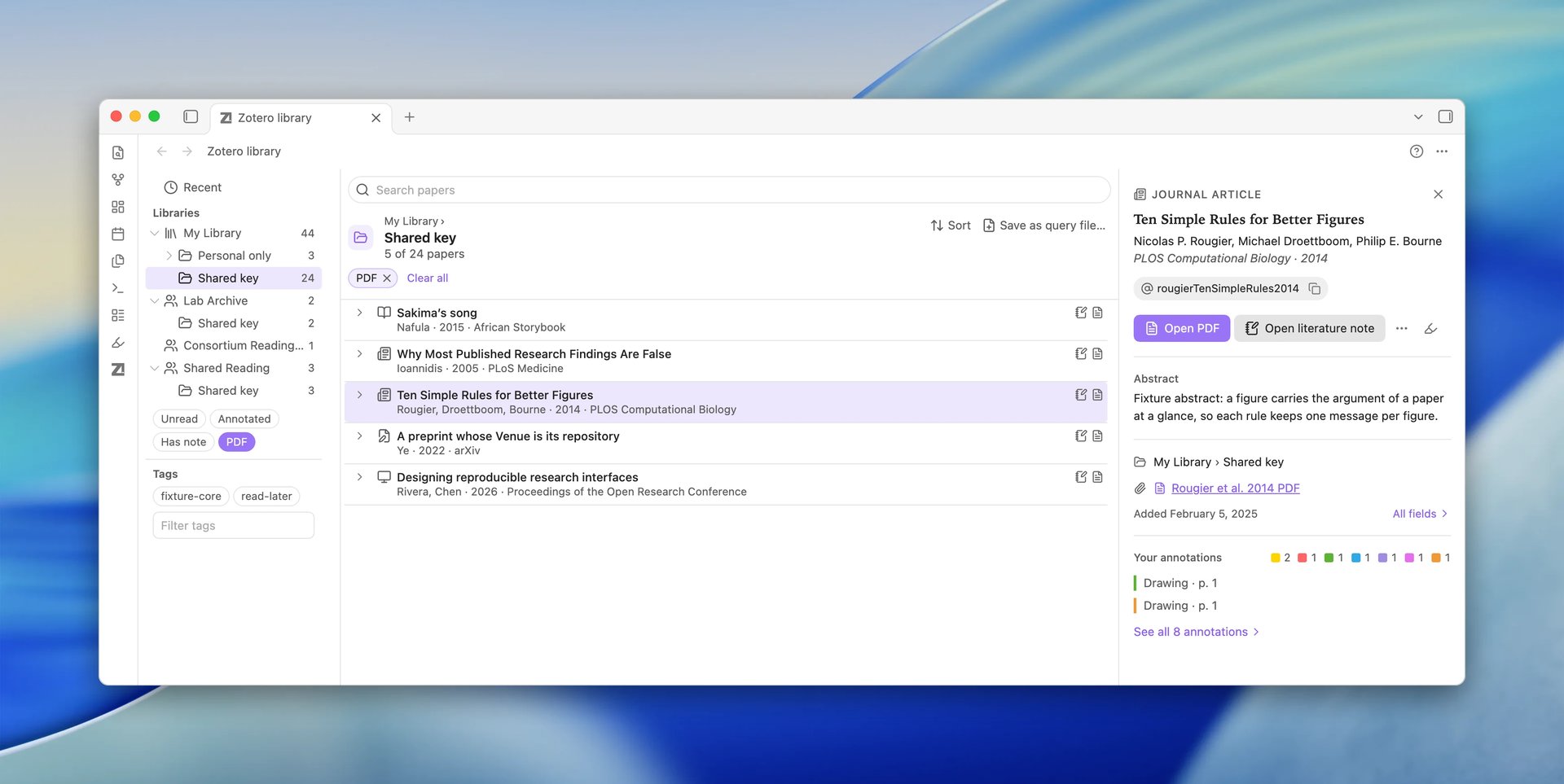
The Library View is a visual library browser directly inside Obsidian. It opens with ZotLit: Open Zotero library or from the ribbon. It reads directly from your local Zotero database, so it works without the ZotLit Companion or a local server.
The sidebar tree shows your collections, subcollections, and paper counts. Quick filters let you focus on Unread, Annotated, papers with literature notes, or papers with PDFs. You can also filter papers by tags.
The papers list shows two-line cards with reading status indicators and citation keys. Press the arrow keys to browse, or drag a row into an open note to insert a citation. On the right, the Reading Card shows metadata, an abstract, and expandable annotation previews. See Browse your library in the Library View for a full walkthrough.
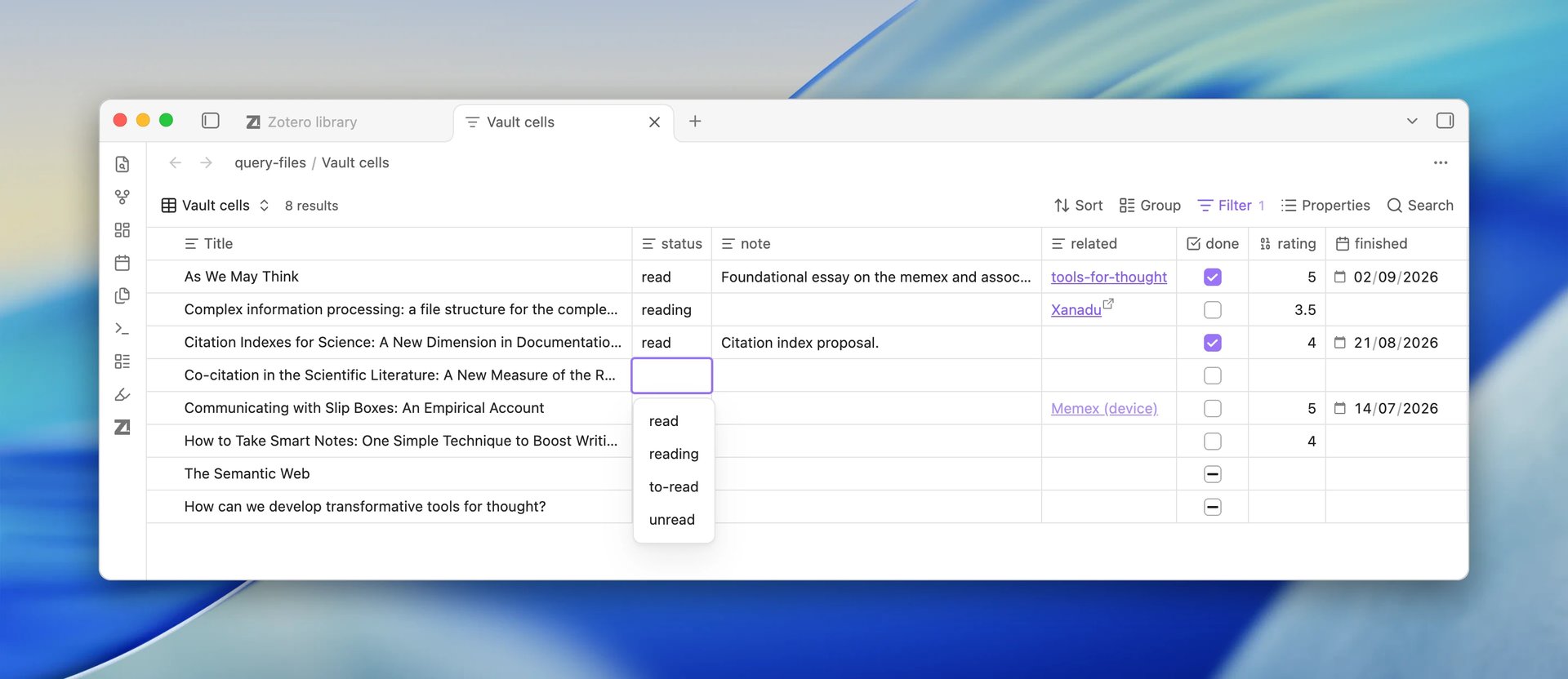
To track reading status, select Save as query file… and switch the view to the Table layout. Add a literature note property such as reading-status in Properties, then select a cell to change the value without opening the note. Checkboxes toggle with one click, lists edit as chips, and dates open pickers. A paper without a note shows No note; type a value there to create the note and save the value. Values live in your notes, so Obsidian's Properties panel and Bases show the same values. See Track reading status in the Query View.
Breaking Changes
Default literature notes display annotations in a Query Block
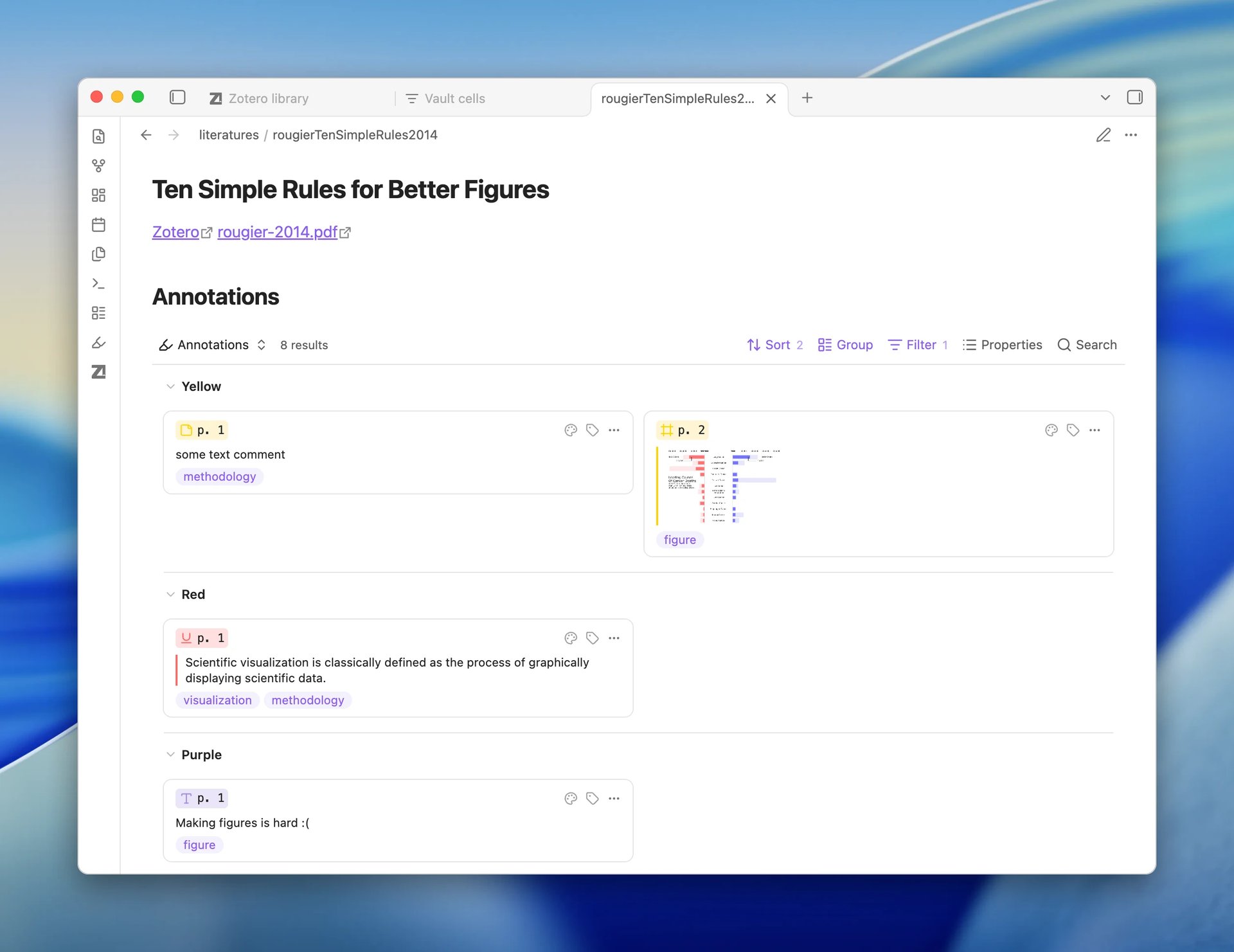
The default note template now embeds an interactive query block instead of a static markdown list.
Updating an existing default note replaces its static annotation list with a query block. Annotations appear as interactive cards that reflect live changes in Zotero.
To keep a static markdown list instead, use a custom template with an annotation loop. See Literature notes and the managed region and Customize a template.
What's New
Interactive Query Files and embedded Query Blocks
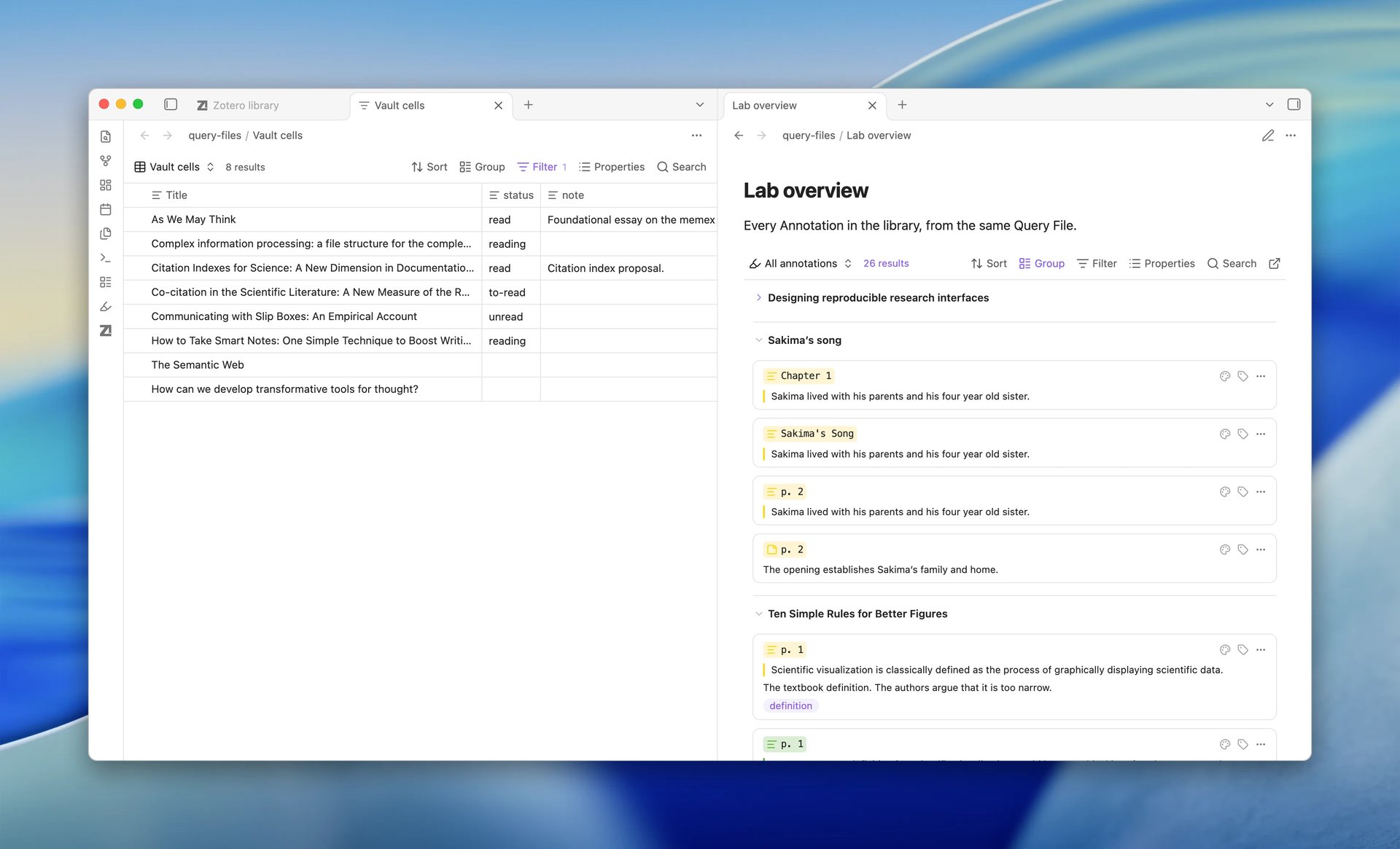
You can now create standalone .zotquery query files and embed query blocks in any note. Create a new file with ZotLit: Create new query file or from an empty tab.
Each query view can display as a Table, Cards, a List, or Annotations. In the Table layout, drag column headers to reorder or resize columns. Expand rows to inspect attached files and child notes, or click links to open PDFs directly.
The visual filter editor supports nested condition groups with drag-and-drop reordering. The toolbar includes sorting, grouping, search, and export to CSV or TSV. You can also add custom Formula properties and set custom display names for columns.
See Query files and query blocks and Use query files for details.
Recent papers follow your active research
Recent lists now put the papers you worked on last at the top. Opening a literature note, reading a PDF, citing a paper, and editing notes or annotations all count.
The Library View explains each paper's position with a reason and relative time. The Quick Switcher, Citation Suggester, and Template Workbench use this same order.
The Library View's Unread filter leaves out papers with a Zotero read time. With Write Authorization enabled, reading a PDF in Obsidian updates Zotero's Recently Read list.
See How Recent orders papers for details.
Sidebar Annotation View built on the Query View engine
The sidebar Zotero annotations view now runs on the Query View engine. You can save the sidebar view and its active filters directly as a .zotquery file.
Newly created annotations appear on screen immediately without waiting for database sync. The view shows clear diagnostic messages if database reads fail or a filter has an error.
See Use the annotation view for more information.
Other improvements
- In the Quick Switcher, press
Alt+Enteron a result to reveal and select that paper in the Library View. - Color and tag filter buttons in the annotation view remain visible when empty. A tooltip explains why the filter is disabled.
- ZotLit Query introduces
firstAuthorfor the primary creator and supports querying parent attachment fields for annotations. - Export to PDF prints query view rows cleanly without toolbar cutoffs.
Bug Fixes
Connections
- When another local service used Zotero's HTTP port, the connection probe previously failed with an unhelpful error. It now detects that Zotero is unreachable and prompts you to open Zotero and check settings.
Notes and annotations
- Inserting an annotation into a note open in Reading view previously wrote markdown into the hidden source editor. ZotLit now requires an active editor tab and alerts you if the note is in Reading view.
Query your Zotero library, background library reads, Chinese word search
This beta adds an experimental command-line interface to query your Zotero library, moves database reads into the background so Obsidian stays responsive, and introduces Chinese word search for titles.
What's New
Query your Zotero library from the command line
This beta introduces an experimental command-line interface to query your Zotero library.
Run queries over your Zotero library from the Obsidian CLI with zotlit:query. Search, filter, group, and project fields from your items, file attachments, and annotations in one command.
Four companion commands complete the toolkit. zotlit:query-values discovers exact collection and tag names. zotlit:query-schema returns the schema of every queryable field. zotlit:query-guide prints the built-in usage guide. zotlit:query-cancel cancels a running export.
Useful for checking reading status, finding missing PDF files, counting papers by year or tag, and exporting clean JSON for research scripts or AI agents. Because the feature is experimental, its parameters and output formats may change before the stable release. See How ZotLit Query works and Query your Zotero library for full guidance and examples.
Smooth background library reads
Zotero database reads, search indexing, and citation lookups now run in the background. Obsidian stays completely responsive during large library refreshes.
Typing in the citation suggester and search pickers never freezes or hitches your editor, even in libraries with tens of thousands of items.
Chinese word search
A new Chinese segmenter option is available under Settings > ZotLit > Zotero. One-click install splits Chinese titles into words, so searching for a word finds the paper even when the term sits in the middle of a Chinese title.
Reorganized Zotero settings
The Zotero settings page now follows research tasks: Zotero database, Libraries, Sync with Zotero, Editing, and Search. Advanced connection and database override options moved to a dedicated Zotero location sub-page.
The page shows clear live status for the local server and links directly to its configuration.
Other improvements
- ZotLit entries in file menus and tab "More options" menus now sit in dedicated groups beside Obsidian's own entries, rather than clustering at the bottom below "Delete".
- Item search modals and Quick Switcher open with their rows ready or show a clean loading message (Loading Zotero items…), so the layout never pops in empty.
Bug Fixes
Annotation view and PDF editing
- The annotation card list now scrolls completely clear of the bottom status bar, so the last card is never hidden behind it.
- When scrolling down, the top of the annotation list fades smoothly under the filter bar instead of cutting off abruptly.
- Confirmed annotation edits, color changes, and deletions remain protected and are not interrupted or overwritten by background database refreshes.
Citations
- Wikilink citations with fragments, such as
[[@key#fragment]], in note previews and keyless items now resolve to their correct literature note paths. - In-memory citation text for closed notes is released five minutes after closing, preventing memory buildup during long writing sessions.
- Pandoc export no longer requires citation key resolution when an exported note contains no literal citation keys.
Batch windows
- Batch confirmation windows for updating or importing notes across a library mount list rows on demand when you expand a group. Obsidian stays responsive even with libraries of tens of thousands of items.
Note path in one place, profiles that keep what you type, Word export fixes
This beta shows a literature note's full path while you edit its profile, and fixes many problems found in the Template Workbench, citations, and Word export.
What's New
Note path
The Name and folder tab of the Template Workbench now shows one Note path group. It holds the Literature note folder, the Note name template, and a Preview of the full vault path the note gets. A slash (/) in the note name makes a subfolder. See Template Workbench View and Customize a template.
Add profile on Settings > ZotLit > Literature note profiles now needs only a valid name that no other profile uses. The folder is optional; leave it empty to use the Default profile's folder. Before, ZotLit refused a new profile unless its folder, citation style, or note look was different. See Use a different template for different notes.
When you switch a note to another profile, or delete a profile and its notes move, each note now keeps its subfolders under the new folder. For example, literatures/2024/Smith2020.md moves to books/2024/Smith2020.md. Before, the note moved to the top of the new folder.
Other improvements
- The search box of ZotLit: Open literature note quick switcher reads Search by title, author, year, or citation key…, so you know what you can search by.
- The notice that confirms Zotero editing is on now closes after 3 seconds. Before, it covered the top of the annotation view for 10 seconds.
- The export dialog shows the destination in a readable form. A destination in your vault shows its path in the vault and the vault name; a destination in your home folder shows a short path.
Bug Fixes
Template Workbench
- A property rule such as
zt.creators | map: "fullName", or a note name with quotes,:,-, or a leading*,&, or!, could change meaning when you typed it into a Workbench pane, or break the profile so that it stopped working. Text you type now saves exactly as you typed it. - While the profile had an error, Remove property and Change format and reset value on the Properties tab looked like they worked but changed nothing. The tab now tells you to fix the error first and stops list changes until you do. You can still edit the rules to make the repair. Show problem goes to the error, and undo restores the last working version. See Configure frontmatter properties.
- Folded rows on the Properties tab showed broken summaries for a profile saved with Windows line endings. They now show the rule correctly.
- ZotLit: Customize this note's template showed the Workbench in the main window for a moment before it moved to its own window. It now opens in its own window directly.
- A reopened Workbench went back to the Note tab. It now returns to the tab you were on, such as Annotation, Name and folder, or Source.
Citations
- With Open citations as links off, a plain click on a formatted citation did not put the cursor in it. The click now shows the citation's source text with the cursor where you clicked.
Ctrl-click orCommand-click still opens the cited literature note. [[@key]]was read as a citation, both in the editor and in the note's references. It is now an ordinary wikilink.- An inserted bracketed citation such as
[@key]got a space after it, so punctuation could not follow it directly. It now gets no space. - Editing the locator after a citation key, as in
[@key, p. 5], opened the citation suggester, and choosing a result replaced the locator. The suggester now stays closed while you edit a locator.
Notes and annotations
- Live note updates moved your reading position. The note now stays where you were reading.
- ZotLit: Update literature note and ZotLit: Update literature note metadata were not available while the cursor was in the note title or in Properties. They now work from anywhere in the note.
- A dragged annotation dropped at the end of a sentence joined that line. It now goes in as a block of its own. A drop on the empty last line of a note now inserts the annotation, and a drop with no target note tells you so. See Use the annotation view.
- In Live Preview, the
%%/zt-managed%%closing marker was hidden inside the last callout of the note. It now stays outside the callout. - The Cited by view showed zero counts when no literature note was open. It now shows counts only for a literature note.
Export
- Exporting to Word now handles three things correctly. See Export a note with citations.
- A callout showed its raw
[!type]text. It now becomes a quote with a bold title. - A quote directly under a line of text became plain text. It now stays a quote.
- The reference list had no heading. It now has one in the language of the citation style. The note's
reference-section-titleproperty sets a different heading.
- A callout showed its raw
Welcome view
- The folder, ZotLit Companion, and first-note steps stayed to-do after you completed them. They now show as done, and the Companion step stops offering the install once the Companion is installed.
- ZotLit: Open welcome view opened in place of the active note, so going back skipped that note. It now opens in a new tab beside it.
- Choosing a result in the literature note search from the Welcome view opened a second copy of a note that was already open. It now switches to the open note. Modifier keys still open the note in a new pane.
Zotero PDF reading and annotation in Obsidian, multi-select in the annotation view, exports in the note's own style
Companion 2.2.0-beta.1 released alongside.
This beta lets you read and annotate your Zotero PDFs in Obsidian, next to the note you are writing, and every mark you make is saved in Zotero.
Version requirements
- Obsidian 1.14.2 or later to open Zotero PDFs, which stay outside your vault.
- Zotero 10 or later to save annotation changes from Obsidian. With Zotero 9, you can read PDFs and their annotations, but you cannot edit them.
Highlights
Read and annotate your Zotero PDFs in Obsidian
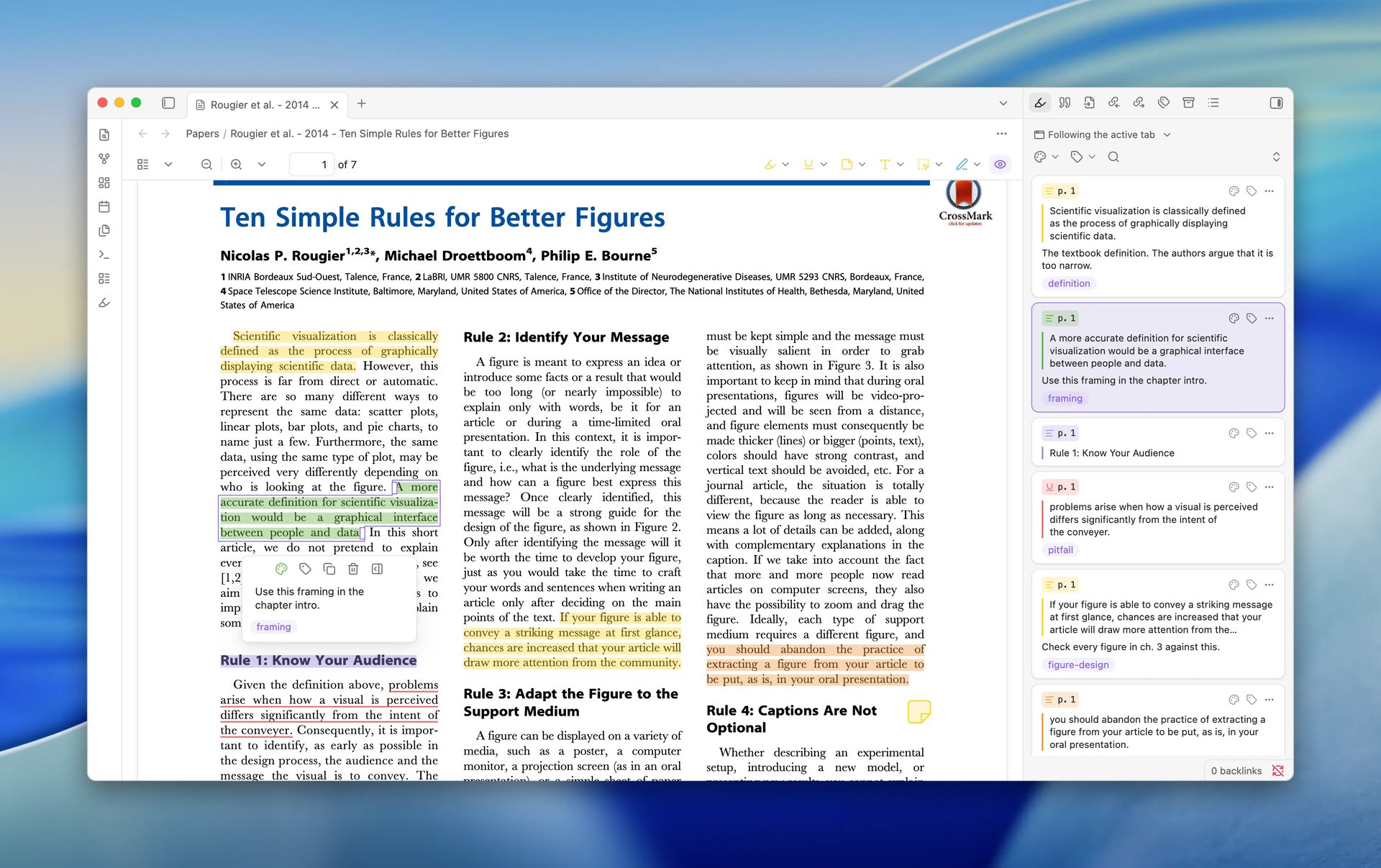
A Zotero item's PDF now opens in an Obsidian tab beside the note you are writing, so you can read and mark up a paper without switching to Zotero. The PDF stays in Zotero's storage, outside your vault; opening it there needs Obsidian 1.14.2 or later. The highlights and notes you made in Zotero are already on the page, in their Zotero colors. With Zotero 10 or later, what you mark in Obsidian is saved to Zotero, so it syncs and shows in Zotero's reader like any other annotation.
You can open a PDF from several places:
- From a literature note, run ZotLit: Open PDF, or choose it from the note's tab menu.
- In ZotLit: Open literature note quick switcher, press
Shift+Enteron a result. - In Zotero, choose Open PDF in Obsidian from an item's context menu, or Open PDF in Obsidian from the page menu of Zotero's reader. Both need the updated ZotLit Companion.
- Click a file link in a note. The PDF opens on the right page, with the linked annotation selected.
The Zotero annotations view comes forward in the sidebar with the PDF. To keep your sidebar as it is, turn off Settings > ZotLit > Reader > Reveal the annotation view. To send file links to your system app again, turn off Open PDF file links in Obsidian on the same page. Only PDFs open in Obsidian; EPUBs and web snapshots stay in Zotero. Open an item's PDF in Obsidian lists every way in.
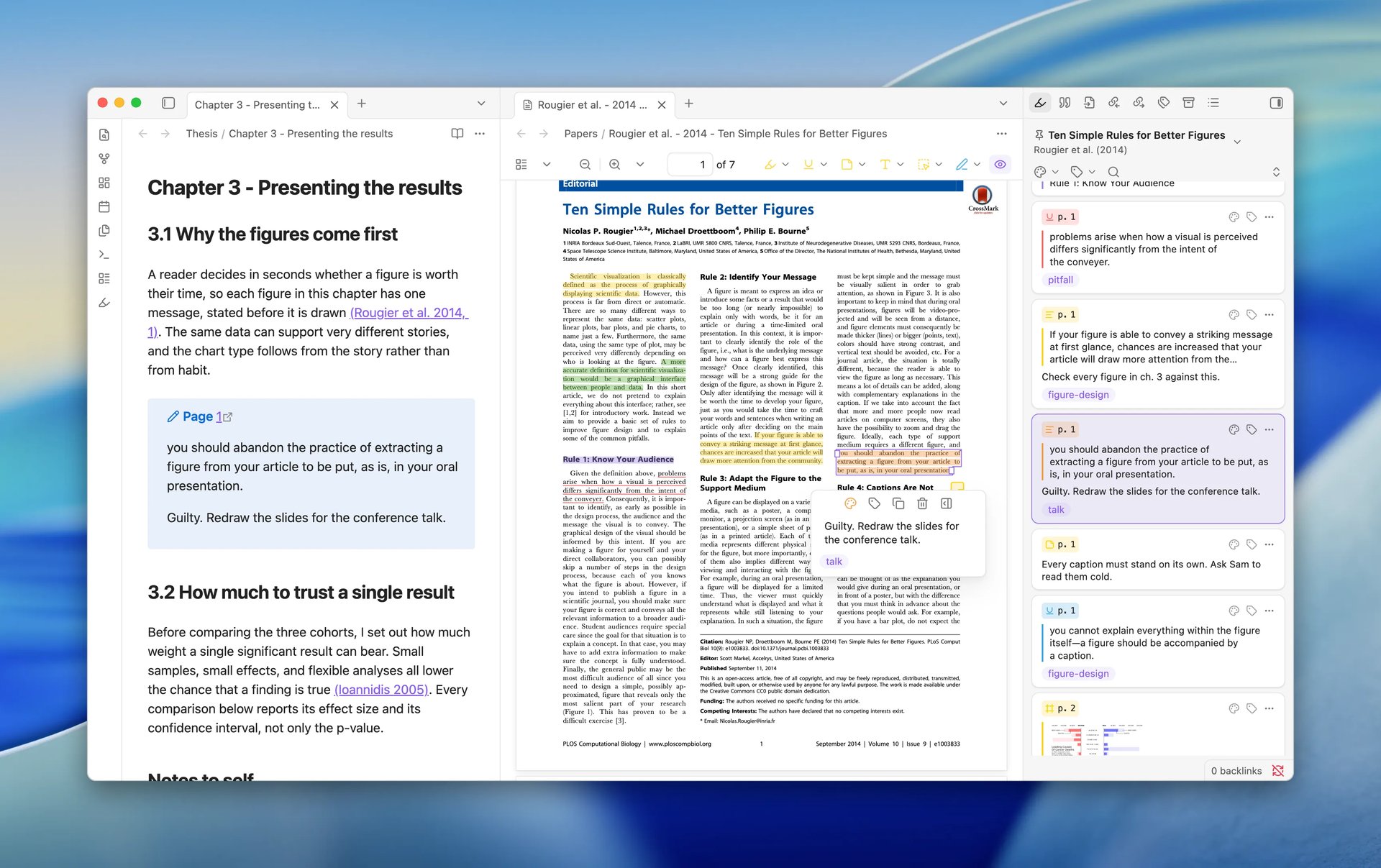
The toolbar beside the page creates the same annotations as Zotero's reader: Highlight, Underline, Add note, Add text for text typed onto the page, Select area to capture a figure or table, and Draw for freehand strokes. Each tool keeps the color you last chose for it, in every PDF.
Select a mark to change its color, comment, or tags. The comment editor takes bold, italic, subscript, and superscript, as in Zotero. When the PDF's text came out wrong, for example with broken ligatures, Edit quoted text on the annotation's card corrects the quoted text. You can drag a mark to move or resize it, and delete an annotation after a confirmation. While the PDF is open, Ctrl+Z (Windows) or Command+Z (macOS) undoes your last annotation change, and redo applies it again. Edit PDF annotations in Obsidian covers each tool and key.
Reading needs no permission. Editing needs four things:
- Zotero 10 or later. With Zotero 9, the PDF opens and shows its annotations, but changes cannot be saved from Obsidian, and ZotLit tells you to update Zotero.
- Zotero is running on the same computer.
- In Zotero, Allow other applications on this computer to communicate with Zotero is on, under Settings → Advanced. ZotLit tells you when it is off.
- ZotLit has your permission, given once. Select Allow editing in the annotation view, or Allow editing on the Zotero editing row under Settings > ZotLit > Zotero. When Zotero asks, choose Always Allow. Allow alone leaves editing off.
When an annotation changed in Zotero while you were editing it in Obsidian, the card shows Changed in Zotero with both versions, and you choose which one to keep. Annotations that Zotero will not let you change are locked in Obsidian too. Examples are annotations Zotero imported from the PDF file itself, and in a group library, annotations another member made. A lock icon on the card gives the reason.
Edit a given annotation in one app at a time, and let each change save before you switch. A known Zotero issue can make one edit silently overwrite the other when both apps change the same annotation.
Breaking Changes
Exports cite with the note's own style
ZotLit: Export note with citations and native Pandoc runs
now format citations in the style the note uses in Obsidian. That is the note's
own zotlit-csl property, the style of an imported note's profile, or your
Citation and references style. The export
dialog says where the style comes from, and the notice at the end names the
style it used.
The built-in export used to fall back to a bundled style when Zotero could not supply the one you chose. It now stops and tells you, so a document never comes out in a style you did not pick. Install the style in Zotero, or choose another one in the dialog.
If you run Pandoc yourself with ZotLit's integration files, save them again from this version. The files from earlier versions no longer work with this release. See Export a note with citations and Export with native Pandoc.
What's New
Annotation view
- The view keeps the follow mode you choose, Active tab, Zotero reader, or Pinned, until you change it. When its source has nothing to show, the view says so in place.
- Select several cards with
Ctrl-click orCommand-click,Shift-click, orCtrl+A/Command+A. Then delete them, recolor them with the keys1to8, or copy their text together. One undo reverses the whole group. - Insert into note in a card's menu inserts the annotation at the cursor in your note, the same text a drag leaves, so you can insert from the keyboard as well.
- Open PDF in the view's menu opens the attachment on screen in Obsidian.
- Filter by tag and Filter by color open as small popovers, so the filters no longer push the list down.
- Edit an annotation's tags on its card or in the PDF popup, then select Save tags.
- Image and ink annotations show their picture on the card and insert into notes with both PDF readers closed. The picture updates after you edit the annotation. See Excerpt images.
Use the annotation view has the full guide.
ZotLit Companion
- Open notes in, in the Opening in Obsidian section of the ZotLit pane in Zotero's settings, chooses where notes opened from Zotero's menus appear: Active tab, New tab, New tab group, or New window.
obsidian://zotlit/links take the same choice as apaneTypeparameter:tab,split, orwindow. See Where the link opens.
Bug Fixes
- In Zotero, right-clicking a PDF attachment opened an empty ZotLit submenu. The submenu is now dimmed when none of its entries apply.
- Converting 2.1 template files: when moving the old files to the trash failed, the conversion is still kept, and ZotLit names the files left behind and tries the cleanup again.
- When ZotLit refuses a template conversion, it now names only the files you need to edit.
- The reminder shown after you postpone the template conversion is shorter.
Literature note profiles, the Template Workbench, citations in the graph view
Companion 2.2.0-beta.0 released alongside.
ZotLit 2.2 gives a literature note template one document of its own, adds a workbench to edit it inside Obsidian, and draws your citations in the graph view.
Highlights
Citations in the graph view
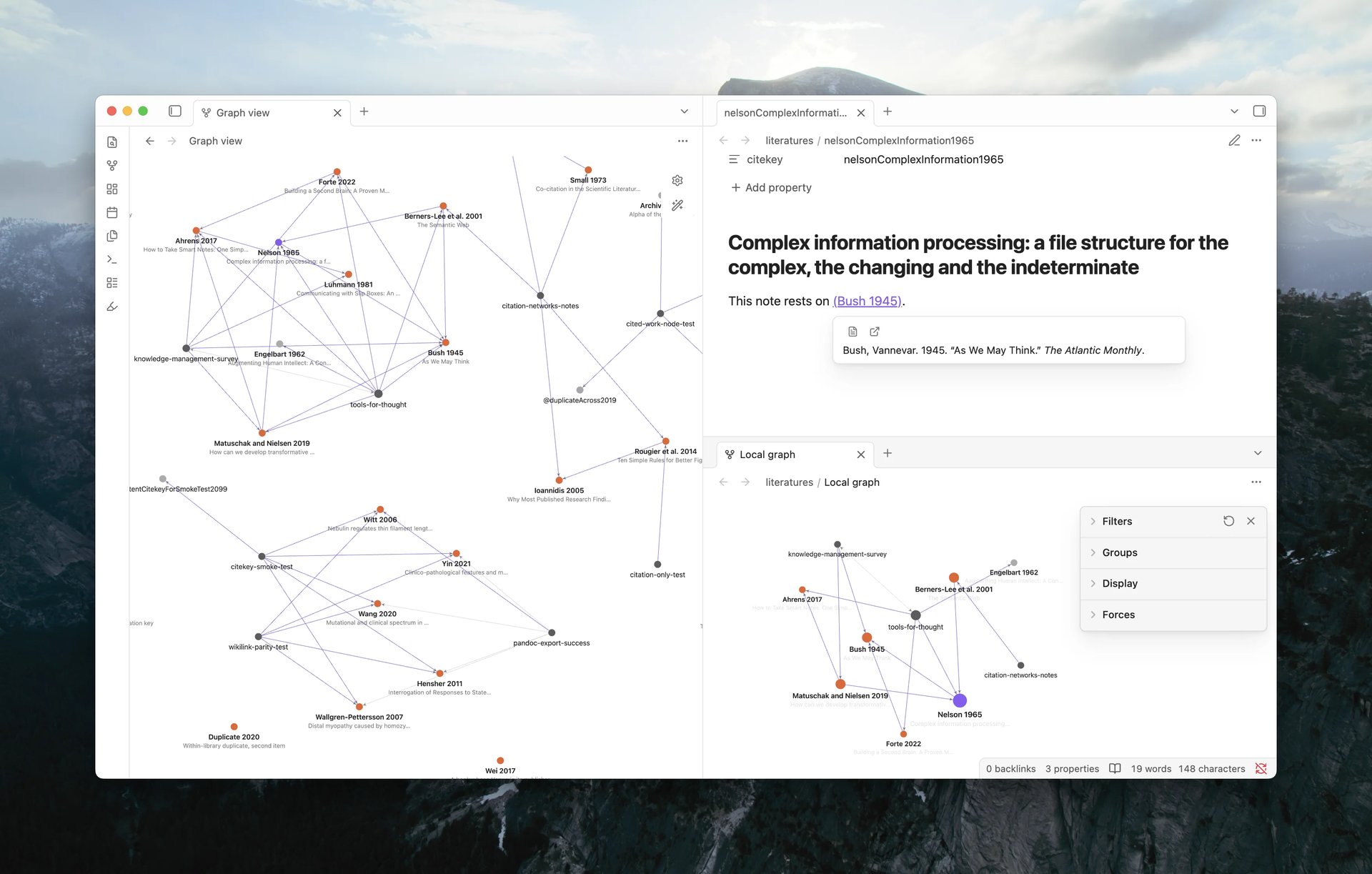
Your citations now appear in Obsidian's graph. A note gains an edge to every work it cites, so literature notes stop floating unconnected and two notes that cite the same paper meet at its node. Where no literature note exists yet, the work appears as a dimmed Cited Work Node.
This is on as soon as you update. Every ordinary graph starts drawing citation edges and Cited Work Nodes, so your graph is busier than it was. Show citations in graph view under Settings > ZotLit > Citations turns it off again.
Six rows in the graph's own controls decide what each graph draws, built into the native Filters and Display sections and saved per graph like the native rows:
- Under Filters: Pandoc citations and Wikilink citations, both on, and Citation-connected only, off.
- Under Display: Author and title labels, Color citation links, and Citation popover, all off.
Wikilink citations appears only while the vault-wide wikilink citation setting is on. Restore default settings in the graph returns all six to their defaults along with the native options.
Literature notes keep the node colors Obsidian gives them. A Cited Work Node takes a dimmed color of its own, and citation edges take theirs only while Color citation links is on. Your own color groups still win, and one press of Add literature notes group in the Groups section colors every literature note without a search query. All three colors have theme hooks; see Theme hooks.
Author and title labels writes the authors and the year above each work, with the short title dimmer underneath. Zooming in brings the titles out, and hovering shows one at any zoom. The graph's search box still matches your files, not the labels on screen.
Hover needs the per-graph Citation popover row, which starts off. With it on, hovering a literature note or a cited work follows your Hover Action setting, and Settings > ZotLit > Citations > Require modifier key adds a Graph view row so the graph alone requires a held modifier key. A work with no literature note, and a note nothing cites, now show the formatted entry in the popover instead of Obsidian's page preview.
Select a Cited Work Node to create its literature note from the profile and open it; the key that matches one item becomes the note node, with the same edges. Right-click one for Create literature note, Open in Zotero, and Copy citation key. A key that matches several items keeps its dimmed node.
ZotLit: Open citation graph and ZotLit: Open local citation graph open the graph arranged for reading as a research map: citation edges in, every node except your literature notes, cited works, and the notes that cite them hidden, arrows on, labels and the popover on, and the literature notes group added. A global graph keeps one set of options for the whole vault, so the first command saves that arrangement as your graph settings. The local command needs an open note.
If a command opens nothing, ZotLit says why: the Graph core plugin is off, the citations switch is off, or the citation graph is unavailable. Explore citations in the graph view is the full guide.
Literature note profiles
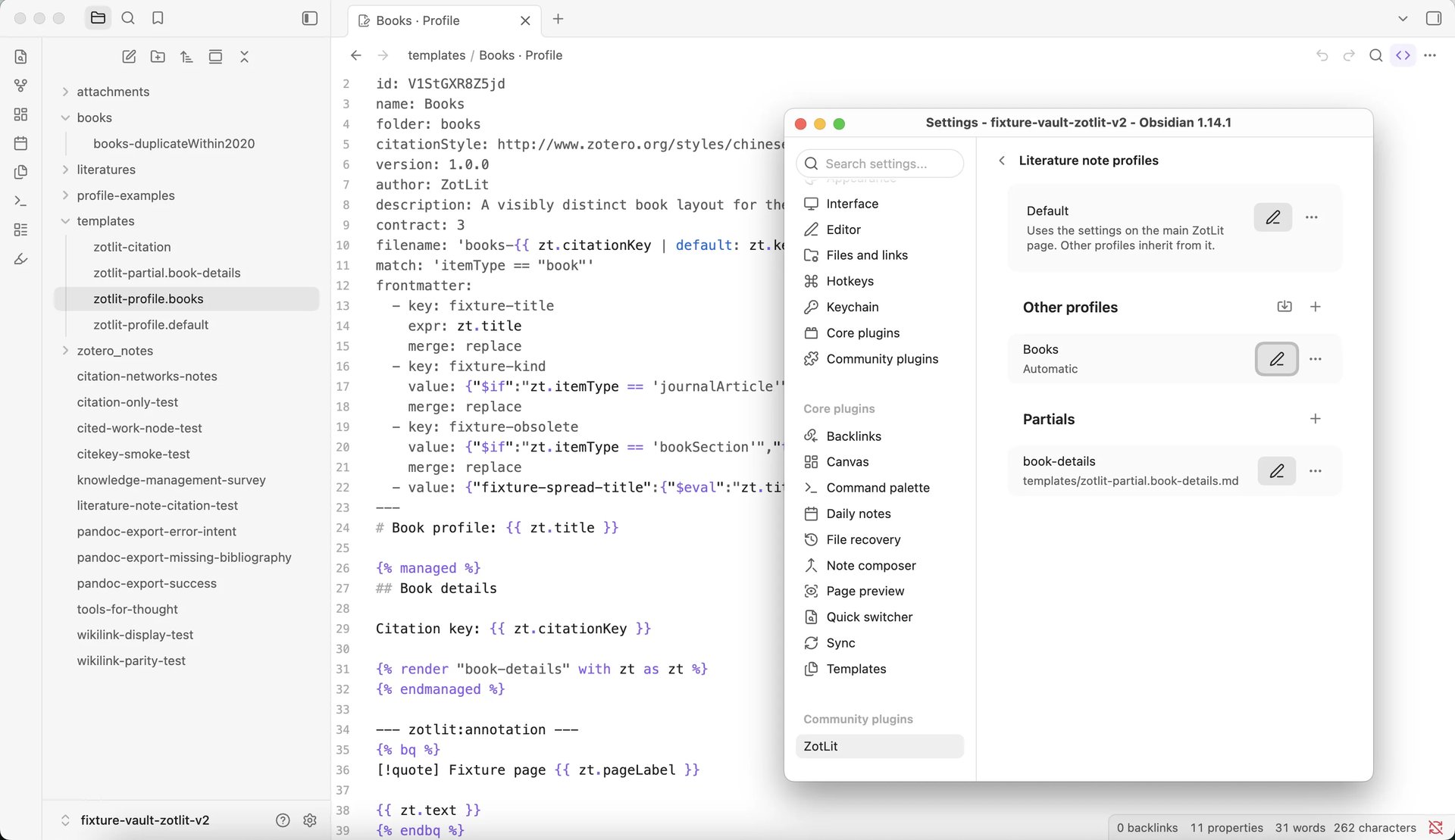
2.1 built a literature note from separate files: a note file, a managed-region file, a filename file, an annotation file, and a frontmatter field list that lived in settings. 2.2 puts the whole note into one Markdown document per profile. Each zotlit-profile.<slug>.md in your template folder holds the note name, the note folder, the properties, the note body, and the annotation format together.
Two companions complete the set. zotlit-citation.md holds the text of every inserted citation, once for the whole vault, and each zotlit-partial.<name>.md holds template text that several profiles share. Profile document gives the format of all three.
Settings > ZotLit > Literature note profiles is the new home of all of this. The Default row is your default layout; Add profile creates another profile, and Import profile… reads one in from a file or the clipboard. A profile's own row offers Edit profile and a More actions menu with Duplicate, Share…, and Delete profile. A profile's match is edited on the workbench's Match tab.
Below the profiles sits the Partials list, with Add partial and Open partial. A document ZotLit cannot read, or one whose ID collides with another profile's, is listed under Excluded documents instead of being used.
Citation text under Settings > ZotLit > Citations opens the citation document, and its Reset to default button returns it to the built-in text once you have changed it.
A profile can also select itself. A Profile Match tests an item's library, item type, tags, or collections, and every new note that fits uses that profile. A profile without a Match stays manual. See Profile Match, and Use a different template for different notes for the steps from an empty profile to a matched one.
Every note records the profile that made it, so a later update uses the same template. ZotLit: Switch literature note profile moves a note, and the imported notes that follow it, onto another profile.
Profiles explains how ZotLit picks one and how a note keeps it, How templates work covers the three kinds of document, and converting 2.1 template files the upgrade.
The Template Workbench
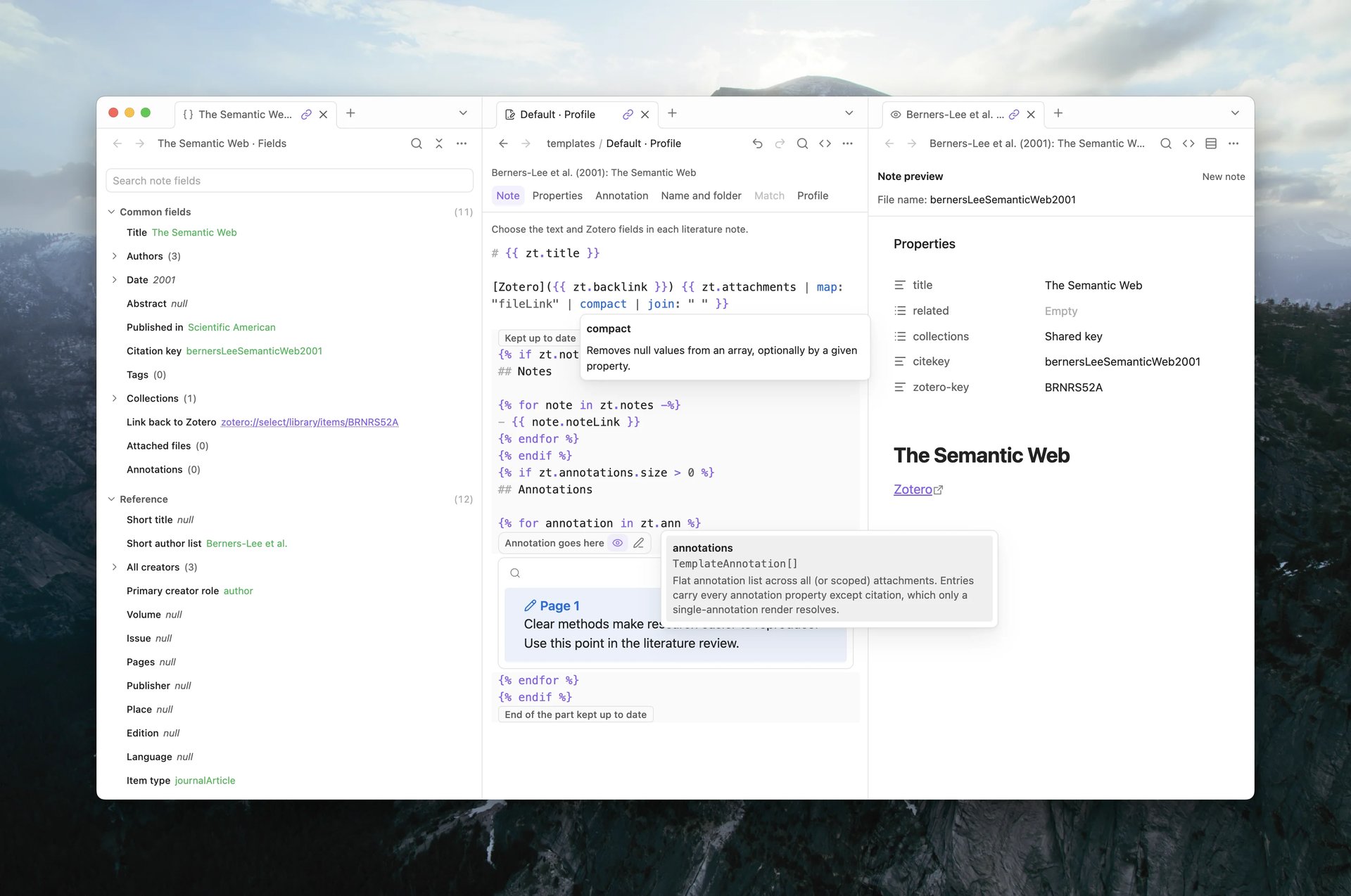
Your templates have a view of their own now, with the fields beside the editor and the resulting note on the other side. ZotLit: Switch to template workbench view opens the document in your active note, and ZotLit: Open template workbench opens all three panes together, in a window of their own when the editor would otherwise share one. From a literature note, ZotLit: Customize this note's template opens the profile that made it with that paper already selected.
The layout has three columns. The Template fields pane lists the Zotero data a template can read, the middle column edits the document, and the Note preview pane shows the note that comes out. The panes are linked through Obsidian's own linked tabs, so choosing a paper or an annotation in one follows in the others.
The preview refreshes as you type. Its pane menu switches between Preview as new note, Preview as updated note, and Preview updated section only, with Show Markdown to read the raw output. When you arrive from a literature note, the top bar names that note and offers Update this note to apply the change there at once.
Repeated text becomes a partial in one step. Select it, then choose Extract to partial…. New partial… starts one from scratch, the Partials menu lists every partial in the vault, and Open as Markdown opens the same document in Obsidian's own editor.
Template Workbench View describes every way in, Customize a template walks through the profile, the citation text, and partials, and Edit a profile as Markdown is the route for anyone who would rather type the document.
Inside the Template Workbench View
The editor is tabbed by part of the note: Note, Properties, Annotation, Name and folder, Match, and Profile. Source shows the whole document as source when you want it that way. Every edit saves as you go.
The editor knows the document's language. Liquid templates get their tags, variables, and filters highlighted, with the YAML manifest and the Markdown markers styled apart from the body. Eta templates pair tags as you type and gain the same suggestions and hover; the JavaScript templates gate governs rendering, not editing. Typing a field or a partial name offers what is available and what it holds.
When something fails, Problems sits under the editor with what went wrong, which part of the document it came from, and the actions to reach it, including Copy error report when you want to ask for help. Collect debug logs says what that report carries.
Properties covers the properties tab, and Template Workbench View the tabs, the languages, and the panes. The workbench view is part of the desktop app.
Breaking Changes
Four changes alter what you already have. Read them before you upgrade.
2.1 template files give way to documents
Nothing converts on its own. Your zotlit-note.liquid.md, zotlit-content.liquid.md, zotlit-filename.liquid.md, zotlit-annotation.liquid.md, the two citation files, and any file that served as a partial keep loading and rendering until you convert them. The Welcome view offers Convert your literature note templates once after the update, and settings repeat it with Review conversion. One press folds the note, managed-region, filename, and annotation files into zotlit-profile.default.md, the two citation files into zotlit-citation.md, and every remaining file into its own partial. ZotLit verifies byte-identical output before it writes anything, then moves the old files to Obsidian's configured trash. The pass needs one item from your Zotero library to verify against, and an annotation as well if you customized the annotation file.
Two things follow if you stay on the old files. Their settings rows are gone, so the frontmatter field list has no editor in the app, and a note cannot use a profile of your own until the conversion has run: ZotLit declines the note and asks you to convert the legacy templates first. The Profiles page shows no Add and no Import until the conversion has run, and every profile file action stays disabled; the quick-switch picker can still make a profile if you need one. Your default literature notes keep working exactly as they did.
If your two citation files use different languages, the fold is Liquid, the Eta file stays where it is, and ZotLit names the files that no longer affect citations.
Converting 2.1 template files has the steps and what each file becomes.
Export with citations stops on an unknown or ambiguous key
ZotLit: Export note with citations now reads your note the
way Pandoc does, so literal @citation-key text reaches the bibliography. A
work you cite both by wikilink and by key gets one entry, nocite works, and a
key inside code or behind an escape stays plain text.
The cost is that a key which matches no item in your library scope, or matches several, stops the whole export and names the keys. In 2.1 such a note exported with Pandoc's undefined-citation output and no reference list, which looked like success. Check the spelling in Zotero, or widen the library scope under Settings > ZotLit > Zotero. Export a note with citations covers the workflow.
The agent template commands are retired
Nine commands in ZotLit's obsidian CLI namespace now refuse every call and report the command as retired:
zotlit:template-schema, zotlit:template-render, zotlit:template-document-render, zotlit:template-source, zotlit:frontmatter-status, zotlit:frontmatter-eval, zotlit:frontmatter-set, zotlit:frontmatter-remove, zotlit:frontmatter-reorder.
An agent that wrote templates through them must move to zotlit:template-inspect, which reads a saved document and how current it is; zotlit:template-data, which lists fields with real values from an item; and zotlit:template-check, which renders every part and reports what fails. Frontmatter is edited in the profile document and checked with output=frontmatter. These are command line commands, not command palette entries. The Template Workbench CLI explains the loop, and the Template Workbench CLI reference lists every live command beside the retired one it replaces.
The settings tab is reorganized
- Maintenance is now Settings > ZotLit > Advanced.
- The Database and Library pages merged into Settings > ZotLit > Zotero.
- The Live updates page became the Local server group on Settings > ZotLit > Advanced, where Run a local server sits above Receive updates from Zotero.
- Note import is now Settings > ZotLit > Imported notes.
- The Templates page is gone. Template folder and the Template engine rows moved to Settings > ZotLit > Advanced, and Citation text to Settings > ZotLit > Citations.
- Citation and references style moved to the main page, which now holds the default profile's rows.
- Auto-pair Eta tags has no toggle any more; the editor pairs tags as you type.
Row names are unchanged, so Obsidian's own settings search still finds a setting by the name you know. Where settings moved has the full table.
What's New
Imported notes
Settings > ZotLit > Imported notes > Highlight mappingsmaps each Zotero highlight color on its own, to an emoji or to an HTML mark, or to a Custom emoji you choose. See Import Zotero notes.
The emoji stay compatible with Obsidian 1.14's color highlights. With a custom mapping you can use more colors than native Obsidian offers, including Colorful Highlights.
Template data explorer
The explorer is rebuilt on the workbench's own field browser. Fields are grouped into sections you can Expand all sections or Collapse all sections, each row inserts itself with Insert field or copies it with Copy value, Copy path, Copy output, Copy if present, Copy loop, and Copy joined. The pane's menu saves the data as JSON: Export selected paper data at a note root, Save template data as JSON elsewhere. Choose item and Choose annotation switch which item or annotation the pane reads. See Explore template data.
Citations, references, and the suggester
- Hovering citations in a note retargets one popover instead of opening a card per citation, and the card follows the pointer from one citation to the next.
- Search results in the citation suggester read as one line: the venue in italics, and the volume and pages in their own form such as
3(2). A result from a group library is marked as such. - When an imported note's profile or its citation style is unavailable, the References Sidebar says so and offers Switch profile… instead of dropping to a plain list.
- The suggester's footer now reads to insert alternate citation for the alternate form.
- A citation with a locator writes Pandoc's braced form,
[@key, {p. 62}], in the raw source. The formatted text is unchanged.
See Insert citations and Review, copy, and troubleshoot references.
LaTeX citations in a template
tex_cite in Liquid, and texCite in Eta, write zt.citations as one LaTeX citation command, so a citation template reaches \cite{doe2024} or \autocite{doe2024} without a key loop of your own. The first item's prefix becomes the prenote, and its locator and suffix the postnote. See tex_cite and texCite.
One filter covers both formats Zotero Integration gave a command of its own, latex and biblatex. Migrate from Zotero Integration maps that plugin's Nunjucks templates, its persist blocks, and its citation formats onto profiles.
Batch update and import
The confirmation for a vault-wide run now groups its rows by profile and says which items match no profile or several, which profiles are unavailable, and what happens to the notes you keep as they are. The import dialog names the notes that will arrive without a parent literature note before you confirm. See Keep notes up to date for a batch run, and Create and open literature notes for the profile a bulk run gives new notes.
Other improvements
- Links and menu commands from Zotero now name the profile they mean, so a note opens with the template you chose rather than the default. A profile ZotLit cannot find opens a prompt to pick one. See Protocol links.
- The Welcome view's settings link opens Settings > ZotLit > Zotero, and its folder picker explains how to navigate and choose.
Empty imported notes, quick switcher details, Zotero menu commands on Zotero 10.0.2
Companion 2.1.4 released alongside.
Bug Fixes
- Fixed imported notes arriving with nothing but frontmatter (discussion #944). A Zotero child note created by another Zotero plugin or by automation, rather than typed in Zotero's own note editor, lost its entire body on import, with no warning. ZotLit only converted notes that carried Zotero's note-editor formatting marker. These notes now import with their content intact. Headings, paragraphs, bold text, and lists all become Markdown. Notes written in Zotero's note editor import exactly as before.
- Fixed the "Open literature note quick switcher" command showing only a title for most item types (discussion #939). The second line under each result, with authors, year, and where the work appeared, filled in for Journal Article items only. A Preprint, Book Section, Thesis, Report, Conference Paper, or Webpage showed a bare title, which made results hard to tell apart even though Zotero held the authors and ZotLit passed them to templates. Every item type now shows that second line, and the "where it appeared" part follows the item type, so a Preprint shows its repository such as arXiv and a Book shows its publisher. Custom item types and custom fields resolve too, and an item with no such field shows authors and year.
- Fixed the note commands in Zotero's item menu doing nothing on Zotero 10.0.2 (discussion #1064). Right-clicking an item and choosing "Open Literature Note in Obsidian" or "Create or Update Literature Notes" gave no feedback of any kind. Obsidian stayed closed and no error dialog appeared, because Zotero 10.0.2 tightened how add-ons may hand links to the operating system. Annotation sync and starting from the Obsidian side kept working throughout. Both commands open Obsidian again once you update the ZotLit companion add-on in Zotero to 2.1.4. The Obsidian plugin update alone does not fix this.
Reading view stability, reliable annotation drag-and-drop
Bug Fixes
- Fixed Reading view flickering, jumping to the top, and resetting embedded content whenever any file in the vault changed (discussion #993). Toggling a checkbox in an Obsidian Base embedded in a note, or editing any other note, caused ZotLit to rerender every open Reading view. ZotLit now updates only the citations that actually changed. Scroll position, selected Base view, and embedded state all remain where you left them. Hover states and popovers on citations also stay open through Zotero database refreshes.
- Fixed dragging annotations from the Annotation Panel sometimes inserting only the raw highlight text instead of the rendered template output (discussion #966). The more plugins were loaded, the more often this happened. The drag handle now stays ready between preparations. When it is briefly unavailable (during a note switch or right after a drop), the annotation card dims its handle and cancels the drag with a notice instead of silently falling back to plain text.
Fixed false 'no matching item' errors and citation flickering
Bug Fixes
- Fixed false "no matching item" errors that appeared after restarting Obsidian or after a period of inactivity. Citations that the item picker could still find would show a notice saying the citation key "matches no item in your Zotero library," and the error persisted until the next restart. ZotLit's citation-key lookup could fall out of sync on startup, and once broken it never recovered on its own. The lookup now stays consistent through startup and rebuilds itself after a failed read, so existing citations resolve correctly without a restart.
- Fixed citations flickering to raw
@citekeytext while typing. Each time Obsidian saved, the rendered citation text briefly disappeared before the fresh render arrived. The previous citation text now stays on screen while ZotLit re-renders, so citations remain stable during typing. - Fixed citations and the References Sidebar flashing back to placeholder text when Zotero's database refreshed (for example, after editing an item in Zotero). ZotLit now keeps the previous content visible until the fresh data arrives, so a refresh that changes nothing produces no visible interruption.
Fixed Pandoc rendering breaking after Live Updates ran
Bug Fixes
- Fixed Pandoc rendering breaking after Live Updates ran once. Restarting Obsidian with Live Updates off was the only way to recover. Pandoc rendering now keeps working after Live Updates has run, with no restart needed.
Citation workflow, References Sidebar, Zotero 10 support
Companion 2.1.0 released alongside.
This is the first stable release of the v2.1 citation workflow: the References Sidebar, in-text citation rendering, the Citation Popover, and the Cited By Sidebar, alongside Zotero 10 support and multi-library scope. The changes below cover what landed since beta.3; for the full tour, read the release post.
What's New since beta.3
Pandoc engine performance
The built-in Pandoc engine now loads about three times faster: a 291 ms median load drops to 97 ms, and the JavaScript memory spike that came with each load is gone. If a cached engine binary is corrupted, ZotLit now detects it, clears it, and shows the install offer again.
Colored note-import highlights
Use colored highlight syntax, a new opt-in setting under Settings › Note import, converts highlights from Zotero note imports into emoji-based colored highlight syntax. It covers six highlight colors. A highlight with an unsupported color, or text that would break the syntax, stays as HTML instead. Annotation backlinks are preserved either way.
Bug Fixes since beta.3
- Fixed recurring notices about database read-mode fallbacks. ZotLit now routes you to Companion installation or stale-data troubleshooting instead of repeating the notice.
- Fixed Pandoc export connecting to the wrong Zotero HTTP port when more than one Zotero instance is running. The port now resolves from the active profile.
Zotero 10 support, library scope, ambiguous citation keys
Companion 2.1.0-beta.0 released alongside.
Highlights
Zotero 10 support
ZotLit now supports Zotero 10 as well as Zotero 9.
Zotero 10 changed how it stores recent edits, so changes made while Zotero was open could stay invisible to ZotLit. The Companion now keeps the database current for ZotLit automatically. When you switch from Zotero to Obsidian, your changes are already there, whether or not live updates are enabled. A new Database Status panel on the Zotero sidebar confirms that recent changes have reached the database and lets you trigger a manual update if something went wrong. See Fix Zotero changes that do not appear for details.
Library scope
ZotLit now works across several Zotero libraries at once. Library scope in Settings › ZotLit, decides which libraries item search, citation key resolution, and the library-wide commands cover. It replaces the old Default library setting.
Two modes:
- All libraries follows your Zotero database, so a group library you join later is in scope at once.
- Selected libraries stays exactly as you set it, and a group library you join later stays out until you add it.
One search now spans every library in scope, in a single relevance order. While more than one library can contribute, each result names the library its item comes from.
ZotLit: Create or update all literature notes and ZotLit: Import all child and standalone notes cover the whole scope too, and their confirmation groups rows by library. Menu entries and links from Zotero still target the exact library they came from, whether or not it is in your scope.
A group you leave keeps its place in Selected libraries, marked unavailable, so a temporary absence does not erase your choice. A library-wide run continues over the libraries that are available and states how many it skipped. See Settings › Library scope.
A scope ZotLit cannot read stays on disk as it is. ZotLit searches My Library alone, marks the setting with a warning, and clears it as soon as you set the scope again.
What the upgrade sets: upgrading selects Selected libraries with My Library alone, whatever library you had selected before, so your search scope stays as narrow as it was. Switch to All libraries, or add your group libraries, to search wider. A fresh installation starts at All libraries.
Citation keys that match several items
One citation key can sit on two Zotero items. That happens with twins in a single library, and with the same key in two libraries you now have in scope. ZotLit used to take the first match it found. It now reports the ambiguity instead of choosing for you:
- Opening such a citation asks which item you mean, listing every candidate with its library and item key. The item you pick opens by its own identity.
- Inserting one is refused, with a notice asking you to change the key in Zotero. Inserted text carries the key alone, which would no longer name the item you picked.
- The References Sidebar reports a Reference Error listing the candidates, with its Open literature note action disabled. The citation popover names them too, and hover page preview shows nothing.
- Themes can style the state through the new
zt-citation-key-ambiguousclass. See Theme hooks.
To resolve one, give one of the items a different citation key in Zotero, or narrow your library scope to the library you meant.
What's New
Citation style and language per note
A note can now render its citations under its own style and language instead of the vault-wide selection. ZotLit: Set citation presentation, also in the note's More options menu, opens a dialog on what the note reads today and writes both choices in one pass.
The choices live in the note's own properties: zotlit-csl names a style installed in Zotero, and standard Pandoc lang names the document language. Removing a property returns that note to the vault selection.
In-text citations, the References Sidebar, the Citation Popover, the copied bibliography, and the built-in export all follow the note's own presentation.
Citation locale
A new Citation locale setting under Settings › ZotLit › Citations sets the language for citation terms, dates, names, and sorting across the vault. It takes a language tag such as en-US, de, or zh-CN.
Leaving it empty keeps the language the selected style declares. See Settings › Citations.
Bug Fixes
- Fixed slow or broken database refreshes when the Zotero data directory sits on a different drive than the system temp folder, such as an external drive on macOS.
- Fixed dragging an annotation from the annotation view inserting the raw highlight text, or the annotation key for a sticky note, instead of the rendered annotation template. The insert only recovered after pressing Link to Zotero item again.
Citation Popover, copy bibliography, note-class Entry Serials
Highlights
Citation Popover
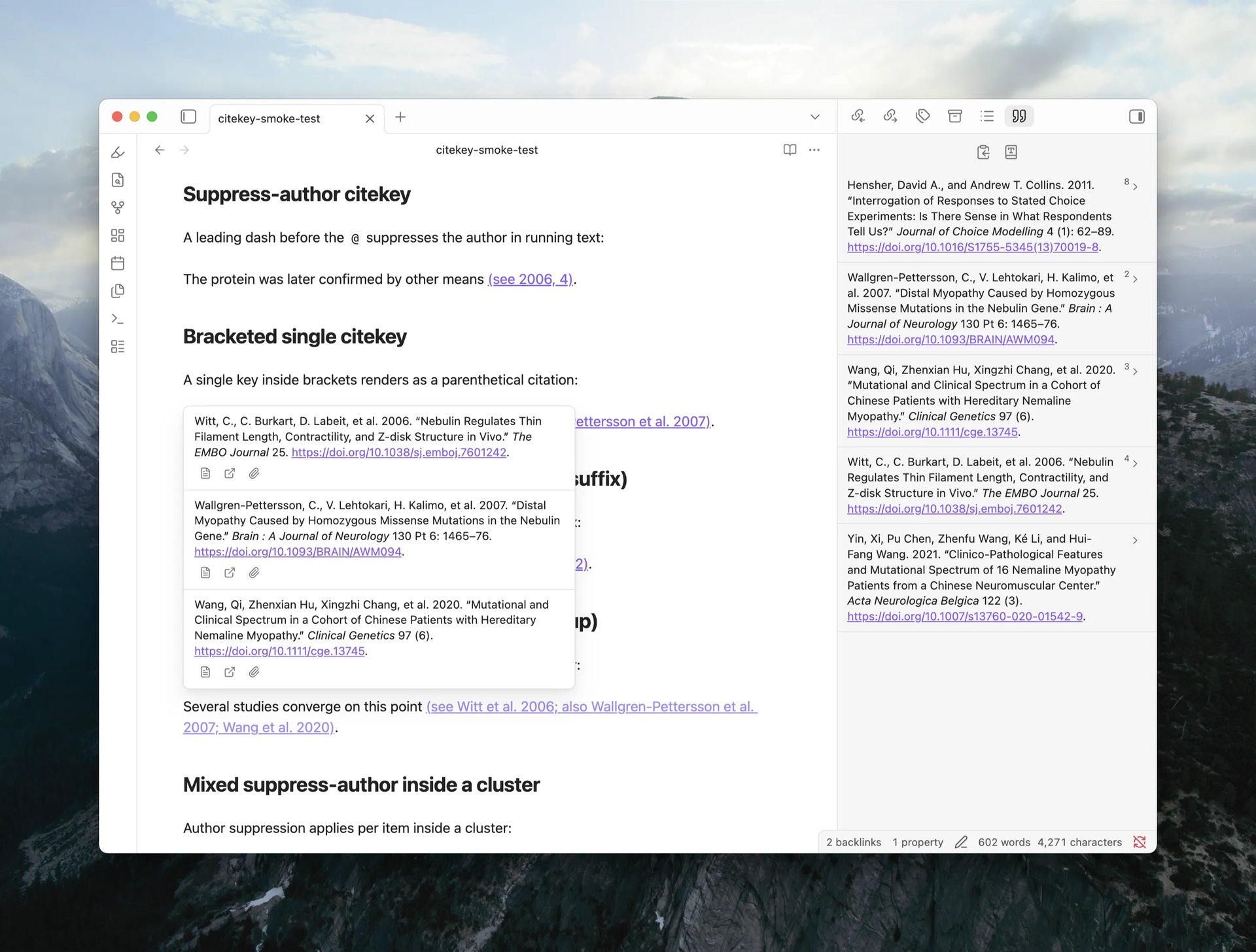
Hovering a citation now shows a popover with each cited item's full formatted bibliography entry, stacked in citation order for multi-item citations. Each entry carries action buttons to open the Literature Note, open the item in Zotero, or open its attachment. The popover works on literal Pandoc citations in Live Preview, Reading view, and Source mode, and on Literature Note wikilinks when wikilink citations are enabled.
A new Hover action setting under Settings › ZotLit › Citations › Hover controls what citation hover shows:
- Citation Popover (default): the popover described above.
- Page preview: the previous behavior, showing the Literature Note page preview under Obsidian's own Page Preview settings.
- Off: no ZotLit hover at all; native wikilink hover stays untouched.
Each mode has its own Require modifier key toggles per editing mode (Source mode requires Mod by default; Live Preview and Reading view do not). The toggles live on a sub-page under the Hover action setting.
Citation data commands for agents
Three new CLI commands, zotlit:cited-by, zotlit:references, and zotlit:citations-guide, let an AI agent query which notes cite a given item and what a document cites. Install the zotlit-citations skill for your agent to use this workflow.
What's New
Copy bibliography
The References Sidebar toolbar now offers a Copy bibliography action. One click copies the full reference list as both rich text and plain text. Emphasis, superscript, small caps, and DOI links survive a paste into Word or Google Docs. A destination that takes only plain text falls back to the text version, and the notice tells you which format was copied.
Note-class citation styles
Styles that use footnotes (such as Chicago full-note) now show numbered Entry Serials beside each citation inline and in the References Sidebar gutter, so you can see at a glance which reference number a citation carries.
Open citations as links
The Open Pandoc citations as links setting is now Open citations as links and covers both Pandoc citations and Literature Note wikilinks. It is off by default. While off, clicking a rendered citation in Live Preview places the cursor in its Markdown source (the widget collapses like clicked bold text). Mod+click still opens the Literature Note regardless of this setting.
Other improvements
- The References Sidebar toolbar now includes a Change citation and references style shortcut that opens the style picker in settings.
- Two-creator summaries (e.g. "Wang and Lee") now follow your locale's list formatting conventions.
Bug Fixes
- Fixed the Zotero database refreshing every few seconds even when nothing changed. A filesystem echo from the database clone triggered a self-feeding loop on APFS volumes.
- Fixed Mod+Enter in the note quick switcher not opening the note in a new pane. The keyboard shortcut was advertised but never registered. The modifier label now also shows the correct key per platform.
- Fixed Shift+Enter in the citation insert modal not inserting the secondary citation form. The keyboard shortcut was advertised but never registered.
- Fixed citations inside inline footnotes (
^[...]) rendering at body text size instead of matching the footnote's superscript size. - Fixed
^[...]being read as a citation cluster instead of an inline footnote. The bracket after a caret now starts an inline note as Pandoc expects. - Fixed the References Sidebar engine banners overlapping with the reference list when the list was long enough to scroll.
- Fixed two items with the same filename colliding in the citation rendering. Each item now keeps its own bibliography entry and reference number, even when both are cited in the same document.
Cited By Sidebar, filename author fields
Highlights
Cited By Sidebar
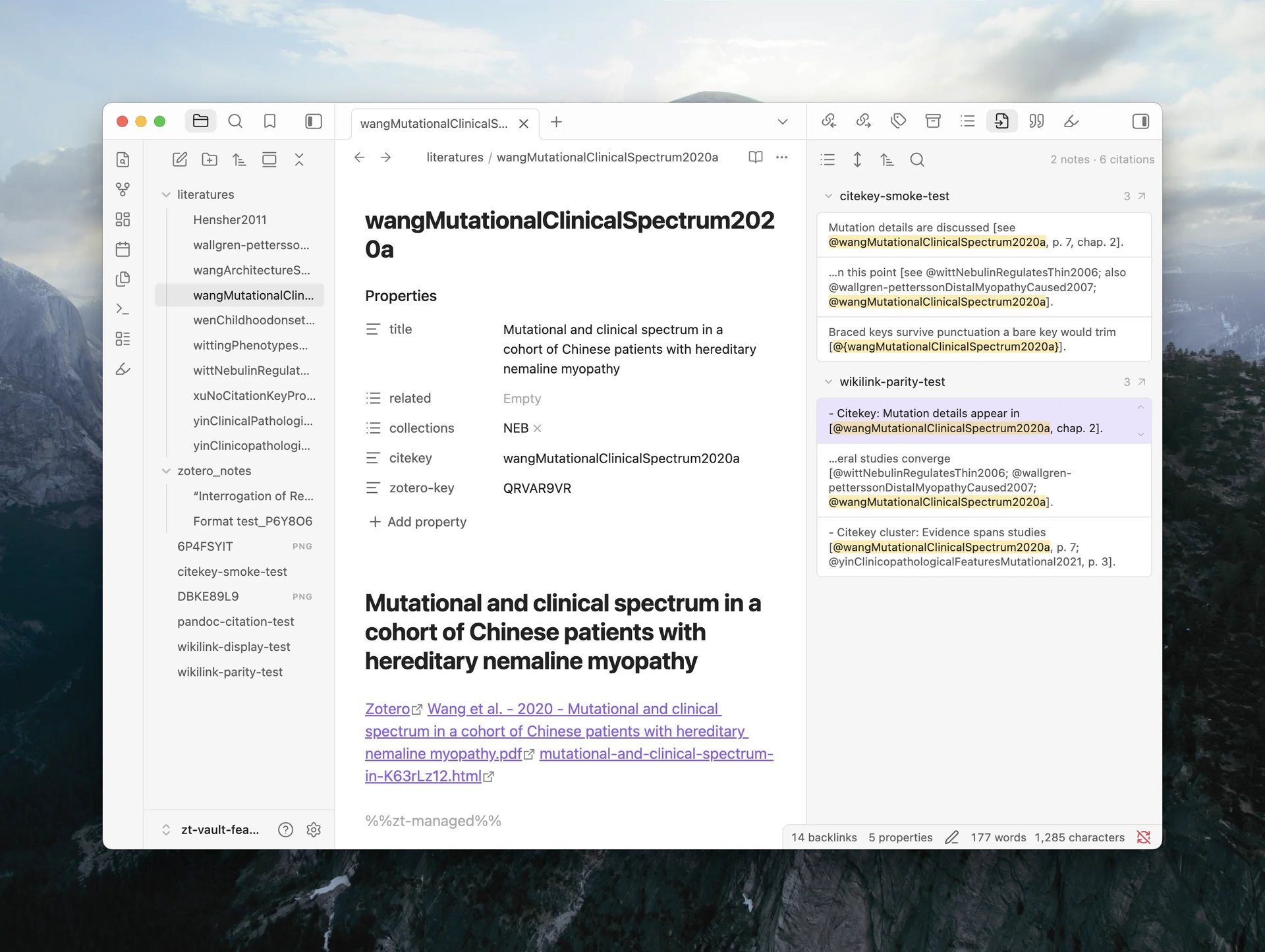
A new sidebar view shows which notes in the vault cite the active Literature Note. Open it from the command palette via 'Open cited by'. Results are grouped by source file, each with an occurrence count, and every occurrence displays an excerpt from the citing note styled as a search-result card. Click any occurrence to jump to its location in the editor.
The toolbar offers four controls, consistent with the Backlinks panel:
- Show search filter opens a text field that narrows results by file path or excerpt content.
- Show more context switches between a compact 100-character excerpt and the full enclosing block (a list item or a section).
- Change sort order offers six modes: file name (A → Z, Z → A), modified time (new → old, old → new), and created time (new → old, old → new).
- Collapse results folds or unfolds all source groups at once.
What's New
- Filename templates can now include authors and authorsShort helper variables, consistent with the note template data.
References Sidebar, in-text citation rendering, cited document export
Highlights
References Sidebar
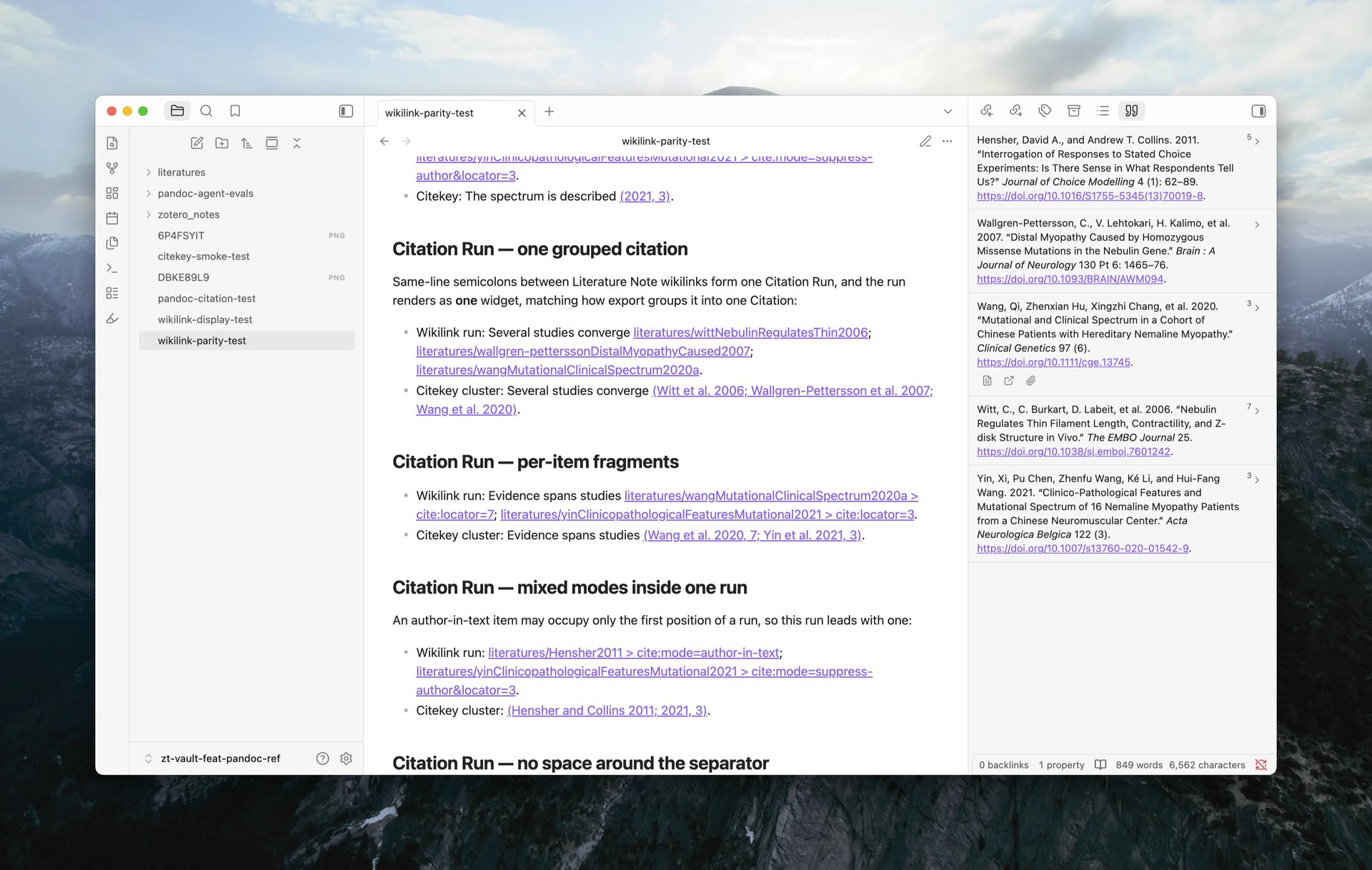
A new sidebar view lists the citations in the active note as a formatted bibliography. Each entry shows the reference number and formatted text in the selected CSL style, with actions to open the Literature Note, open the item in Zotero, or open the attached PDF. Clicking the entry text walks through the citation's occurrences in the editor.
In-text citation rendering
Literal citation clusters (e.g. [see @wang2020, p. 3; @lee2019]) now display as formatted text in both Live Preview and Reading view.
Literature Note wikilinks can also render as citations, sharing the same formatted display and numbering as literal citations. Turn this on with Wikilink citations in Settings > ZotLit > Citations — it is off by default.
The citation rendering also supports formatting in a CSL style you pick from Zotero's installed styles using Pandoc (setup in Settings > ZotLit > Citations).
Export a note with citations
A new command, ZotLit: Export note with citations, converts the active Markdown note to DOCX or HTML with a formatted bibliography. Choose the output format, CSL style, and destination in the export dialog. Citations resolve from the note's own links; no external Pandoc installation is required. See How to export a note with citations.
This feature is not finalized yet, but the command is available to test.
What's New
Citation key navigation and styling
Recognized citation keys in the editor are styled as links. An unresolved citation key (one that names no item in Zotero) is visually distinct from a resolved one. Click a citation key to open its Literature Note, or hover to see a page preview.
Rendered citations in Reading view are also navigable: a single-key citation opens the Literature Note on click, and a multi-key citation opens a menu listing each cited work. See How in-text citation rendering and navigation work.
Turn this off with Open Pandoc citations as links in Settings > ZotLit > Citations.
Citation key resolution from Zotero
Citation keys now resolve against Zotero's native citation keys instead of a frontmatter property. The Citation Key Property setting is retired and migrated automatically.
CSL style selection
The References Sidebar and in-text citation rendering use a CSL style you select from the styles Zotero has installed. The style picker appears in Settings > ZotLit > Citations. Leaving it unset or selecting a removed style falls back to a default.
Native Pandoc CLI workflow
Convert a note with a standalone Pandoc installation, outside Obsidian, with Literature Note wikilinks converting to citations. A Save integration files action in the Citations settings page writes a Lua filter (zotlit-cite.lua) and a Pandoc defaults file (zotlit.yaml) matched to the installed plugin version; the Lua filter resolves each wikilink to its citation key through a new zotlit:resolve command, reachable from a CLI tool that supports Obsidian's command line interface (such as obsidian-cli).
Two more commands support this workflow: zotlit:pandoc-files returns the integration pair as JSON, and zotlit:pandoc-guide prints the setup and troubleshooting guide. A new zotlit-pandoc skill walks an AI agent through the same workflow: setup, refresh, running a native export, and diagnosing a failed run.
Theme support
- CSS classes are available on citation elements across editor and Reading view surfaces, documented in the theme hooks reference. Theme authors can style resolved, unresolved, pending, and rendered citation states.
Maintenance release, Obsidian guideline compliance
This is a maintenance release. It brings the plugin's code in line with Obsidian's official developer guidelines and carries no changes to plugin behavior, settings, or commands.
For full v2 release details, see the v2 release blog.
Batch operations on collections, Citation Key Links toggle, AGPL license
Companion 2.0.0 released alongside.
This is the first public stable release of ZotLit v2. If you participated in the beta, thank you! Your feedback shaped every part of this release.
The changes below cover what landed since beta.4; for the full v2 feature set, see the release announcement.
Before you update
ZotLit needs Obsidian 1.13.4 or newer, and your installer version must also be 1.13.4 or newer. Obsidian's in-app update does not replace the installer. Check yours in Settings > About. If the installer is older, ZotLit does not load: Obsidian shows Failed to load plugin "zotlit", and the developer console shows a SyntaxError.
To fix this, download Obsidian from the download page and run the installer over your current installation. Nothing is deleted, and no notes are lost. See how to update the Obsidian installer and the beta.4 requirement note.
License
ZotLit is now licensed under AGPL-3.0-or-later (previously MIT). The change covers code ported from Zotero, which is itself AGPL-licensed. This does not affect how you use the plugin.
Breaking Changes
Citation Key Links is now opt-in
Citation Key Links lets you click a [@citekey] reference in the editor to jump to its literature note. This feature is now an optional setting, disabled by default. If you used it during the beta or migrated from v1, it will remain enabled.
The feature resolves each citation key against Zotero's own native citation key, scoped to the citation library you have configured. If the matching item does not have a literature note yet, clicking the link creates the note and opens it.
What's New
Batch operations on libraries and collections
You can now create or update literature notes and import Zotero notes across an entire library or a single collection (including subcollections), instead of selecting items one at a time. Right-click a library or collection in Zotero's sidebar to find Create or Update Literature Notes and Import Child and Standalone Notes in the ZotLit submenu. The same actions are available as Obsidian commands and protocol links (update-all, import-all-notes).
Other improvements
- Settings actions in notices and the Welcome View now open directly to the relevant settings sub-page instead of dropping you at the tab root.
- The "Receive updates from Zotero" toggle now shows a hint linking to the install guide for ZotLit Companion, the Zotero add-on, when the Companion is not yet set up.
Template Workbench, managed frontmatter, safer attachment imports
Companion 2.0.0-beta.3 released alongside.
Breaking Changes
Obsidian version requirement
ZotLit now requires Obsidian 1.13.4 or newer. This release also requires the newer Electron version bundled with the Obsidian installer. Updating Obsidian from inside the app is not enough: download and run the latest installer over your existing installation, then reopen Obsidian before you install or update ZotLit. See How to update the Obsidian installer and the Obsidian 1.13.4 release notes.
Citation template item.extra
item.extra in citation templates now uses the same parsed ItemExtra shape as note templates. If a template reads the raw text, use item.extra.raw. See the template data reference.
What's New
Template Workbench
The Template Workbench CLI adds Obsidian CLI commands for agents. An agent can inspect template state, render a template against Zotero data without changing your vault, and manage configured frontmatter fields.
Install the zotlit-template skill for your agent to use this workflow.
Managed frontmatter
You can drag frontmatter fields into a new order. ZotLit uses that order when it creates a new literature note. Existing notes keep their current property order.
New template filters
The Liquid syntax now includes arr_prefix, arr_suffix, and arr_replace for changing every value in an array. The obsidian_tag filter converts text or Zotero tags into valid Obsidian tags. See the template syntax reference.
Copy Zotero keys
Zotero context menus can copy the keys of selected items, attachments, notes, and annotations. Reader annotation menus also provide a copy action. In Obsidian, use ZotLit: Copy item key from a literature note's command or file menu.
Bug Fixes
- Fixed inconsistent item summaries between the Annotation View, Template Data Explorer, and Citation Suggester. These views now use the same title, creator, and date formatting.
- Attachments now copy from approved folders. Only Zotero storage, the annotation cache, and linked-attachment folders are approved by default. Add other folders under Settings > ZotLit > Attachments > Approved folders.
- Language packs now match the installed ZotLit version.
Chinese language support, attachment backlinks
What's New
Initial Chinese (Simplified) language support
The plugin now ships with Chinese (Simplified) as a downloadable language pack. Open the Language Pack section in settings to install it.
backlink field on attachments
Each attachment in zt.attachments and zt.parentAttachment now exposes a backlink field. It contains a zotero://open/... deep link that opens the attachment in Zotero's reader. This complements the existing backlink on the main item. See Template data reference.
Other improvements
- Confirmation dialogs now display correctly on Obsidian versions older than 1.13.0, where the built-in confirmation API is not available.
At Trigger for citations, rich annotation cards, citation normalization
Companion 2.0.0-beta.2 released alongside.
Breaking Changes
Citation output normalization
Rendered citation text inserted into notes is now trimmed and collapsed to a single inline line. The editor places a trailing space after the insert so the cursor lands ready to keep typing. Templates that intentionally produce multi-line citation output will see it flattened to one line when inserted.
Shift+Enter now selects the secondary citation format in the inline Citation Suggester, matching the behavior of the command-palette modal.
What's New
At Trigger for citations
An opt-in setting lets you type a bare @ to open the Citation Suggester instead of the default [@ trigger. Since the at-query has no closing bracket, use underscores in place of spaces (e.g. @cognitive_load). Enable it in the plugin settings under the citation section. See Insert citations for the full workflow.
Rich annotation cards
Annotation cards in the annotation view now render excerpts with inline formatting (bold, italic, subscript, superscript) and render Markdown comments through the same pipeline as the literature note. What you see in the card matches what the note template produces. Links in comments resolve against the literature note and open through the workspace.
Other improvements
- Context-menu labels in ZotLit Companion, the Zotero add-on, now say "Literature Note" instead of bare "note", and adopt Title Case to match Zotero's own menus.
Bug Fixes
-
zt.parentItem.authorsShortandzt.parentItem.authorsrendered empty in annotation templates, even thoughzt.parentItem.titleworked. These fields now resolve correctly.zt.parentItem.backlinkandzt.parentItem.weblinkare also filled in. -
Updating only metadata on an item that had no literature note incorrectly created a full note from the template. Metadata-scoped updates now skip items without an existing note, as documented.
Per-device Zotero paths, web library links, reader window fix
Companion 2.0.0-beta.1 released alongside.
Breaking Changes
Per-device Zotero paths
The Zotero profile and data directory paths are now per device. If you sync your vault across machines, one computer's Zotero path no longer overwrites another's. An unset path means auto-detect; a path you set on one machine stays on that machine.
If the plugin cannot find your Zotero database on a new device, the Welcome View shows a notice pointing you to the locate action. See Use ZotLit on multiple devices.
If you previously set a custom Zotero profile or data directory path, you need to re-enter it once on each device after updating. The old synced values are not migrated.
What's New
zt.weblink template field
A new template variable zt.weblink gives you the browsable Zotero web library URL for an item (e.g. https://www.zotero.org/yourname/items/ABC123), alongside the existing zt.backlink desktop deep link. It is available on the main item and on each entry in zt.relatedItems. Not available for accounts that have never synced. See Template data reference.
Bug Fixes
-
Fixed the annotation view not following a Zotero reader opened in its own window (not a tab). Only tabbed readers were tracked before; standalone reader windows are now picked up on focus.
-
Fixed batch imports and index builds slowing down when Obsidian's window was in the background or occluded.
Welcome view, annotation search, note-status column
Companion 2.0.0-beta.0 released alongside.
What's New
Welcome view
A first-run landing surface appears on fresh installs and upgrades. It shows a live setup timeline with Zotero connection status, a note-folder picker, first-note search, and quick links to docs and community.
A resources strip on the setting tab (release notes, docs, help) is available on both Obsidian 1.13 and older versions.
Annotation view: search and filter
A search row in the annotation view matches text, comment, tag, and page number. A filter bar with color swatches, a first-tag chip, and an inline tag drawer lets you narrow annotations without switching to Zotero. Cards default to collapsed for scanning, and the view reserves status-bar clearance so the list tail is never covered.
See Use the annotation view for the full workflow.
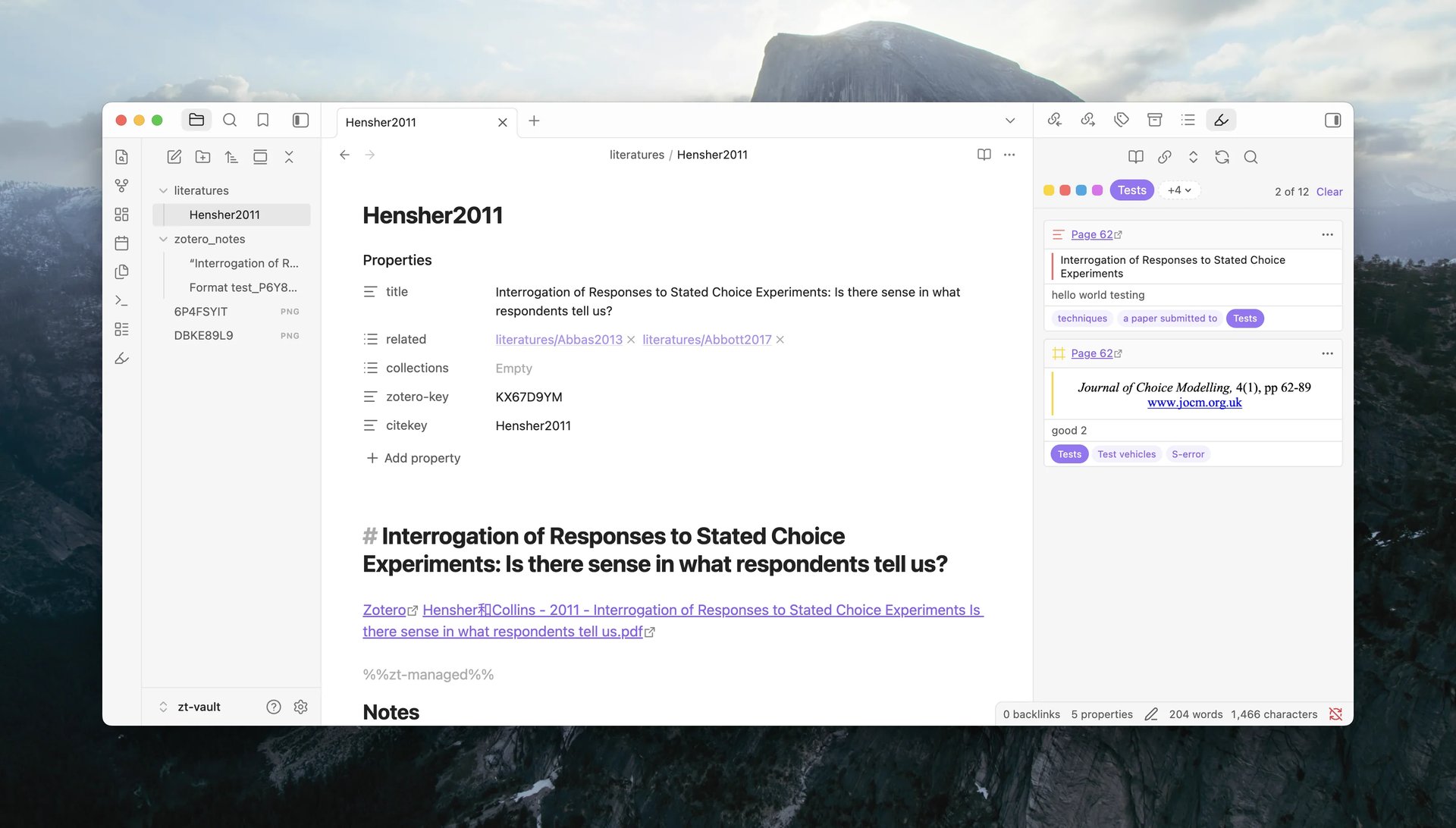
Note-status column in Zotero
ZotLit Companion, the Zotero add-on, now shows an extra column indicating which items have a corresponding literature note in Obsidian. This gives you an at-a-glance view of your note coverage from within Zotero.
v2 documentation site
The documentation site launched alongside this release, covering the full feature set: a tutorial, how-to guides, concept explanations, and a reference section for settings, commands, protocol links, and template syntax.
New guides: Suppress Zotero's security prompt, Collect debug logs, and a rewritten Migrate from v1.
Bug Fixes
- Fixed a crash on the Obsidian 1.13.3 installer at startup. Earlier installers and later versions were not affected.