v2.1.0-beta.0
August 10, 2026
References Sidebar, in-text citation rendering, cited document export
Highlights
References Sidebar
A new sidebar view lists the citations in the active note as a formatted bibliography. Each entry shows the reference number and formatted text in the selected CSL style, with actions to open the Literature Note, open the item in Zotero, or open the attached PDF. Clicking the entry text walks through the citation's occurrences in the editor.
In-text citation rendering
Literal citation clusters (e.g. [see @wang2020, p. 3; @lee2019]) now display as formatted text in both Live Preview and Reading view.
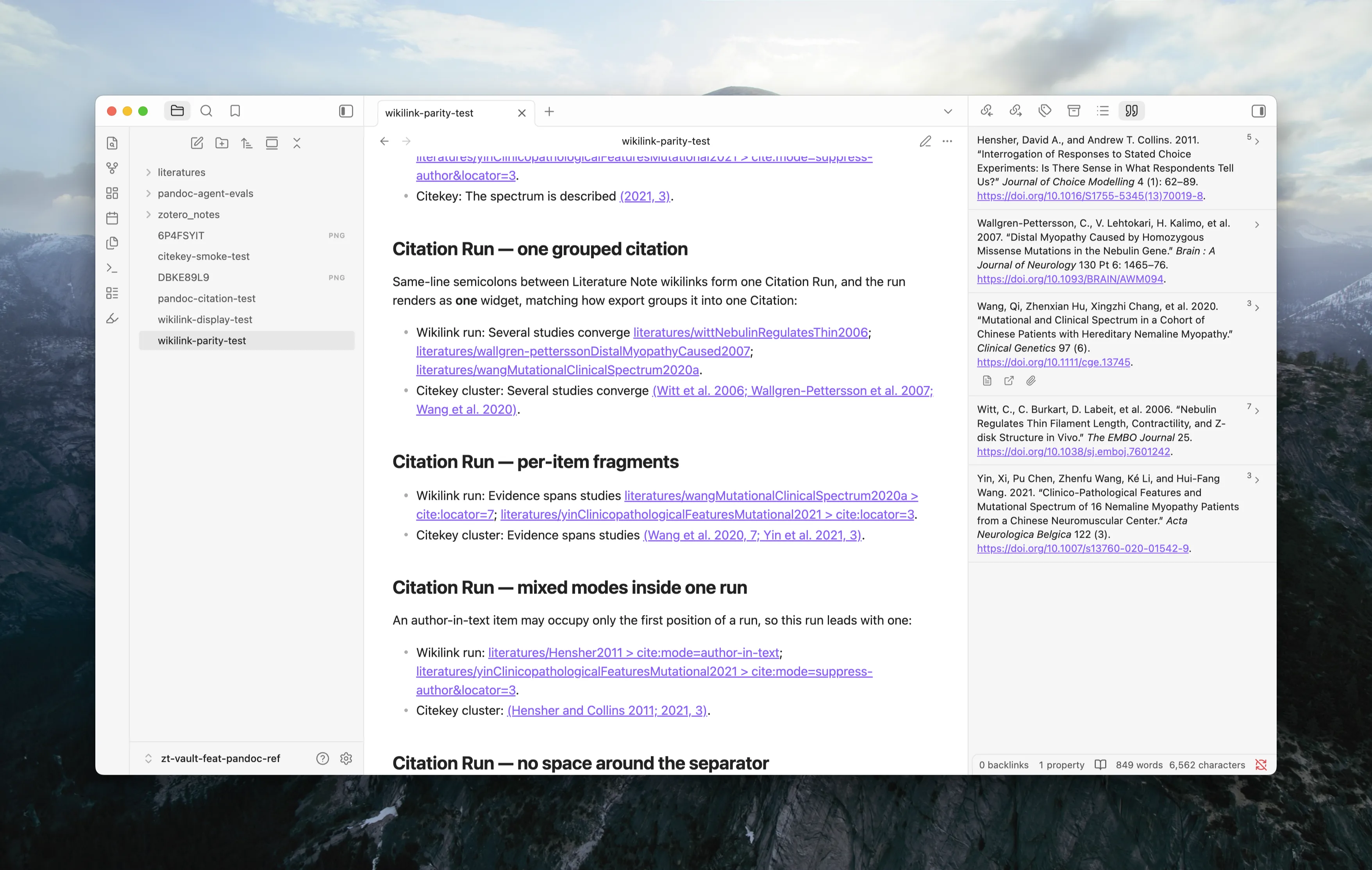
Literature Note wikilinks can also render as citations, sharing the same formatted display and numbering as literal citations. Turn this on with Wikilink citations in Settings > ZotLit > Citations — it is off by default.
The citation rendering also supports formatting in a CSL style you pick from Zotero's installed styles using Pandoc (setup in Settings > ZotLit > Citations).
Export a note with citations
A new command, ZotLit: Export note with citations, converts the active Markdown note to DOCX or HTML with a formatted bibliography. Choose the output format, CSL style, and destination in the export dialog. Citations resolve from the note's own links; no external Pandoc installation is required. See How to export a note with citations.
This feature is not finalized yet, but the command is available to test.
What's New
Citation key navigation and styling
Recognized citation keys in the editor are styled as links. An unresolved citation key (one that names no item in Zotero) is visually distinct from a resolved one. Click a citation key to open its Literature Note, or hover to see a page preview.
Rendered citations in Reading view are also navigable: a single-key citation opens the Literature Note on click, and a multi-key citation opens a menu listing each cited work. See How in-text citation rendering and navigation work.
Turn this off with Open Pandoc citations as links in Settings > ZotLit > Citations.
Citation key resolution from Zotero
Citation keys now resolve against Zotero's native citation keys instead of a frontmatter property. The Citation Key Property setting is retired and migrated automatically.
CSL style selection
The References Sidebar and in-text citation rendering use a CSL style you select from the styles Zotero has installed. The style picker appears in Settings > ZotLit > Citations. Leaving it unset or selecting a removed style falls back to a default.
Native Pandoc CLI workflow
Convert a note with a standalone Pandoc installation, outside Obsidian, with Literature Note wikilinks converting to citations. A Save integration files action in the Citations settings page writes a Lua filter (zotlit-cite.lua) and a Pandoc defaults file (zotlit.yaml) matched to the installed plugin version; the Lua filter resolves each wikilink to its citation key through a new zotlit:resolve command, reachable from a CLI tool that supports Obsidian's command line interface (such as obsidian-cli).
Two more commands support this workflow: zotlit:pandoc-files returns the integration pair as JSON, and zotlit:pandoc-guide prints the setup and troubleshooting guide. A new zotlit-pandoc skill walks an AI agent through the same workflow: setup, refresh, running a native export, and diagnosing a failed run.
Theme support
- CSS classes are available on citation elements across editor and Reading view surfaces, documented in the theme hooks reference. Theme authors can style resolved, unresolved, pending, and rendered citation states.