Customize your annotations
Change the annotation format in a literature note profile and apply it to an existing note.
Change the annotation callouts in your first literature note with the Template Workbench View in Obsidian. This tutorial continues from Create your first literature note.
Before you start
Use the literature note from the first tutorial. It needs at least one annotation from a Zotero PDF. If it has none, add a highlight in Zotero and update the literature note before you continue.
Change the callout type
The built-in annotation format uses [!note] as the Obsidian callout type. You will change it to [!quote].
Open the Template Workbench View
Open the literature note in Obsidian. Run ZotLit: Customize this note's template.
ZotLit opens the template document used by this note in a new window and selects its paper for the preview. When you customize the built-in template, ZotLit saves an editable copy in your template folder. The copy remains if you close the window without changes.
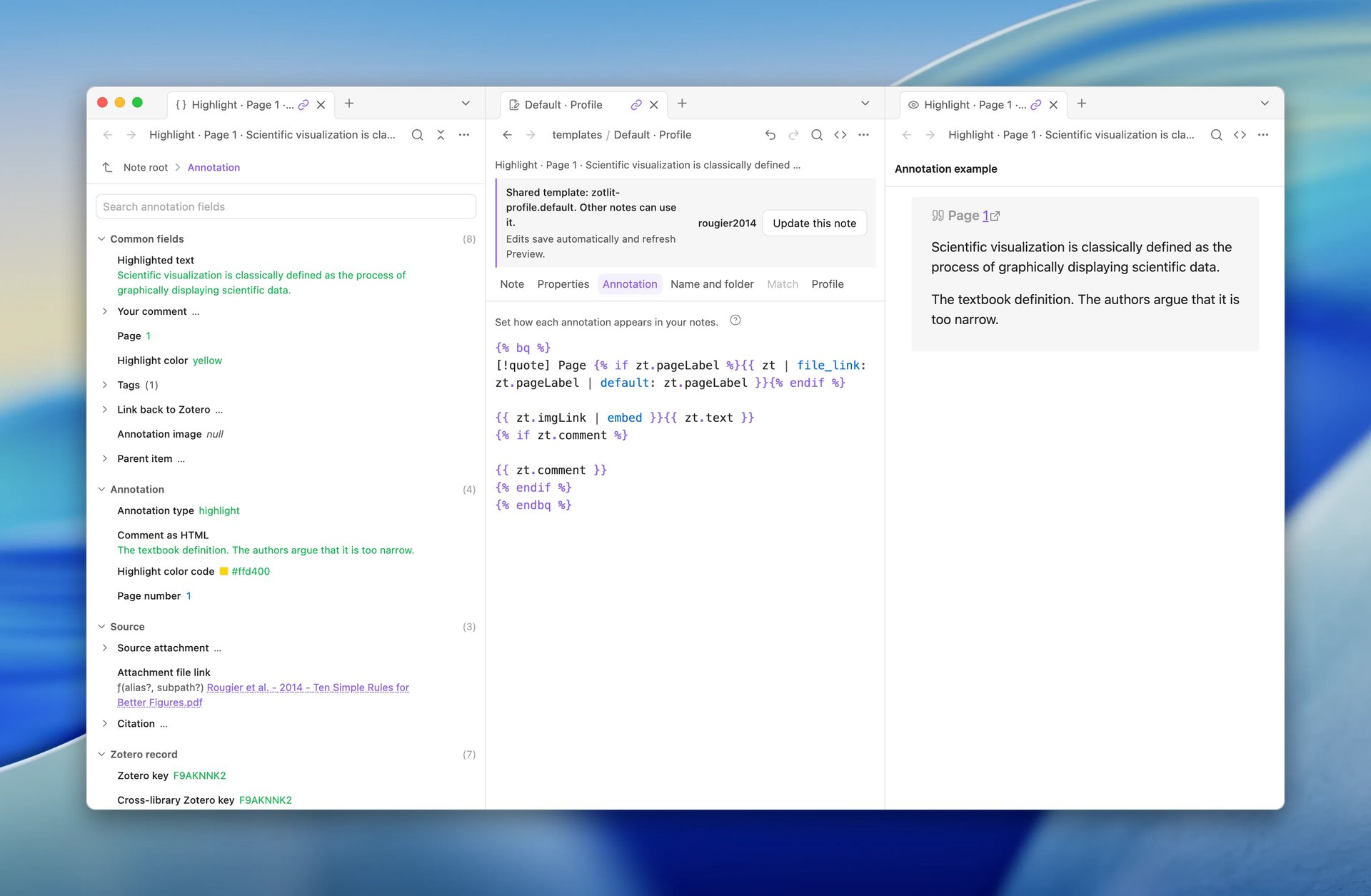
Read the shared-template guidance above the editor: your edits change every note that uses this template when that note updates. Check that your note's name appears beside Update this note.
Open the annotation format
Select the Annotation tab. The editor shows the format used for one annotation. The preview shows one annotation from your paper under Annotation example. To show a different one, select Choose annotation at the top of the editor.
For a short explanation of the format, you can open Help beside the annotation instructions.
Change the callout type
Find [!note] in the annotation format and change it to [!quote].
ZotLit saves the template document automatically. Check that the same annotation now appears in a quote callout in the preview. Your literature note keeps its previous content until you update it.
Update the literature note
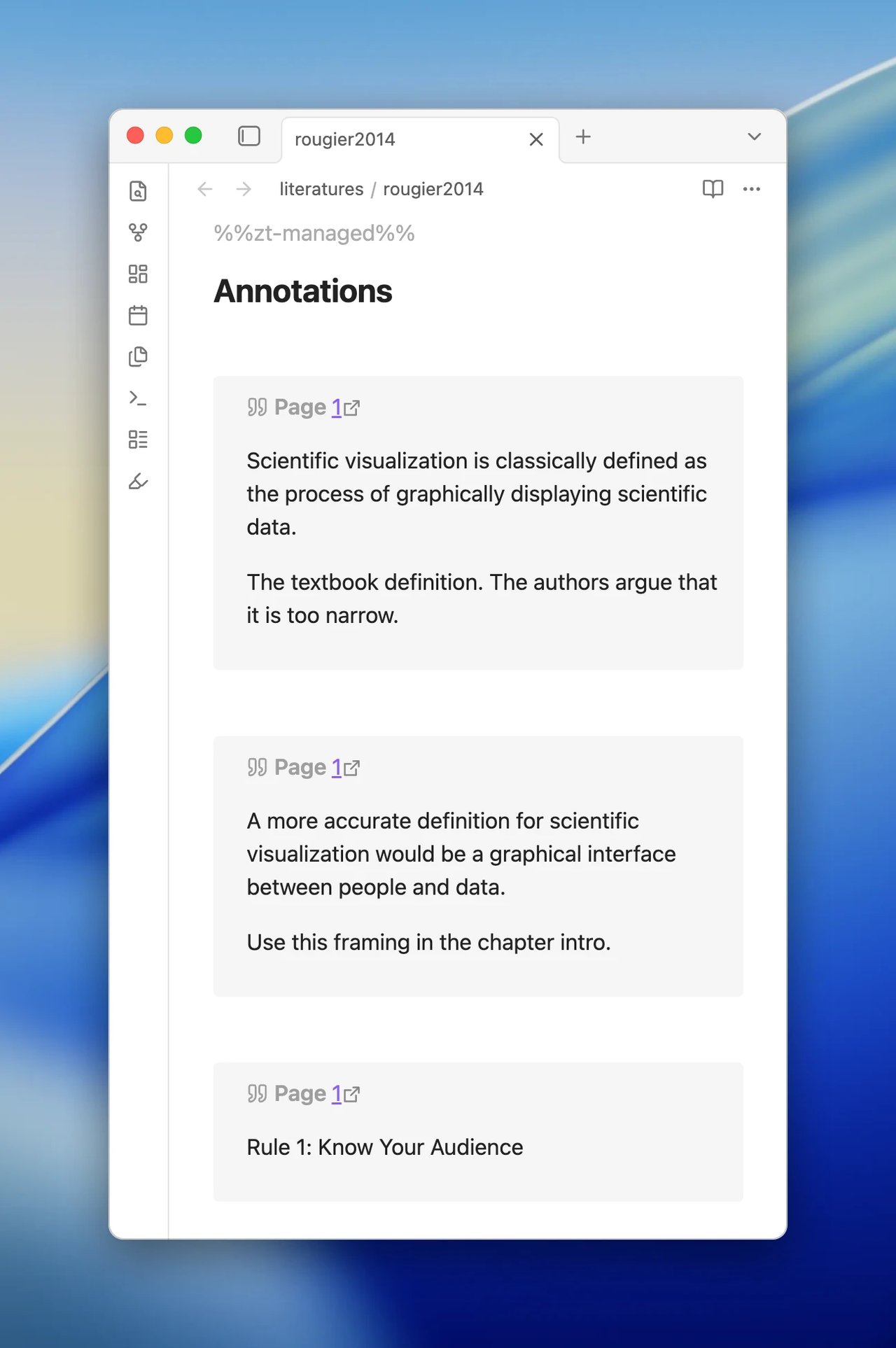
In the Workbench, select Update this note beside your note's name. Wait for the notice that names the updated note, then open that note.
Its annotations now use quote callouts. Your own writing in the note stays unchanged.
Add the highlight color
Template fields insert data from Zotero. You will add the annotation's colorName field to the callout title.
Return to the annotation format
Run ZotLit: Customize this note's template from the literature note. Select the Annotation tab.
Insert the color field
Place the cursor at the end of the callout title line, after {% endif %}. Add a comma and a space, then type {{ to open the template field list. Until you pick a field, the Workbench reports a syntax problem. It clears once the field is in place.
Select colorName. The line now contains:
[!quote] {% if zt.pageLabel and zt.pageLabel != "" %}Page [{{ zt.pageLabel }}]({{ zt.backlink }}){% else %}[Zotero]({{ zt.backlink }}){% endif %}, {{ zt.colorName }}Check the preview
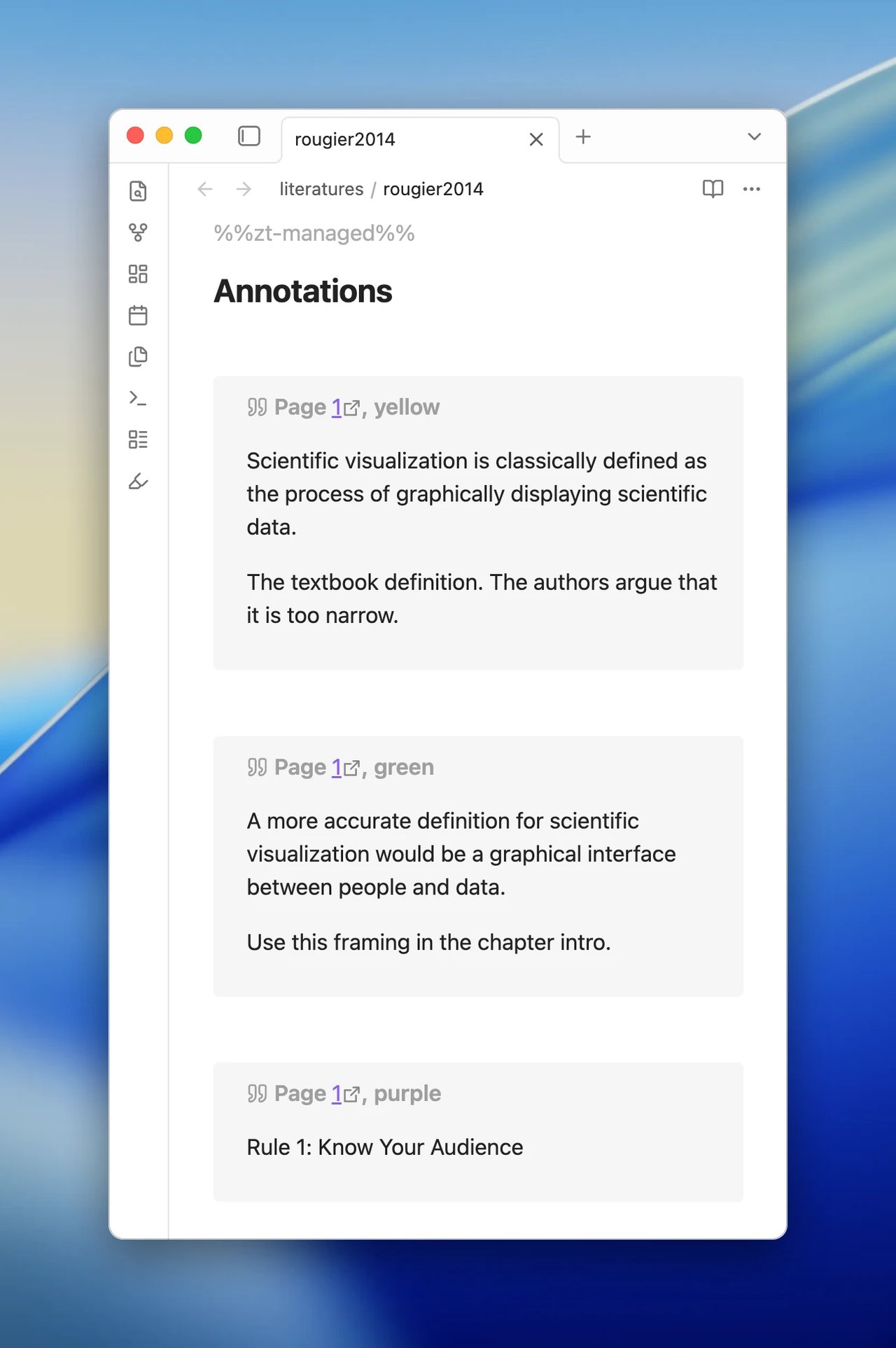
The preview title now ends with the annotation's highlight color, such as Page 1, yellow. Select Choose annotation and pick another annotation to check its color.
Update the note again
Select Update this note beside your note's name. After ZotLit reports the update, open the note. Each annotation callout title now includes its highlight color, such as Page 1, yellow.
Restore the built-in profile
To remove these changes from the Default profile, open Settings > ZotLit. Select Restore built-in on the Templates and properties row, then confirm with Restore built-in.
ZotLit moves the custom profile document to Obsidian's configured trash. Run ZotLit: Update literature note from the literature note to render it with the built-in profile.
What's next
Last updated on