Browse your library in the Library View
Find a paper by collection, recent activity, search, reading state, or tag, then open its PDF, write its note, or cite it.
The Library View is a tab that lists your Zotero library inside Obsidian. Use it to find a paper and open its PDF, write its literature note, or cite it. Browsing and searching only read your library. Editing an annotation in the Reading Card changes it in Zotero. Reading a PDF can also update its read time, as described in Open an item's PDF in Obsidian.
The Library View reads the Zotero database directly. Zotero does not need to be open, and you do not need ZotLit Companion, the Zotero add-on, to browse, search, or open a PDF.
Open the Library View
Select the ZotLit icon in the ribbon, or open the command palette and run:
ZotLit: Open Zotero libraryThe view opens in a tab titled Zotero library, with the cursor in its search box, unless the setup banner shows above it. If the tab is already open, ZotLit brings it forward instead of opening a second one.
On a new install, ZotLit opens the Library View for you. A setup banner sits above it until setup is complete. Its steps are Connect to Zotero, Choose where literature notes live, and Open your library. A finished step takes one line with its action at the end, and only the next step opens to explain what to do. Beside the steps, or under them in a narrow pane, tiles link to Getting started, Chat & discuss, Star on GitHub, Templates, and Citations, with the blog, the changelog, and sponsorship below them. These links stay on the banner whatever else it shows. The banner goes away once ZotLit reads your Zotero database and your literature notes folder exists, or when you select Dismiss. To show it again, even after setup is complete, select Welcome & help, the question-mark icon at the top of the Library View tab, or run ZotLit: Open welcome view. The icon looks pressed while the banner shows, and selecting it again puts the banner away.
After ZotLit updates, it opens the Library View with the banner above it, saying ZotLit updated to …. Select What's new to read the release notes, or Dismiss to put the banner away. Either way, the banner says nothing more about this version, and comes back after the next update. Turn off Update notices in the Advanced settings to skip it.
When ZotLit cannot find Zotero
ZotLit looks for your library in the default Zotero profile. When it finds no database there, or the data folder you set holds none it can read, the list and the tree pane both say Zotero not found, the list in place of the filters, the search box, and the papers. The setup banner leaves out its Connect to Zotero step meanwhile, since the list says the same. Select Locate data folder and choose your Zotero data folder, or select Open settings to set the location in settings. Your papers appear as soon as the folder is set.
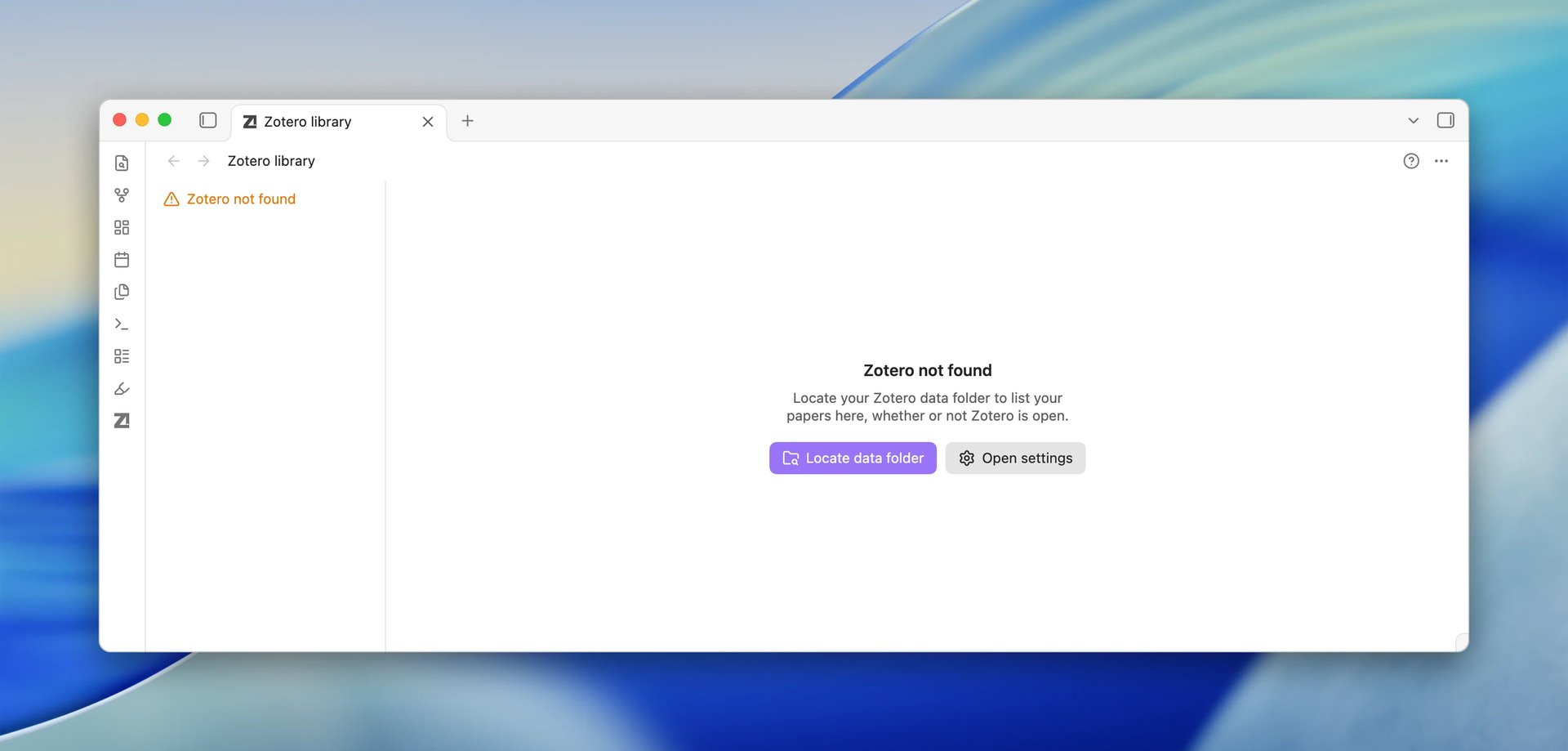
When ZotLit cannot find Zotero, it also shows the notice Zotero wasn't found on this device. The notice has a Set up connection button that opens the Library View. Only one such notice shows at a time. It does not show while a Library View is open, and it goes away once ZotLit reads your database again.
If the database was readable and a later read fails, the view keeps the papers it read last. A note above the list says: Couldn't refresh from Zotero. Showing the last list read. Its Locate data folder button lets you choose the folder again in case it has moved.
Pick what the list shows
The tree on the left lists Recent first, then each library in your library scope with its collections nested as in Zotero. Each library and collection shows how many papers it holds.
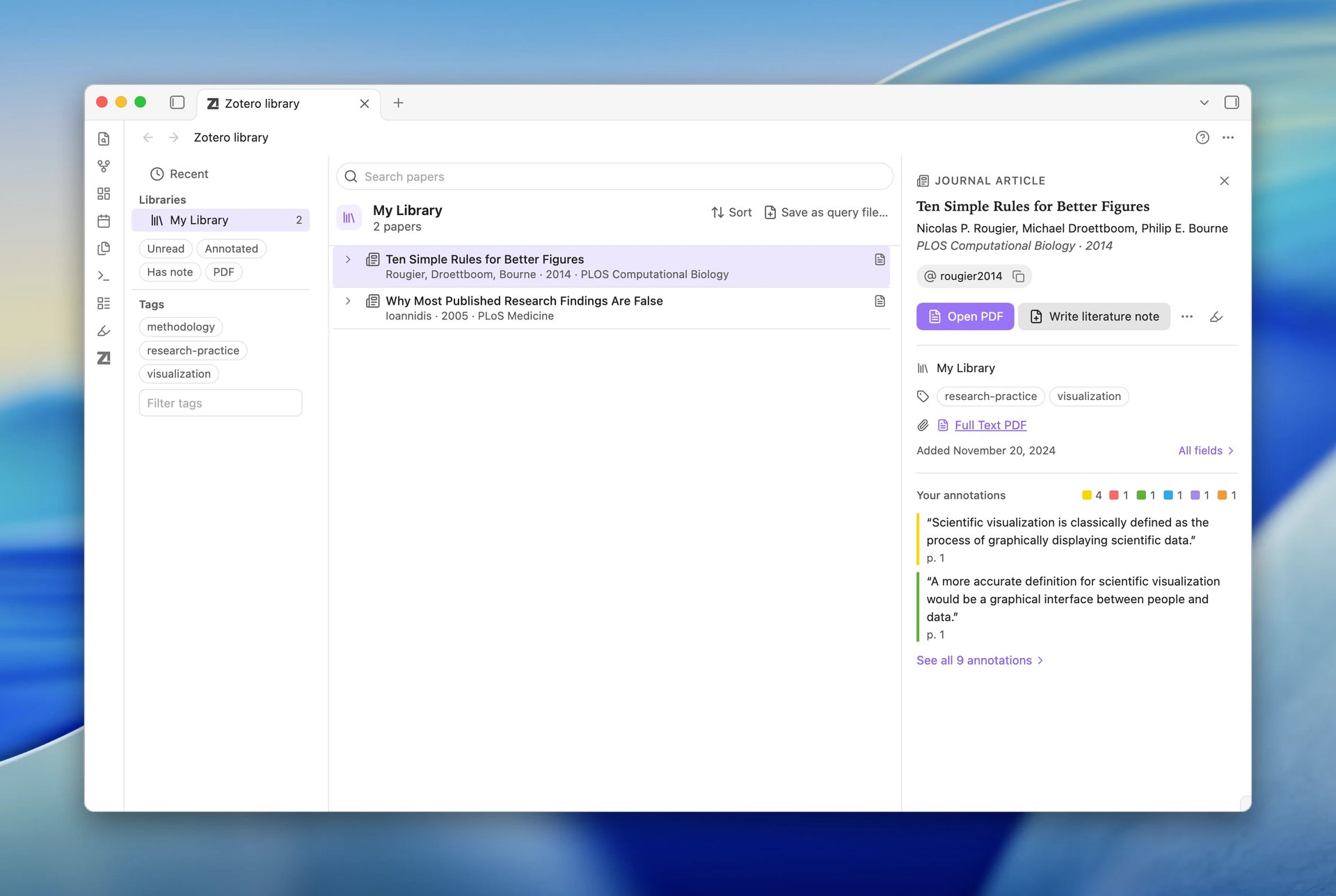
Select a library or a collection to list its papers. A collection also lists the papers in its subcollections. The heading above the list names your selection, with the library and the collections above it, such as "My Library › Thesis ›" over "Chapter 2". Under the name it counts the papers listed and, when the selection holds any, the unread ones, for example "12 papers · 3 unread". While a filter or a tag narrows the list, it counts what is left of the whole, for example 3 of 12 papers. A paper counts as unread when it has no Zotero read time, no annotations, and no literature note. The unread count, like the paper count in the tree, ignores search, the reading-state filters, and selected tags.
When your Zotero database holds libraries outside your library scope, Show all libraries under the last library adds them for the current session. Hide other libraries hides them again.
If you rename or delete the collection you had selected, the view selects its library instead.
On a narrow pane the tree is hidden. Select Show libraries and collections beside the heading to open it over the list.
Recent
Recent lists every paper in your library scope by Last Activity, newest first. Last Activity is the newest time that you opened, read, or cited the paper in Obsidian; read it in Zotero; added it to Zotero; or edited one of its Zotero notes or annotations. An edit to the paper's own fields does not count. A new Library View opens on Recent.
Each row gives the activity that set its place in the list:
| Reason | What it means |
|---|---|
| opened 3 min ago in Obsidian | You opened the paper's literature note or returned to its tab. |
| read 2 h ago in Obsidian | You read the paper's PDF in Obsidian. |
| cited yesterday in Obsidian | You inserted the paper's citation or copied its citation key. |
| read yesterday in Zotero | You read one of the paper's attachments in Zotero. |
| added to Zotero 3 days ago | You added the paper to Zotero. |
| notes edited in Zotero last week | You edited a child note or annotation in Zotero. |
Opening and citing count on the device where they happen. They do not move the paper on another device. Reading recorded by Zotero syncs through Zotero and can move the paper on each device.
Recent shows no paper count in the tree, and Show all libraries does not add libraries to it. You can sort it another way with Sort in the heading. Select Recent again to return to the newest-first order.
Search your papers
Type in the Search papers box at the top of the view. The results are ranked the way the literature note quick switcher ranks them, best match first, and they stay inside the library or collection you selected. The heading becomes the match count, for example 12 matches for “figure”, with the library or collection searched above it, and screen readers announce the count as it changes. While the results are ranked, Sort in the heading stays in place but is off; clear the search to sort the list again.
To narrow to a Zotero tag, add a tag: token: tag:methods, or tag:"machine learning" for a tag with spaces. Several tokens narrow to papers that carry every tag. A search made only of tag: tokens keeps the list's sort instead of ranking.
To search beyond your selection, select Search all libraries under the match count, or under the message when nothing matches. It searches every library in your library scope until you select a node in the tree or clear the search. Meanwhile the tree highlights no node, since the list is no longer the one it names. Recent already covers your whole library scope, so it does not offer this.
Press Escape in the box to clear the search. Press it again on the empty box to move to the list.
When nothing matches, the heading reads 0 matches for “glacier” and the list says how to go on: Try searching all libraries, or check the spelling. Under it, Search all libraries repeats the search in every library of your library scope. When the search already covers them, on Recent or after Search all libraries, the list says Check the spelling, or clear the search to see your papers again. and offers Clear search instead.
A search shows at most 500 matches.
Filter by reading state
The buttons below the tree narrow the list by what you have done with each paper:
| Filter | Shows the papers that |
|---|---|
| Unread | Have no Zotero read time, annotations, or literature note. |
| Annotated | Have at least one annotation. |
| Has note | Have a literature note in this vault. |
| Have a PDF attachment whose file is on this device. |
Each filter you turn on also shows as a chip under the heading. Select a chip to turn its filter off, or Clear all beside the chips to turn off every filter and let go of every tag at once.
Turn on several filters to show only the papers that match all of them. The filters work with any tree selection, including Recent, and they stay on while you search. When no paper passes them, the list shows No papers pass the filters you turned on.
Filter by tag
Under the reading-state filters, Tags lists the Zotero tags of the papers in your tree selection, by name. Select a tag to show only the papers that carry it. Select more tags to show only the papers that carry all of them, as in Zotero. While tags are selected, the list of tags keeps only the tags of the papers still shown, and each selected tag shows as a chip under the heading, beside the reading-state filters. Select a chip to let go of its tag.
Select a selected tag again to let go of it, or select Deselect all to let go of them all. The selected tags stay when you select another library or collection, and a selected tag stays in the list even where no paper there carries it.
Type in the Filter tags box to find a tag in a long list. The box narrows only the tag names, not the papers.
Selected tags work with the reading-state filters and the search. A tag: token in the search box narrows the same way.
Read the list
The list draws each paper in two lines, in the Papers layout: the title, then the creators, year, and publication. An icon at the end of the row shows the kind of the paper's main attachment, and a note icon shows that the paper has a literature note. Expand a paper to see its attachments, its child notes, its annotations, and its literature note.
Sort and Save as query file… sit at the right of the heading; on a narrow pane they show their icons only. The view lists at most 1,000 papers at a time. When a selection holds more, the heading counts every paper it holds and adds first 1,000 shown. For a table, other layouts, filters, grouping, or a choice of properties, save the view as a query file and work in its tab.
The Library View remembers your tree selection, filters, selected tags, search text, and sort. It keeps them in this vault's plugin data, so they come back in every Library View you open and they sync with your vault.
Open, write, and cite from a row
Click a row to select it, and use the arrow keys to move the selection. A selected row answers the same keys as a result in the literature note quick switcher:
| Action | Result |
|---|---|
Enter | Opens the paper's literature note. When the paper has none, ZotLit writes one first, through the same profile choice as the quick switcher. |
Ctrl+Enter (Cmd+Enter on macOS) | The same, in a new tab. |
Shift+Enter | Opens the paper's PDF in Obsidian. |
Ctrl+Shift+Enter (Cmd+Shift+Enter on macOS) | The same, in a new tab. |
| Double-click | Opens the paper's PDF in Obsidian. |
To cite a paper, drag its row into a note. ZotLit inserts the citation where you drop it.
The row menu
Right-click a row for every action on the paper:
| Menu item | What it does |
|---|---|
| Open PDF | Opens the PDF in Obsidian. Only a paper with a PDF offers it. |
| Open PDF to the right | Opens the PDF in a new pane to the right. |
| Open literature note or Write literature note | Opens the literature note, or writes it when the paper has none. |
| Insert citation | Inserts the paper's citation into the note you were in last, at the cursor. |
| Copy citation key | Copies the paper's citation key. |
| Show in Zotero | Selects the paper in Zotero. If Zotero is closed, your system starts it. |
When no note is open, Insert citation shows Open a note to insert the citation into it. Open the note you are writing, then try again.
To open a PDF in Obsidian from other places, see Open an item's PDF in Obsidian.
Read a paper's Reading Card
When you select a row, the Reading Card opens on the right of the view. It shows what Zotero shows for the paper, but only reads it: the card never changes the paper in Zotero.
The card reads like the first page of the paper. From the top:
- The item type, such as Journal Article or Letter, in small capitals.
- The title.
- The creators, in full. Past ten names the card adds "et al."; All fields lists them all.
- The journal or publisher, in italics, with the volume, issue, pages, and year.
- The DOI, which opens in your browser, and the citation key, with a button that copies it.
The buttons below run the actions of the row menu: Open PDF, and Open literature note or Write literature note. The More actions button opens the full row menu, with Insert citation. The Open in the annotation view icon shows the paper's annotations in the Zotero annotations view, which stays pinned to that paper until you unpin it; see Use the annotation view.
The rest of the card shows only what the paper has. A part with nothing in it is left out.
- The abstract, cut to a few lines. Select Show more to read the rest.
- Saved in: the library and the collections that hold the paper.
- Tags: the paper's tags. Select one to filter by that tag, as if you selected it under the tree.
- Files: the paper's attachments. Select one to open it: a PDF opens in Obsidian, and another file opens in Zotero.
- Zotero notes: the notes the paper has in Zotero. Select one to show it in Zotero.
- The date the paper was added to Zotero, and All fields, which shows every other field the paper has, such as its URL or its full date, with the labels Zotero uses and in Zotero's order.
- Your annotations: how many annotations the paper has in each colour, and its first two as short quotes, each with its page. Select See all 8 annotations to list them all, as the same cards the annotation view shows. You can edit a comment or tags there as you would in the sidebar; see Edit PDF annotations in Obsidian for what that needs.
The card remembers whether All fields and the annotations are open, and keeps them that way for the next paper you select.
The card shows while a row is selected. On a narrow pane it opens over the list; select Close or press Escape to put it away. When a search, a filter, or another tree selection takes the selected paper out of the list, the selection goes and the card hides.
Show a quick switcher result in the library
In the literature note quick switcher, press Alt+Enter (Option+Enter on macOS) on a result. ZotLit opens the Library View on the paper's first collection, or on its library when the paper is in no collection, and selects its row. The view clears its search, turns off its reading-state filters, and lets go of its selected tags, so nothing hides the paper.
The list holds at most 1,000 papers. When the paper falls beyond them, nothing is selected and a notice says Not in the first 1,000 papers. Search its title to show it.
Save the view as a query file
To keep what the Library View shows as a vault file, choose Save as query file… in the heading. The name starts as the library or collection you selected; change it if you like, and choose a folder. When the file leaves out part of the view, the dialog says which. ZotLit writes a query file and opens it in a tab.
The file keeps the library or collection you selected, the selected tags, and the sort, opens in the Papers layout, and lists at most 1,000 papers, as the view does. In its tab you can switch to the table, filter, group, and choose properties. Some parts of the view do not carry over:
- The search does not carry over. Query files have no way to express a ranked search yet.
- Has note does not carry over, and Unread keeps only its no-annotations half. Both depend on the notes in your vault, which a query file cannot filter by yet.
- A file saved from a library outside your library scope lists nothing until you add that library to the scope.
See also
Create your first literature note
Start in the Library View, read a paper beside the library, and write its note.
Use query files and query blocks
Save a filtered view of your library as a vault file, or embed one in a note.
Keep Zotero and Obsidian in sync
See your latest Zotero changes in Obsidian and run ZotLit actions from Zotero.
Last updated on