Write and export a cited note
Insert a citation, review its reference, and export a Word document with a formatted bibliography.
This tutorial takes you from one Zotero item to a cited Word document.
You will insert a literal Pandoc citation such as [@doe2024]. ZotLit will format it without changing your Markdown.
Before you start
Complete the ZotLit installation, then keep Zotero open during the tutorial: the export collects bibliography data from it.
Better BibTeX is recommended for generating and maintaining stable citation keys. It also supplies bibliography data during export. If you do not use it, open Zotero Settings > Advanced and enable Allow other applications on this computer to communicate with Zotero so ZotLit can use the Zotero local API instead.
Prepare one Zotero item
Select an item in Zotero and confirm that its Citation Key field has a value.
If you use Better BibTeX, follow its citation key guide to generate and inspect the key. Keep the generated key as it appears in Zotero.
Install the Pandoc engine
In Obsidian, open Settings > ZotLit > Citations > Formatting. Find Pandoc engine, then select Install.
Wait until the row says that Pandoc is installed. The engine formats citations, references, and the exported document.
Insert the citation
Open a Markdown note in Live Preview. Type [@, then type part of the item's title or citation key. A list of matching Zotero items opens below the cursor.
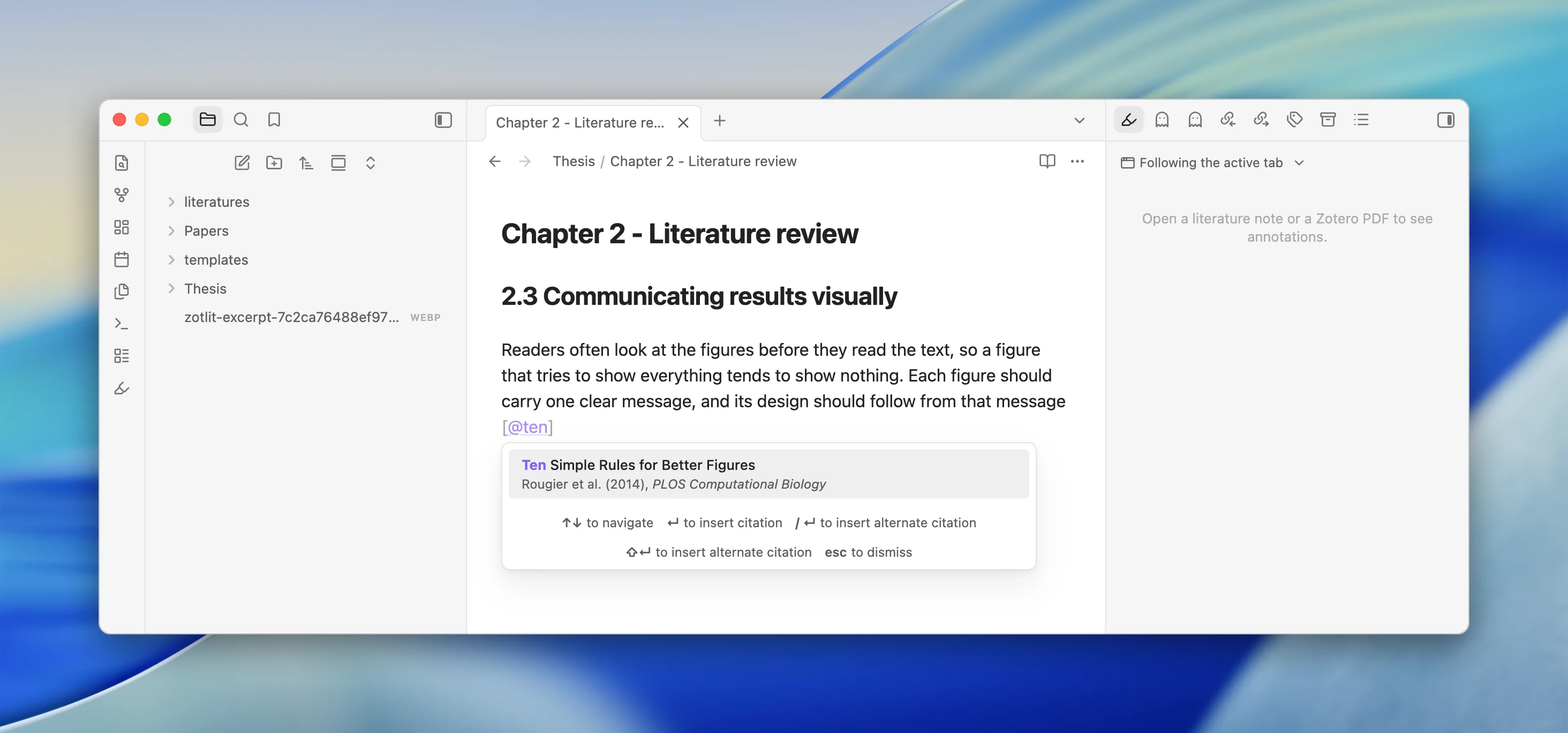
Select the item and press Enter. ZotLit inserts a citation such as:
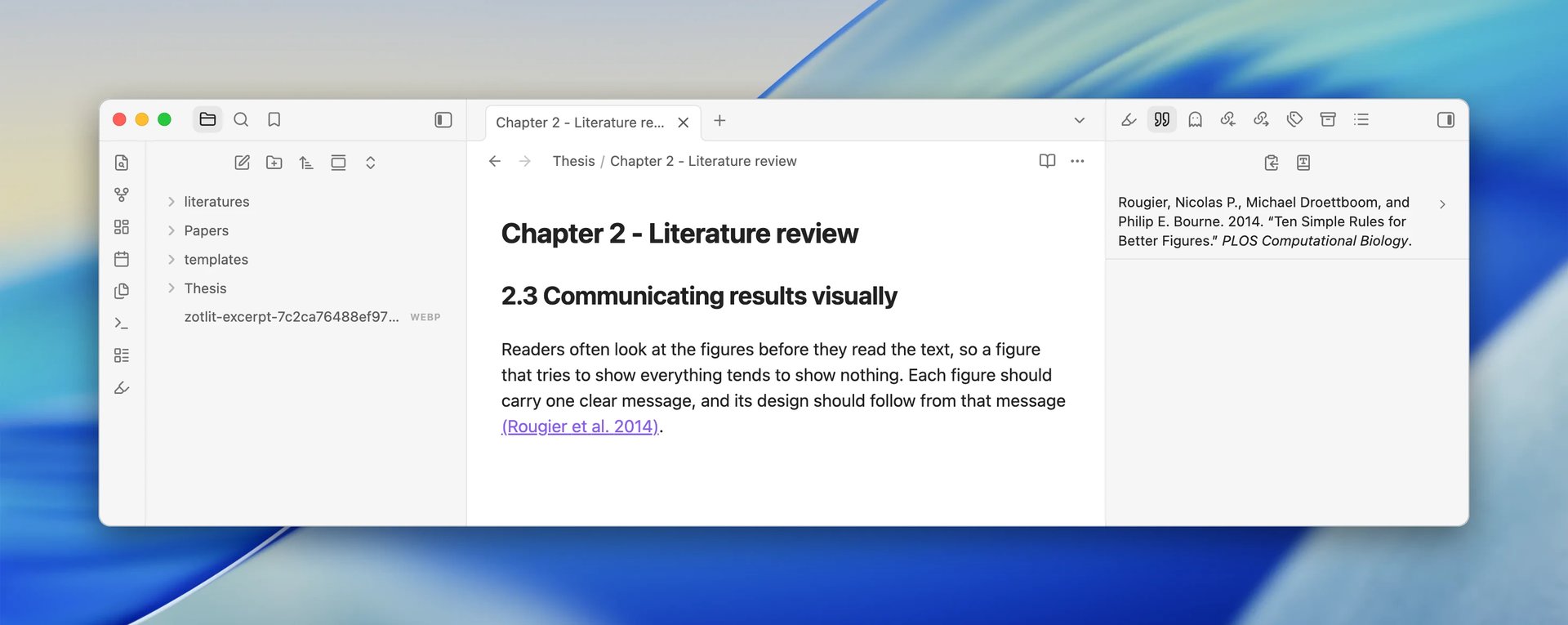
Recent work reaches a similar conclusion [@doe2024].Move the cursor away from the citation. ZotLit replaces the source with a formatted citation in Live Preview.
Review the reference
Open the command palette and run:
ZotLit: Open referencesThe References Sidebar shows the formatted bibliography entry for your citation.
Preview the citation
Hover over the formatted citation in Live Preview. The Citation popover shows the complete bibliography entry.
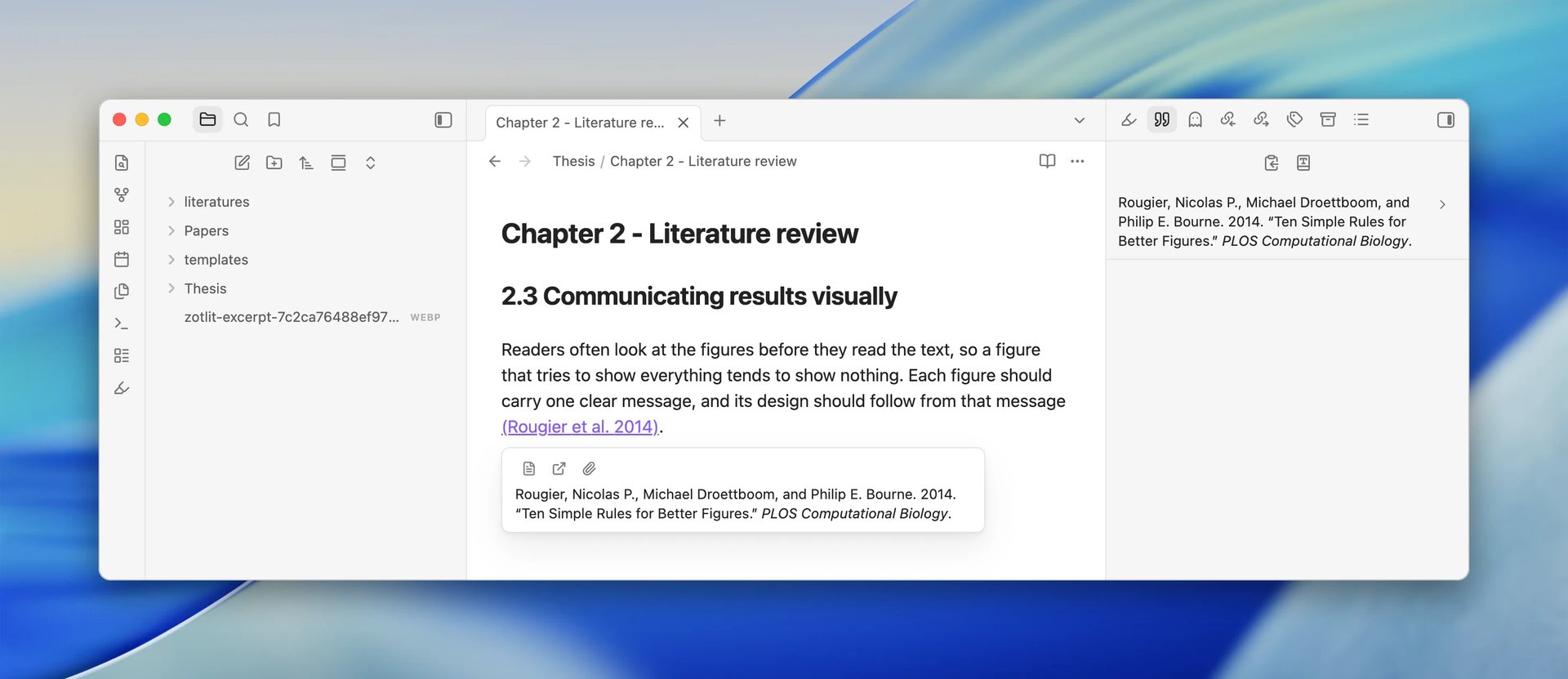
The default hover settings show this popover without a modifier key in Live Preview.
Copy the bibliography
In the References Sidebar toolbar, select Copy bibliography. Paste it into a text editor or word processor.
ZotLit places rich text and plain text on the clipboard. The destination uses the representation it supports.
Export a Word document
Keep the note active. Open the command palette and run:
ZotLit: Export note with citationsLeave Format set to Word document. The Citation style row shows the style ZotLit will use. The line below it says where that style comes from. Leave the style as it is.
Save to starts next to your note. To save the document somewhere else, select Choose…. Then select Export.
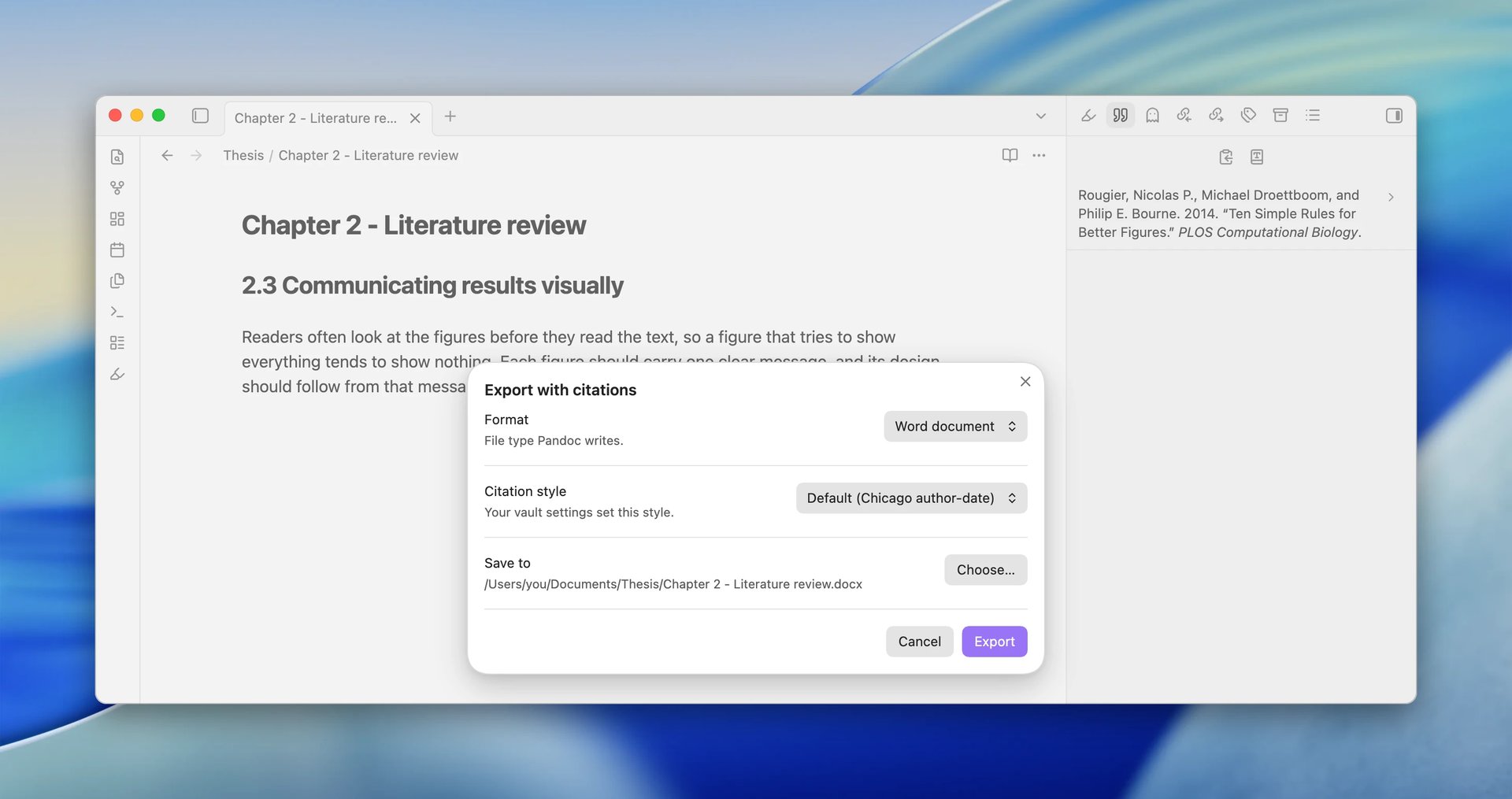
When the export finishes, a notice names the file and the citation style it used. Open the resulting .docx file. It contains your formatted citation and a bibliography.
You now have one Markdown source that works in Obsidian and produces a cited Word document.
Your Markdown stays portable
ZotLit leaves [@doe2024] in the note. Live Preview formats it for reading,
and export creates the bibliography in the output file.
Next steps
Last updated on