Build a Pandoc citation workflow
Create one cited note, export it with ZotLit and native Pandoc, and compare the two Word documents.
This tutorial takes one note through ZotLit's built-in export and a native Pandoc export.
You will use the same citations and style for both Word documents. At the end, you can see which parts the two workflows share.
Before you start
You need:
- Obsidian Desktop 1.14.2 or newer with ZotLit installed.
- Zotero 9 or newer with ZotLit Companion, the Zotero add-on.
- Better BibTeX installed in Zotero.
- Pandoc 3.1.1 or newer installed on your computer.
Enable Obsidian's Command line interface, which needs Obsidian installer 1.13.4 or newer. Keep Obsidian open during the native run. The native Pandoc guide lists the complete compatibility requirements.
Prepare the sample items
In Zotero, select My Library, then select Add Item(s) by Identifier. Add these two DOIs:
| DOI | Item title | Citation key |
|---|---|---|
10.1371/journal.pmed.0020124 | Why Most Published Research Findings Are False | zotlitTutorialIoannidis2005 |
10.1126/science.aab2374 | Promoting an open research culture | zotlitTutorialNosek2015 |
Open each item and replace its Citation Key with the value in the table.
In Obsidian, run ZotLit: Open literature note quick switcher. Select each sample item to create its Literature Note.
Confirm that ZotLit creates zotlitTutorialIoannidis2005.md and zotlitTutorialNosek2015.md. Create one ordinary Obsidian note named Reading plan.
Create a folder named ZotLit Pandoc tutorial inside your Documents directory.
Configure both citation sources
Open Settings > ZotLit > Citations. Turn on Pandoc citations and Wikilink citations.
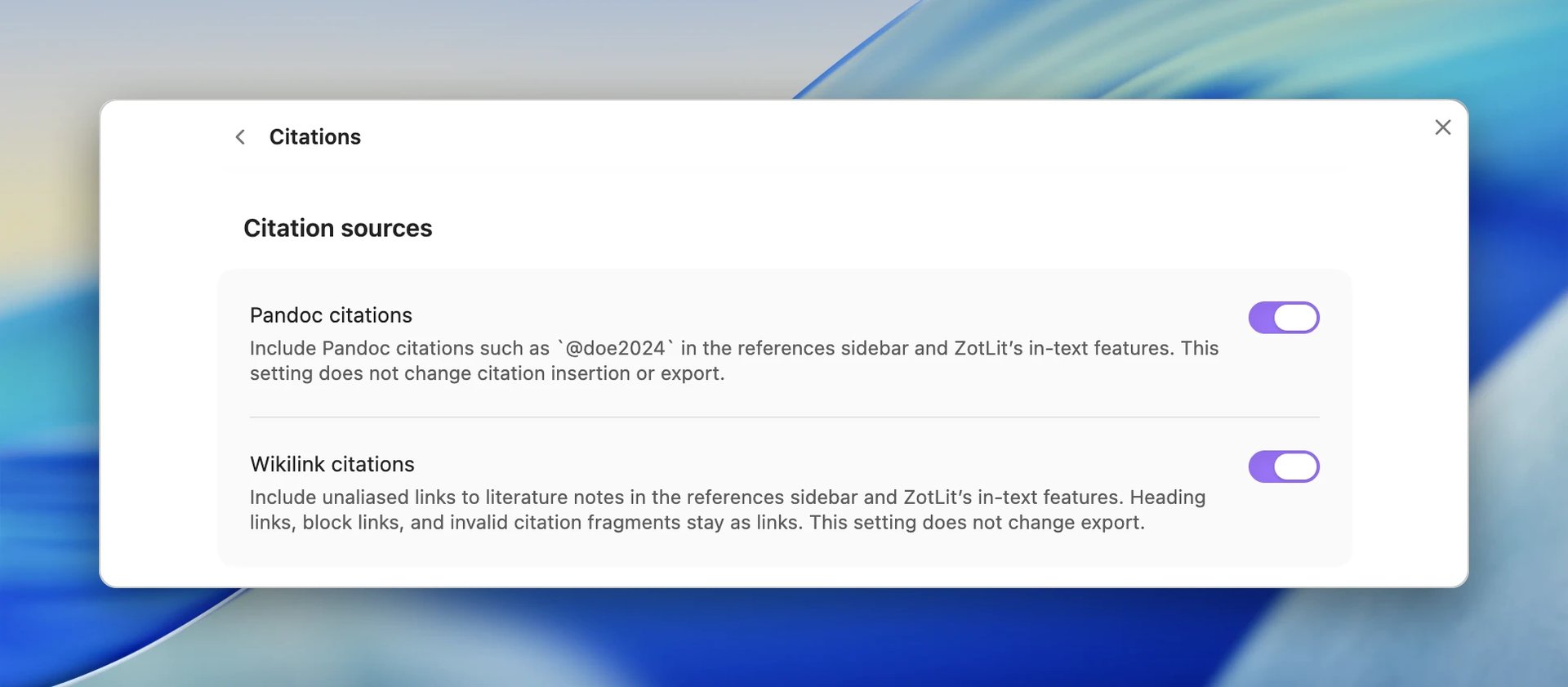
Under Formatting, install the Pandoc engine. This managed engine formats the References Sidebar and powers built-in export.
Open Settings > ZotLit and select APA Style 7th edition as the Citation and references style. Its author-date output makes locators and author modes easy to compare.
Create the worked note
Create a Markdown note named Citation workflow check, and paste this body into it:
# Citation workflow check

A plain Literature Note link introduces the first source [[zotlitTutorialIoannidis2005]].

The same source appears with its article locator [[zotlitTutorialIoannidis2005#cite:locator=e124]].

[[zotlitTutorialIoannidis2005#cite:mode=author-in-text&locator=e124]] examines why published research findings may be false.

Nosek et al. propose guidelines for open research [[zotlitTutorialNosek2015#cite:mode=suppress-author&locator=1423]].

Both sources support the comparison [[zotlitTutorialIoannidis2005]]; [[zotlitTutorialNosek2015#cite:locator=1423]].

A literal Pandoc citation names the second source again [@zotlitTutorialNosek2015].

The wider reading list remains an ordinary vault link [[Reading plan]].
Keep the semicolon and both Literature Note links on one line. Together they form one Citation Run.
The note has no citation style of its own, so it uses the APA style you selected in settings. Both exports use that same style.
Review the note in Obsidian
Switch to Live Preview, then run:
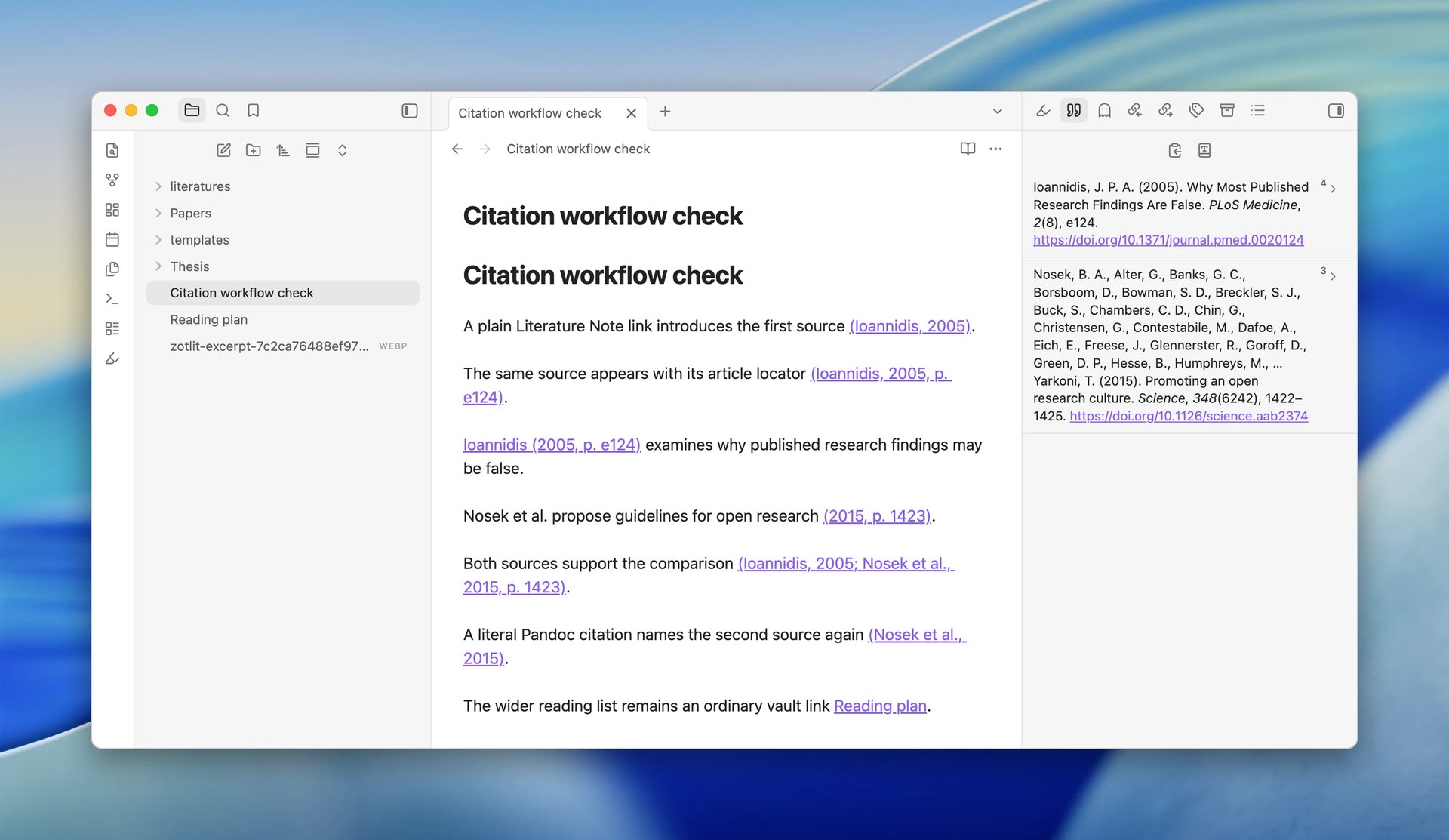
ZotLit: Open referencesThe References Sidebar shows two entries. Each source appears once, even though the note cites it several times.
Check the rendered note and sidebar:
- The plain link renders as
(Ioannidis, 2005). - The locator link renders as
(Ioannidis, 2005, p. e124). - The author-in-text link renders as
Ioannidis (2005, p. e124). - The suppress-author sentence ends with
Nosek et al. propose guidelines for open research (2015, p. 1423). - The Citation Run renders as
(Ioannidis, 2005; Nosek et al., 2015, p. 1423). - The literal citation renders as
(Nosek et al., 2015). Reading planremains an ordinary vault link.
Export with ZotLit
Keep Zotero open.
Run:
ZotLit: Export note with citationsKeep Format set to Word document. Citation style shows APA Style 7th edition, and the line under it reads Your vault settings set this style. This confirms that the export uses the style from your settings.
Under Save to, select Choose… and save the file in your ZotLit Pandoc tutorial folder.
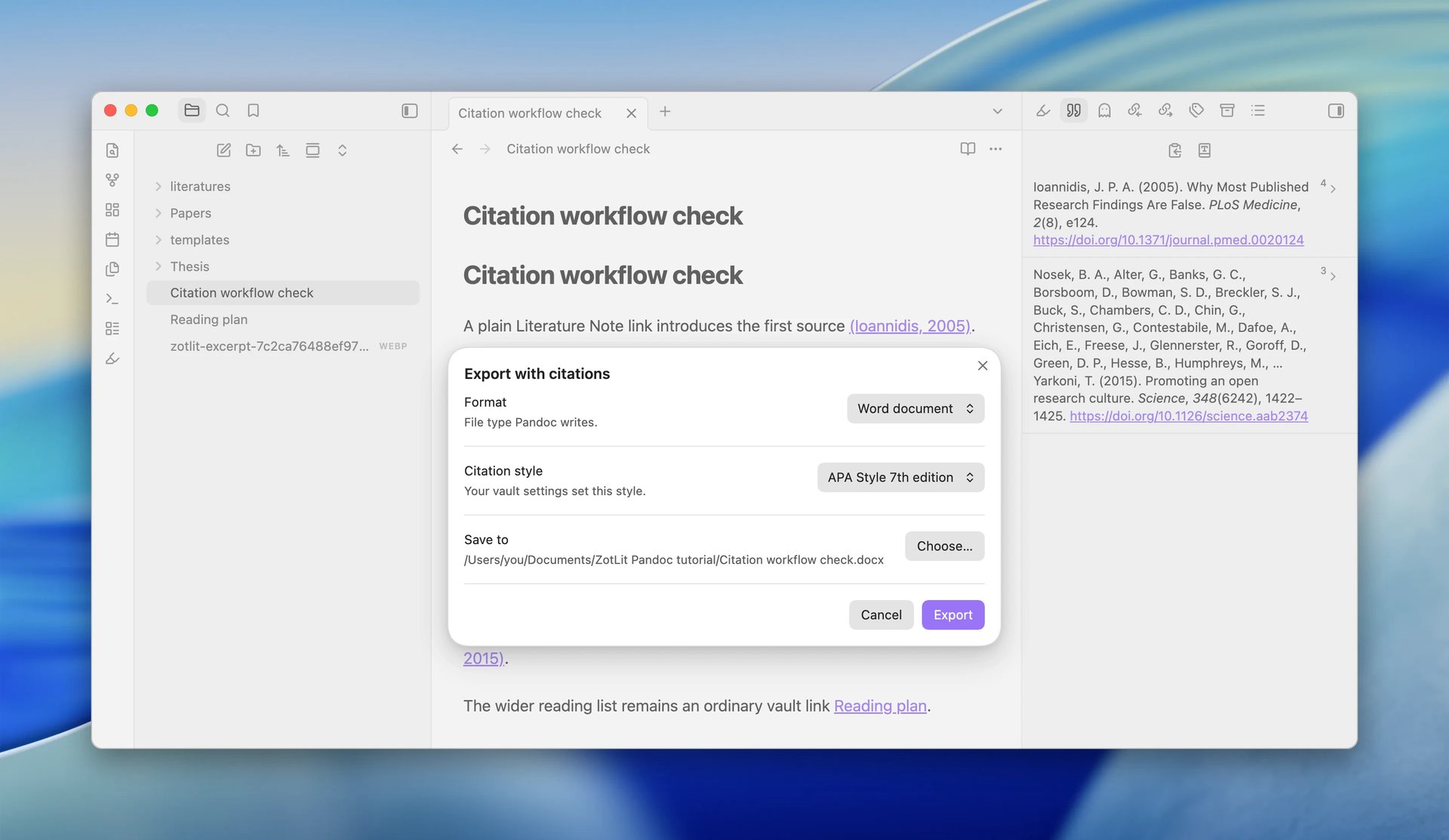
Select Export. The notice that follows names the style it used, for example Exported Citation workflow check.docx with APA Style 7th edition citations.
Open the resulting .docx file and repeat the checks from the References Sidebar.
Built-in export uses Better BibTeX to fetch current bibliography data from Zotero.
Save the version-matched integration pair
Open Settings > ZotLit > Citations. Under Native Pandoc workflow, find Pandoc integration pair and select Save integration files.
Choose your ZotLit Pandoc tutorial folder. ZotLit saves zotlit-cite.lua and zotlit.yaml there. The pair matches your installed ZotLit version. Save a fresh pair after every ZotLit update. Files saved from a version before ZotLit 2.2.0 do not work with 2.2.0 or later.
Create the native bibliography file
Save references.json in your ZotLit Pandoc tutorial folder. Include both Zotero items used in the worked note.
In Zotero, right-click My Library. Select Export, choose Better CSL JSON, and enable Keep updated. Save the file as references.json.
Better BibTeX updates the file after the source library or collection changes.
The citation keys in references.json must match the keys used in the worked note.
Run native Pandoc
Keep Obsidian open with this vault active and ZotLit loaded. Replace each path in this command with an absolute path, then run it in a terminal:
pandoc "/absolute/path/to/input.md" --defaults "/absolute/path/to/workflow/zotlit.yaml" --bibliography "/absolute/path/to/references.json" --fail-if-warnings --output "/absolute/path/to/output.docx"Keep --fail-if-warnings. It stops the run when Pandoc cannot find a cited item in references.json.
Pandoc prints one ZotLit line that names the style and where it comes from:
ZotLit: citations use APA Style 7th edition (from your vault settings).This line is not a warning, so the run continues and writes the .docx file.
Compare the Word documents
Open the native .docx beside the built-in export. Both documents should contain the same two formatted bibliography entries.
Compare the repeated-source formatting, locators, author modes, grouped Citation Run, literal citation, and ordinary vault link. The citation content should agree because both routes start from the same note and style.
The bibliography source differs. Built-in export asks Better BibTeX for current data, while native Pandoc reads the auto-updated references.json file.
You now have one Markdown note that you can review in Obsidian and export through either Pandoc route.
Troubleshooting
| Symptom | What to do |
|---|---|
A #cite: link stops built-in export, and native Pandoc reports unresolved-citation-intent for the same link | Point the link to a valid Literature Note. If you meant an ordinary vault link, remove its #cite: fragment. |
| Built-in export succeeds, but native Pandoc warns that a citation is not found in the bibliography | Add the missing item to the Better BibTeX export source, update references.json, and run the command again. |
| Native output changes after a ZotLit update or the filter reports a contract mismatch | Save both integration files again and replace the old pair together. |
For native error-code definitions, open Pandoc CLI guide under Settings > ZotLit > Citations. The Settings reference identifies the local guide and integration controls.
Next steps
Last updated on