v2.2.0-beta.4
October 19, 2026
Library View, visual query tables and blocks, reading status tracking
This beta introduces the Library View to browse your Zotero library directly in Obsidian. It turns ZotLit Query into interactive tables and note blocks. You can also track reading status in place and view recent papers ranked by active research.
Highlights
Browse your Zotero library directly in Obsidian
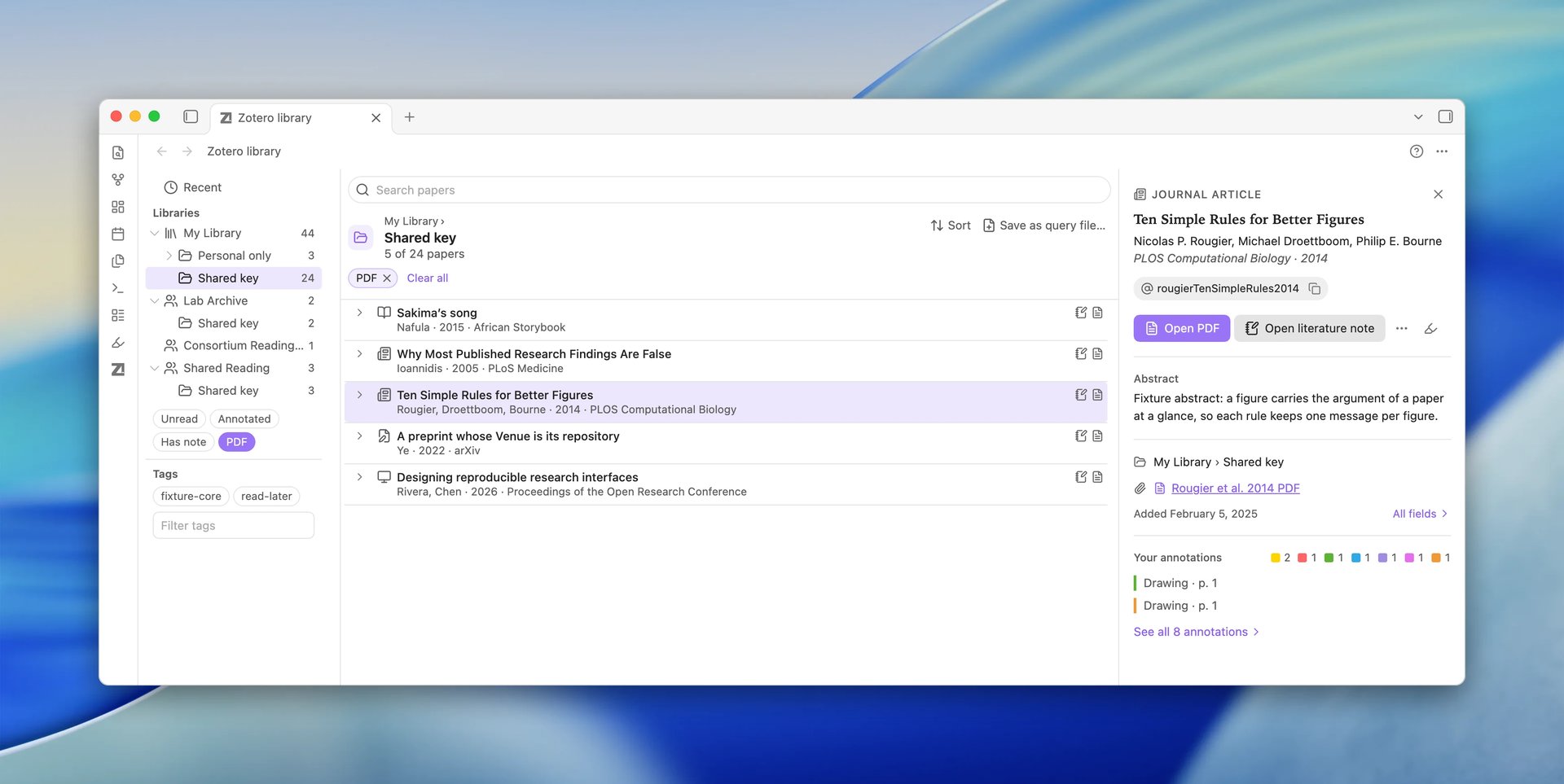
The Library View is a visual library browser directly inside Obsidian. It opens with ZotLit: Open Zotero library or from the ribbon. It reads directly from your local Zotero database, so it works without the ZotLit Companion or a local server.
The sidebar tree shows your collections, subcollections, and paper counts. Quick filters let you focus on Unread, Annotated, papers with literature notes, or papers with PDFs. You can also filter papers by tags.
The papers list shows two-line cards with reading status indicators and citation keys. Press the arrow keys to browse, or drag a row into an open note to insert a citation. On the right, the Reading Card shows metadata, an abstract, and expandable annotation previews. See Browse your library in the Library View for a full walkthrough.
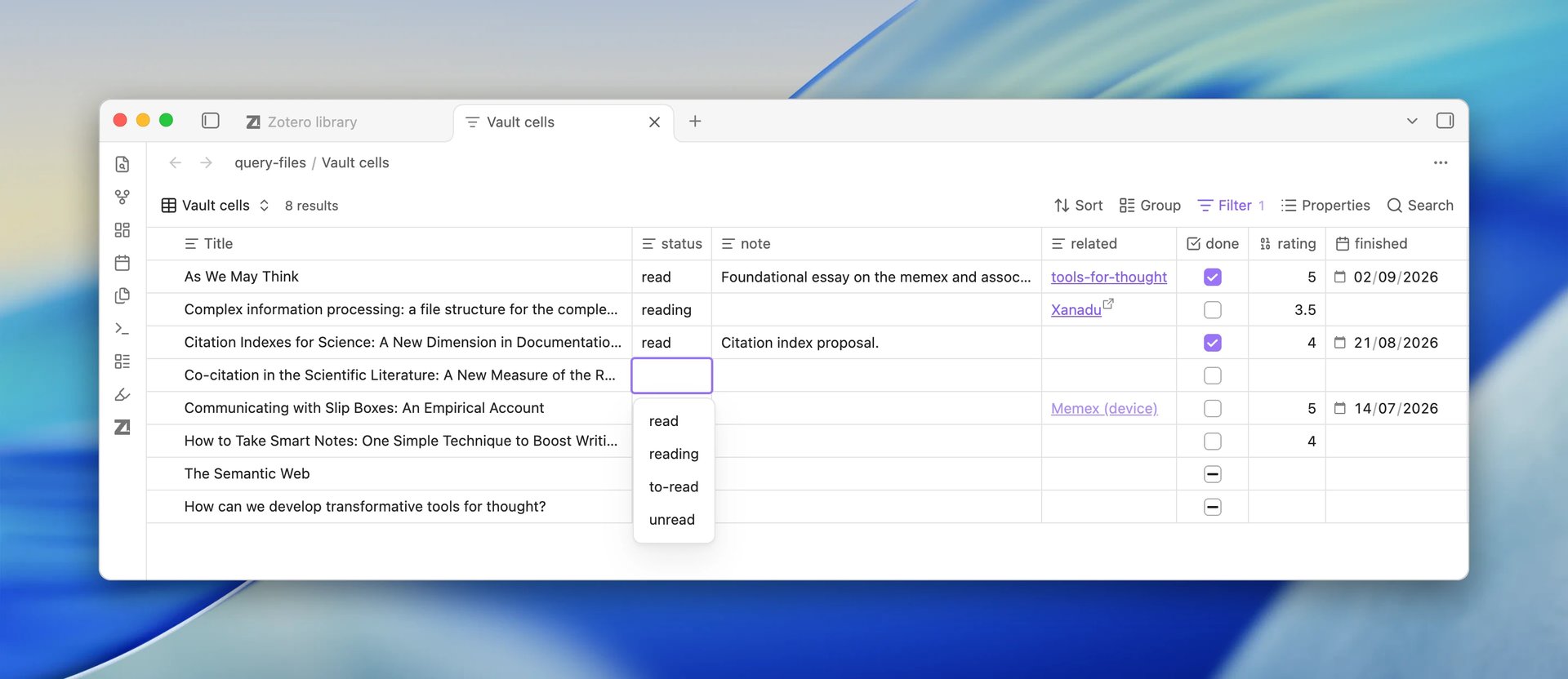
To track reading status, select Save as query file… and switch the view to the Table layout. Add a literature note property such as reading-status in Properties, then select a cell to change the value without opening the note. Checkboxes toggle with one click, lists edit as chips, and dates open pickers. A paper without a note shows No note; type a value there to create the note and save the value. Values live in your notes, so Obsidian's Properties panel and Bases show the same values. See Track reading status in the Query View.
Breaking Changes
Default literature notes display annotations in a Query Block
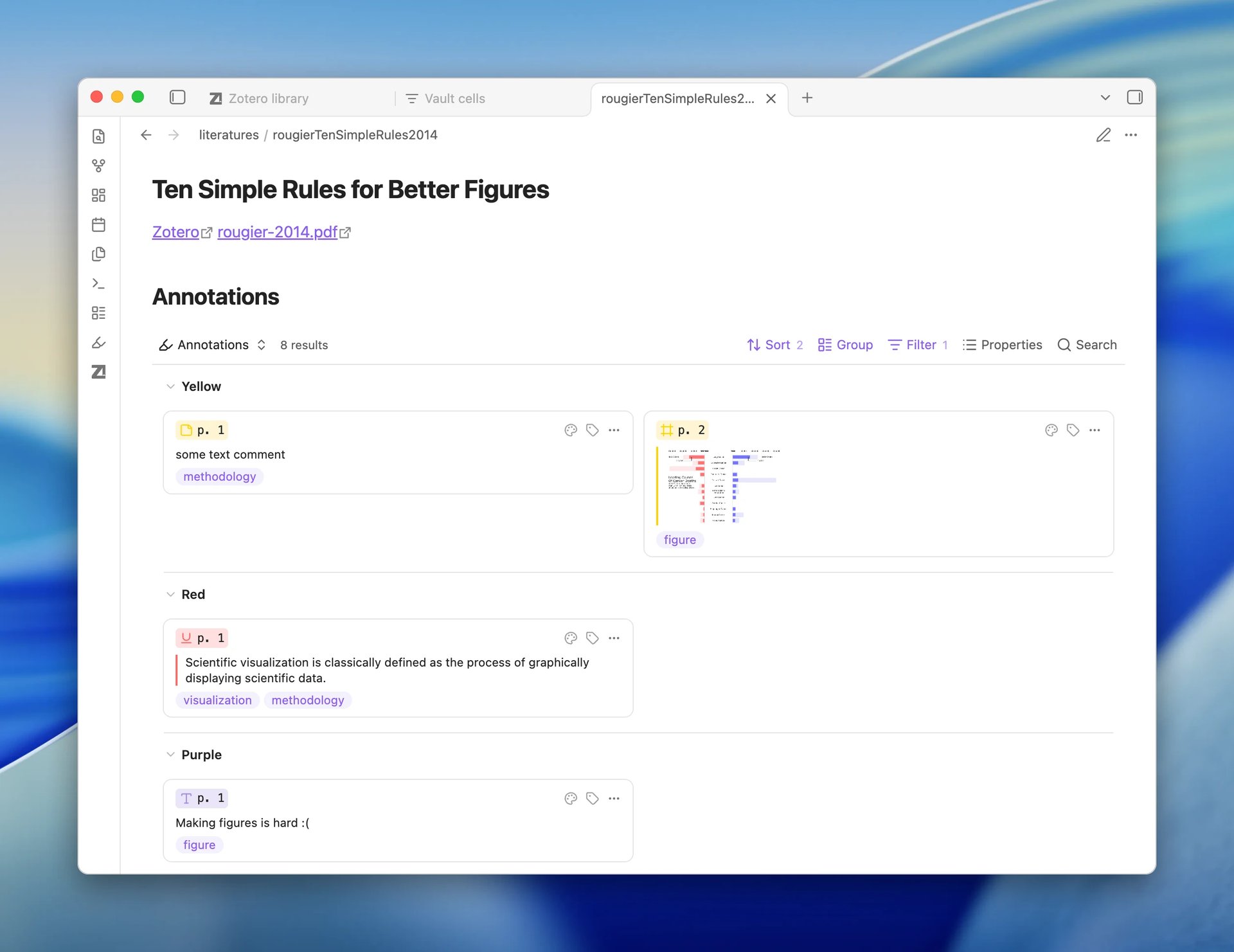
The default note template now embeds an interactive query block instead of a static markdown list.
Updating an existing default note replaces its static annotation list with a query block. Annotations appear as interactive cards that reflect live changes in Zotero.
To keep a static markdown list instead, use a custom template with an annotation loop. See Literature notes and the managed region and Customize a template.
What's New
Interactive Query Files and embedded Query Blocks
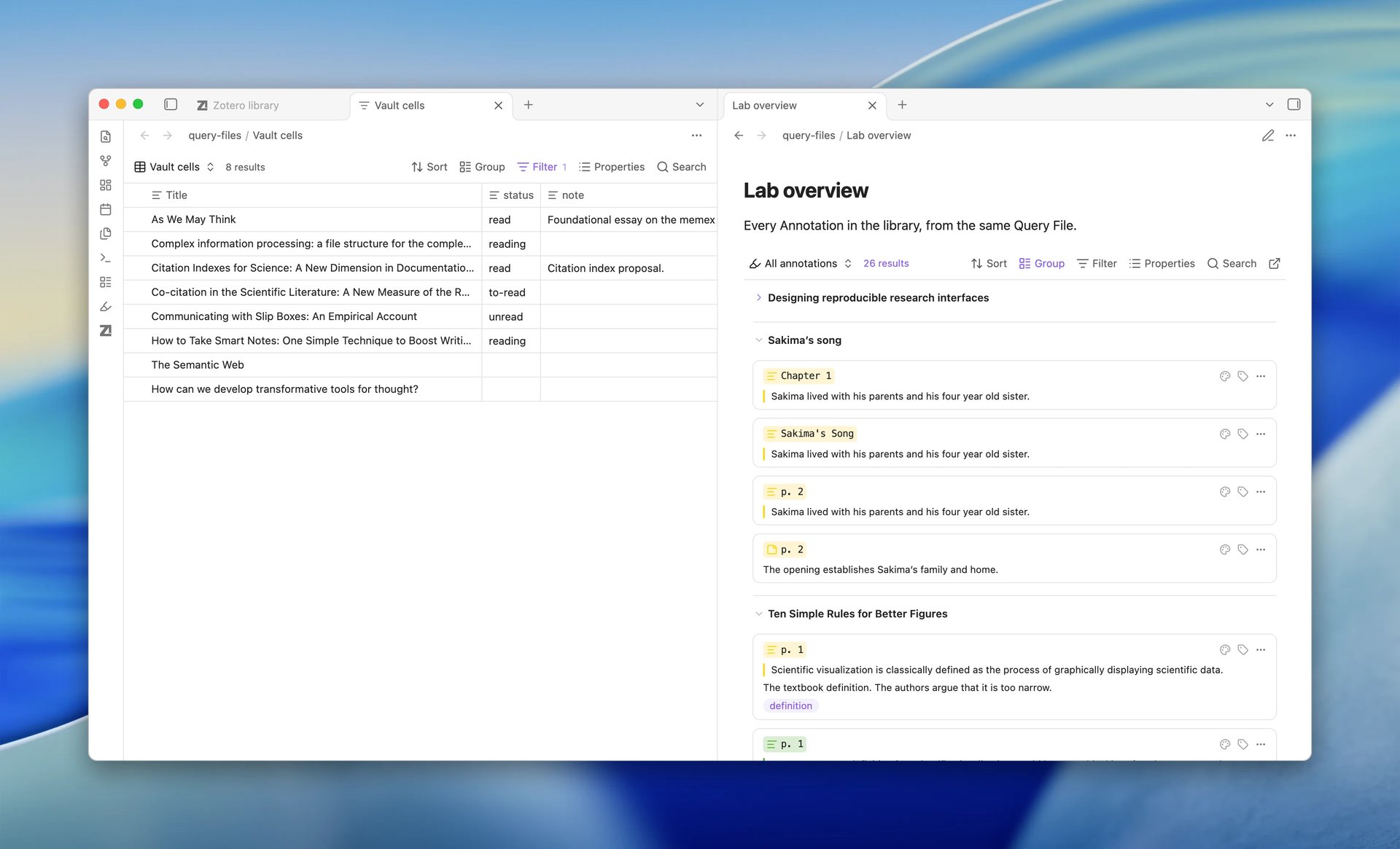
You can now create standalone .zotquery query files and embed query blocks in any note. Create a new file with ZotLit: Create new query file or from an empty tab.
Each query view can display as a Table, Cards, a List, or Annotations. In the Table layout, drag column headers to reorder or resize columns. Expand rows to inspect attached files and child notes, or click links to open PDFs directly.
The visual filter editor supports nested condition groups with drag-and-drop reordering. The toolbar includes sorting, grouping, search, and export to CSV or TSV. You can also add custom Formula properties and set custom display names for columns.
See Query files and query blocks and Use query files for details.
Recent papers follow your active research
Recent lists now put the papers you worked on last at the top. Opening a literature note, reading a PDF, citing a paper, and editing notes or annotations all count.
The Library View explains each paper's position with a reason and relative time. The Quick Switcher, Citation Suggester, and Template Workbench use this same order.
The Library View's Unread filter leaves out papers with a Zotero read time. With Write Authorization enabled, reading a PDF in Obsidian updates Zotero's Recently Read list.
See How Recent orders papers for details.
Sidebar Annotation View built on the Query View engine
The sidebar Zotero annotations view now runs on the Query View engine. You can save the sidebar view and its active filters directly as a .zotquery file.
Newly created annotations appear on screen immediately without waiting for database sync. The view shows clear diagnostic messages if database reads fail or a filter has an error.
See Use the annotation view for more information.
Other improvements
- In the Quick Switcher, press
Alt+Enteron a result to reveal and select that paper in the Library View. - Color and tag filter buttons in the annotation view remain visible when empty. A tooltip explains why the filter is disabled.
- ZotLit Query introduces
firstAuthorfor the primary creator and supports querying parent attachment fields for annotations. - Export to PDF prints query view rows cleanly without toolbar cutoffs.
Bug Fixes
Connections
- When another local service used Zotero's HTTP port, the connection probe previously failed with an unhelpful error. It now detects that Zotero is unreachable and prompts you to open Zotero and check settings.
Notes and annotations
- Inserting an annotation into a note open in Reading view previously wrote markdown into the hidden source editor. ZotLit now requires an active editor tab and alerts you if the note is in Reading view.