v2.2.0-beta.1
September 27, 2026
Companion 2.2.0-beta.1 released alongside.
Zotero PDF reading and annotation in Obsidian, multi-select in the annotation view, exports in the note's own style
This beta lets you read and annotate your Zotero PDFs in Obsidian, next to the note you are writing, and every mark you make is saved in Zotero.
Version requirements
- Obsidian 1.14.2 or later to open Zotero PDFs, which stay outside your vault.
- Zotero 10 or later to save annotation changes from Obsidian. With Zotero 9, you can read PDFs and their annotations, but you cannot edit them.
Highlights
Read and annotate your Zotero PDFs in Obsidian
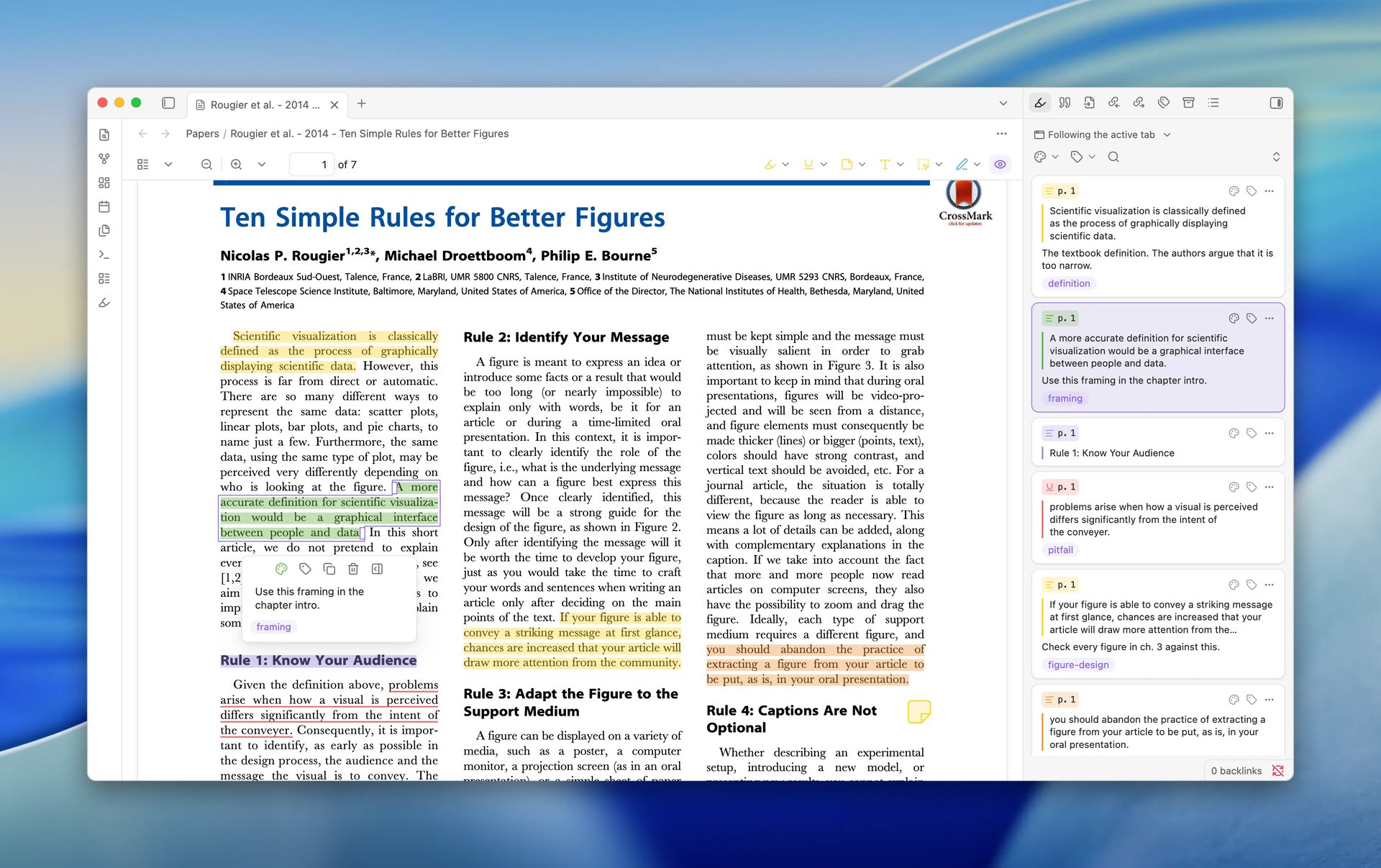
A Zotero item's PDF now opens in an Obsidian tab beside the note you are writing, so you can read and mark up a paper without switching to Zotero. The PDF stays in Zotero's storage, outside your vault; opening it there needs Obsidian 1.14.2 or later. The highlights and notes you made in Zotero are already on the page, in their Zotero colors. With Zotero 10 or later, what you mark in Obsidian is saved to Zotero, so it syncs and shows in Zotero's reader like any other annotation.
You can open a PDF from several places:
- From a literature note, run ZotLit: Open PDF, or choose it from the note's tab menu.
- In ZotLit: Open literature note quick switcher, press
Shift+Enteron a result. - In Zotero, choose Open PDF in Obsidian from an item's context menu, or Open PDF in Obsidian from the page menu of Zotero's reader. Both need the updated ZotLit Companion.
- Click a file link in a note. The PDF opens on the right page, with the linked annotation selected.
The Zotero annotations view comes forward in the sidebar with the PDF. To keep your sidebar as it is, turn off Settings > ZotLit > Reader > Reveal the annotation view. To send file links to your system app again, turn off Open PDF file links in Obsidian on the same page. Only PDFs open in Obsidian; EPUBs and web snapshots stay in Zotero. Open an item's PDF in Obsidian lists every way in.
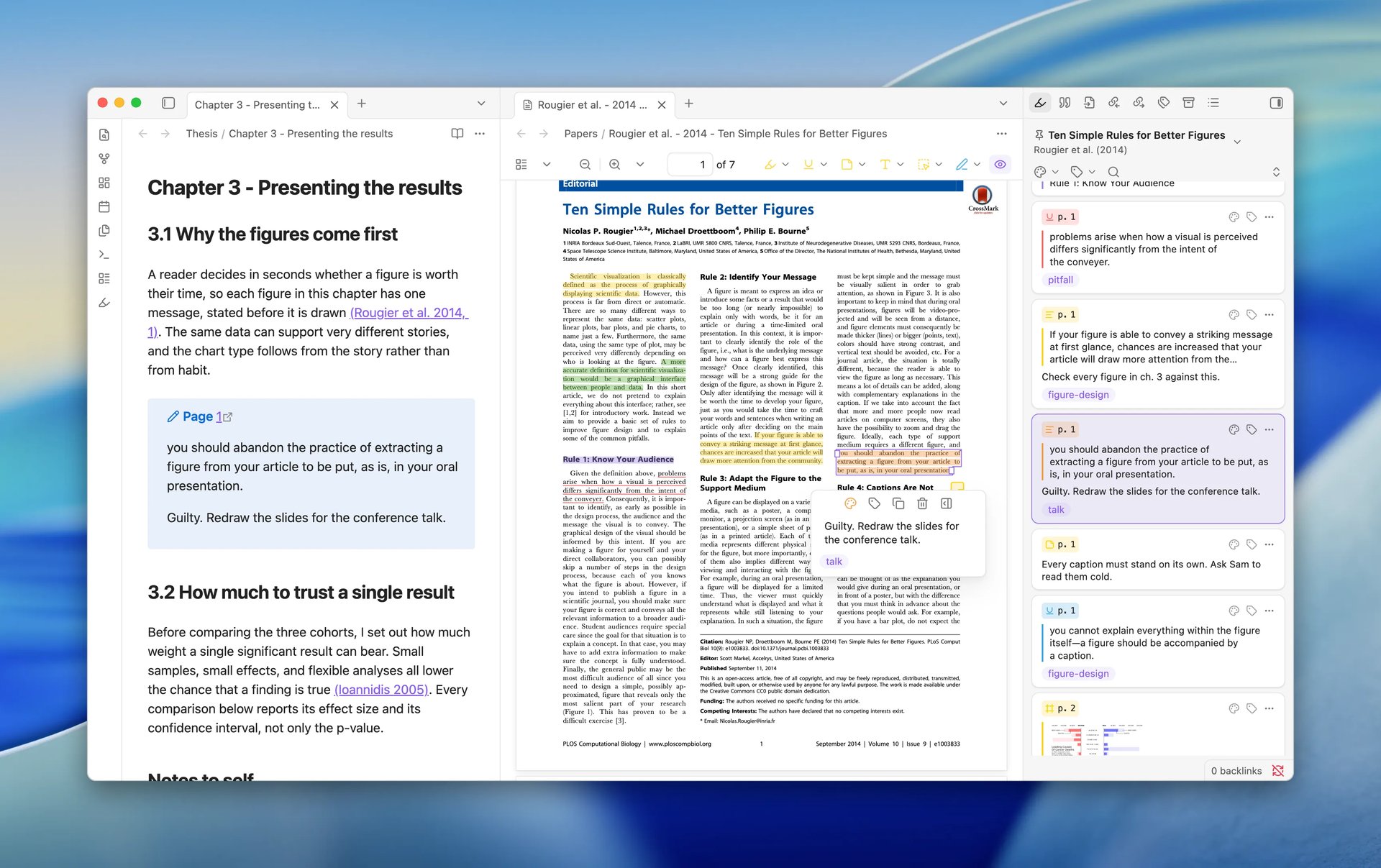
The toolbar beside the page creates the same annotations as Zotero's reader: Highlight, Underline, Add note, Add text for text typed onto the page, Select area to capture a figure or table, and Draw for freehand strokes. Each tool keeps the color you last chose for it, in every PDF.
Select a mark to change its color, comment, or tags. The comment editor takes bold, italic, subscript, and superscript, as in Zotero. When the PDF's text came out wrong, for example with broken ligatures, Edit quoted text on the annotation's card corrects the quoted text. You can drag a mark to move or resize it, and delete an annotation after a confirmation. While the PDF is open, Ctrl+Z (Windows) or Command+Z (macOS) undoes your last annotation change, and redo applies it again. Edit PDF annotations in Obsidian covers each tool and key.
Reading needs no permission. Editing needs four things:
- Zotero 10 or later. With Zotero 9, the PDF opens and shows its annotations, but changes cannot be saved from Obsidian, and ZotLit tells you to update Zotero.
- Zotero is running on the same computer.
- In Zotero, Allow other applications on this computer to communicate with Zotero is on, under Settings → Advanced. ZotLit tells you when it is off.
- ZotLit has your permission, given once. Select Allow editing in the annotation view, or Allow editing on the Zotero editing row under Settings > ZotLit > Zotero > Connection. When Zotero asks, choose Always Allow. Allow alone leaves editing off.
When an annotation changed in Zotero while you were editing it in Obsidian, the card shows Changed in Zotero with both versions, and you choose which one to keep. Annotations that Zotero will not let you change are locked in Obsidian too. Examples are annotations Zotero imported from the PDF file itself, and in a group library, annotations another member made. A lock icon on the card gives the reason.
Edit a given annotation in one app at a time, and let each change save before you switch. A known Zotero issue can make one edit silently overwrite the other when both apps change the same annotation.
Breaking Changes
Exports cite with the note's own style
ZotLit: Export note with citations and native Pandoc runs
now format citations in the style the note uses in Obsidian. That is the note's
own zotlit-csl property, the style of an imported note's profile, or your
Citation and references style. The export
dialog says where the style comes from, and the notice at the end names the
style it used.
The built-in export used to fall back to a bundled style when Zotero could not supply the one you chose. It now stops and tells you, so a document never comes out in a style you did not pick. Install the style in Zotero, or choose another one in the dialog.
If you run Pandoc yourself with ZotLit's integration files, save them again from this version. The files from earlier versions no longer work with this release. See Export a note with citations and Export with native Pandoc.
What's New
Annotation view
- The view keeps the follow mode you choose, Active tab, Zotero reader, or Pinned, until you change it. When its source has nothing to show, the view says so in place.
- Select several cards with
Ctrl-click orCommand-click,Shift-click, orCtrl+A/Command+A. Then delete them, recolor them with the keys1to8, or copy their text together. One undo reverses the whole group. - Insert into note in a card's menu inserts the annotation at the cursor in your note, the same text a drag leaves, so you can insert from the keyboard as well.
- Open PDF in the view's menu opens the attachment on screen in Obsidian.
- Filter by tag and Filter by color open as small popovers, so the filters no longer push the list down.
- Edit an annotation's tags on its card or in the PDF popup, then select Save tags.
- Image and ink annotations show their picture on the card and insert into notes with both PDF readers closed. The picture updates after you edit the annotation. See Excerpt images.
Use the annotation view has the full guide.
ZotLit Companion
- Open notes in, in the Opening in Obsidian section of the ZotLit pane in Zotero's settings, chooses where notes opened from Zotero's menus appear: Active tab, New tab, New tab group, or New window.
obsidian://zotlit/links take the same choice as apaneTypeparameter:tab,split, orwindow. See Where the link opens.
Bug Fixes
- In Zotero, right-clicking a PDF attachment opened an empty ZotLit submenu. The submenu is now dimmed when none of its entries apply.
- Converting 2.1 template files: when moving the old files to the trash failed, the conversion is still kept, and ZotLit names the files left behind and tries the cleanup again.
- When ZotLit refuses a template conversion, it now names only the files you need to edit.
- The reminder shown after you postpone the template conversion is shorter.