v2.2.0-beta.0
September 15, 2026
Companion 2.2.0-beta.0 released alongside.
Literature note profiles, the Template Workbench, citations in the graph view
ZotLit 2.2 gives a literature note template one document of its own, adds a workbench to edit it inside Obsidian, and draws your citations in the graph view.
Highlights
Citations in the graph view
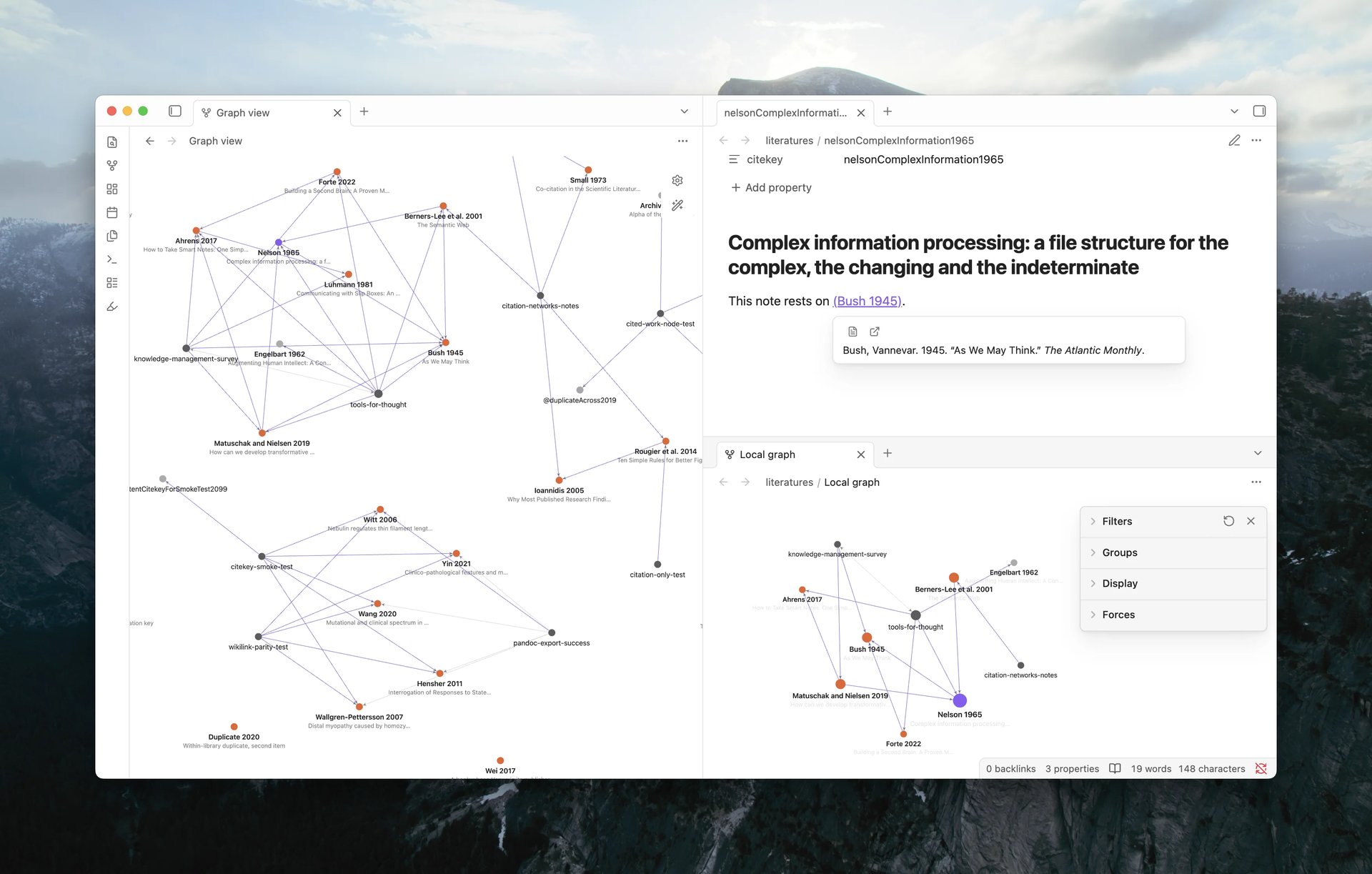
Your citations now appear in Obsidian's graph. A note gains an edge to every work it cites, so literature notes stop floating unconnected and two notes that cite the same paper meet at its node. Where no literature note exists yet, the work appears as a dimmed Cited Work Node.
This is on as soon as you update. Every ordinary graph starts drawing citation edges and Cited Work Nodes, so your graph is busier than it was. Show citations in graph view under Settings > ZotLit > Citations turns it off again.
Six rows in the graph's own controls decide what each graph draws, built into the native Filters and Display sections and saved per graph like the native rows:
- Under Filters: Pandoc citations and Wikilink citations, both on, and Citation-connected only, off.
- Under Display: Author and title labels, Color citation links, and Citation popover, all off.
Wikilink citations appears only while the vault-wide wikilink citation setting is on. Restore default settings in the graph returns all six to their defaults along with the native options.
Literature notes keep the node colors Obsidian gives them. A Cited Work Node takes a dimmed color of its own, and citation edges take theirs only while Color citation links is on. Your own color groups still win, and one press of Add literature notes group in the Groups section colors every literature note without a search query. All three colors have theme hooks; see Theme hooks.
Author and title labels writes the authors and the year above each work, with the short title dimmer underneath. Zooming in brings the titles out, and hovering shows one at any zoom. The graph's search box still matches your files, not the labels on screen.
Hover needs the per-graph Citation popover row, which starts off. With it on, hovering a literature note or a cited work follows your Hover Action setting, and Settings > ZotLit > Citations > Require modifier key adds a Graph view row so the graph alone requires a held modifier key. A work with no literature note, and a note nothing cites, now show the formatted entry in the popover instead of Obsidian's page preview.
Select a Cited Work Node to create its literature note from the profile and open it; the key that matches one item becomes the note node, with the same edges. Right-click one for Create literature note, Open in Zotero, and Copy citation key. A key that matches several items keeps its dimmed node.
ZotLit: Open citation graph and ZotLit: Open local citation graph open the graph arranged for reading as a research map: citation edges in, every node except your literature notes, cited works, and the notes that cite them hidden, arrows on, labels and the popover on, and the literature notes group added. A global graph keeps one set of options for the whole vault, so the first command saves that arrangement as your graph settings. The local command needs an open note.
If a command opens nothing, ZotLit says why: the Graph core plugin is off, the citations switch is off, or the citation graph is unavailable. Explore citations in the graph view is the full guide.
Literature note profiles
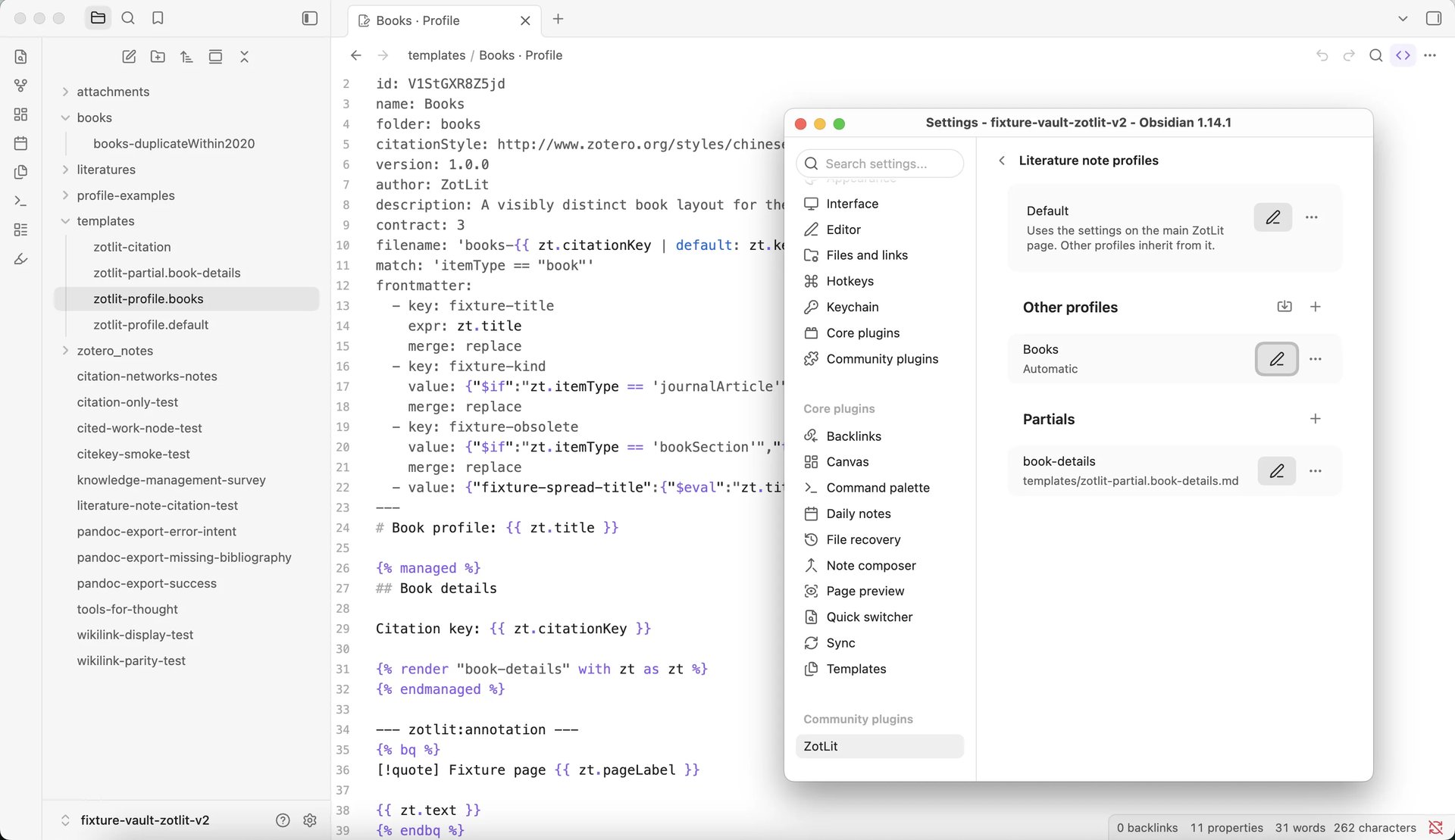
2.1 built a literature note from separate files: a note file, a managed-region file, a filename file, an annotation file, and a frontmatter field list that lived in settings. 2.2 puts the whole note into one Markdown document per profile. Each zotlit-profile.<slug>.md in your template folder holds the note name, the note folder, the properties, the note body, and the annotation format together.
Two companions complete the set. zotlit-citation.md holds the text of every inserted citation, once for the whole vault, and each zotlit-partial.<name>.md holds template text that several profiles share. Profile document gives the format of all three.
Settings > ZotLit > Literature note profiles is the new home of all of this. The Default row is your default layout; Add profile creates another profile, and Import profile… reads one in from a file or the clipboard. A profile's own row offers Edit profile and a More actions menu with Duplicate, Share…, and Delete profile. A profile's match is edited on the workbench's Match tab.
Below the profiles sits the Partials list, with Add partial and Open partial. A document ZotLit cannot read, or one whose ID collides with another profile's, is listed under Excluded documents instead of being used.
Citation text under Settings > ZotLit > Citations opens the citation document, and its Reset to default button returns it to the built-in text once you have changed it.
A profile can also select itself. A Profile Match tests an item's library, item type, tags, or collections, and every new note that fits uses that profile. A profile without a Match stays manual. See Profile Match, and Use a different template for different notes for the steps from an empty profile to a matched one.
Every note records the profile that made it, so a later update uses the same template. ZotLit: Switch literature note profile moves a note, and the imported notes that follow it, onto another profile.
Profiles explains how ZotLit picks one and how a note keeps it, How templates work covers the three kinds of document, and converting 2.1 template files the upgrade.
The Template Workbench
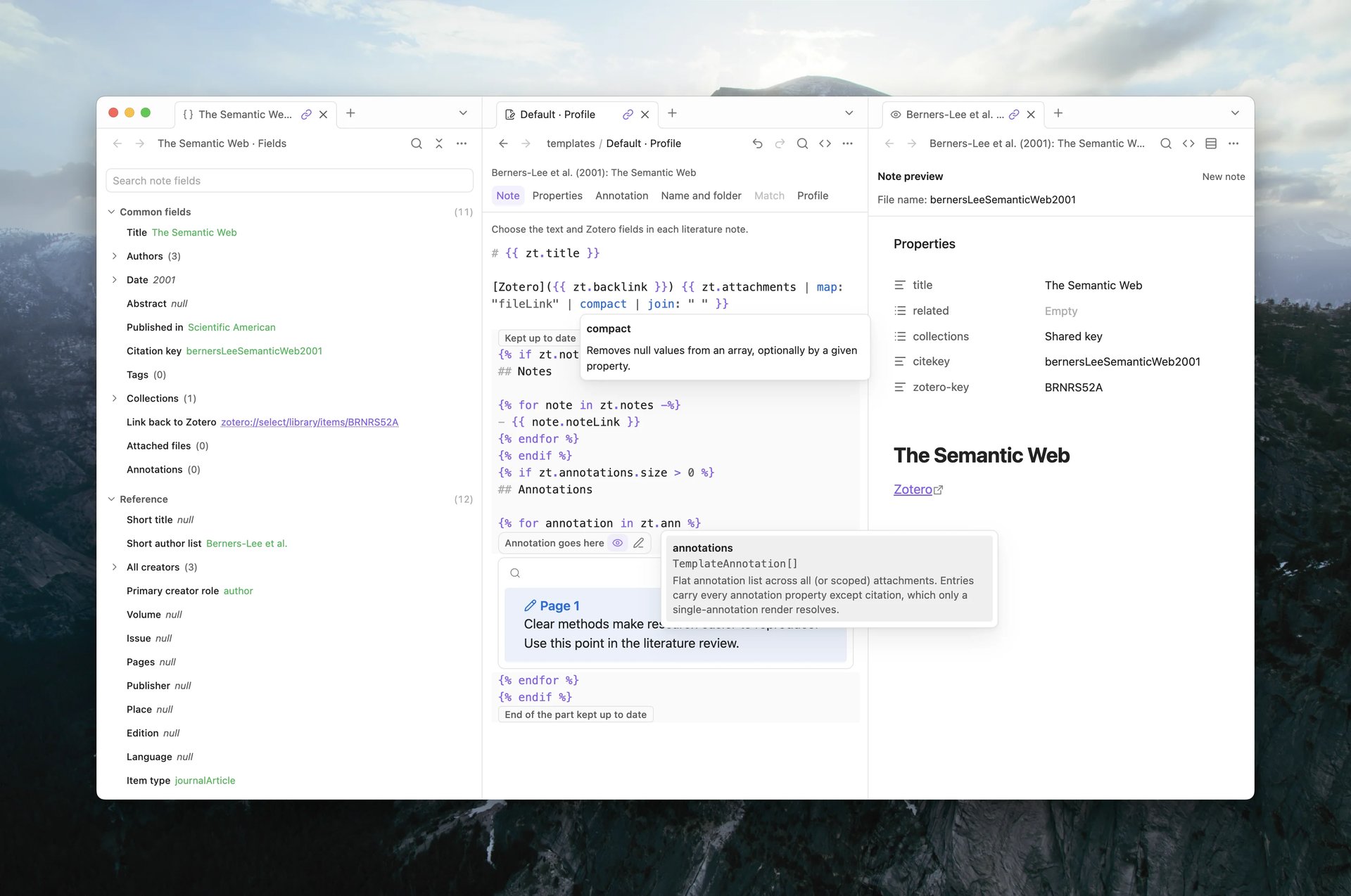
Your templates have a view of their own now, with the fields beside the editor and the resulting note on the other side. ZotLit: Switch to template workbench view opens the document in your active note, and ZotLit: Open template workbench opens all three panes together, in a window of their own when the editor would otherwise share one. From a literature note, ZotLit: Customize this note's template opens the profile that made it with that paper already selected.
The layout has three columns. The Template fields pane lists the Zotero data a template can read, the middle column edits the document, and the Note preview pane shows the note that comes out. The panes are linked through Obsidian's own linked tabs, so choosing a paper or an annotation in one follows in the others.
The preview refreshes as you type. Its pane menu switches between Preview as new note, Preview as updated note, and Preview updated section only, with Show Markdown to read the raw output. When you arrive from a literature note, the top bar names that note and offers Update this note to apply the change there at once.
Repeated text becomes a partial in one step. Select it, then choose Extract to partial…. New partial… starts one from scratch, the Partials menu lists every partial in the vault, and Open as Markdown opens the same document in Obsidian's own editor.
Template Workbench View describes every way in, Customize a template walks through the profile, the citation text, and partials, and Edit a profile as Markdown is the route for anyone who would rather type the document.
Inside the Template Workbench View
The editor is tabbed by part of the note: Note, Properties, Annotation, Name and folder, Match, and Profile. Source shows the whole document as source when you want it that way. Every edit saves as you go.
The editor knows the document's language. Liquid templates get their tags, variables, and filters highlighted, with the YAML manifest and the Markdown markers styled apart from the body. Eta templates pair tags as you type and gain the same suggestions and hover; the JavaScript templates gate governs rendering, not editing. Typing a field or a partial name offers what is available and what it holds.
When something fails, Problems sits under the editor with what went wrong, which part of the document it came from, and the actions to reach it, including Copy error report when you want to ask for help. Collect debug logs says what that report carries.
Properties covers the properties tab, and Template Workbench View the tabs, the languages, and the panes. The workbench view is part of the desktop app.
Breaking Changes
Four changes alter what you already have. Read them before you upgrade.
2.1 template files give way to documents
Nothing converts on its own. Your zotlit-note.liquid.md, zotlit-content.liquid.md, zotlit-filename.liquid.md, zotlit-annotation.liquid.md, the two citation files, and any file that served as a partial keep loading and rendering until you convert them. The Welcome view offers Convert your literature note templates once after the update, and settings repeat it with Review conversion. One press folds the note, managed-region, filename, and annotation files into zotlit-profile.default.md, the two citation files into zotlit-citation.md, and every remaining file into its own partial. ZotLit verifies byte-identical output before it writes anything, then moves the old files to Obsidian's configured trash. The pass needs one item from your Zotero library to verify against, and an annotation as well if you customized the annotation file.
Two things follow if you stay on the old files. Their settings rows are gone, so the frontmatter field list has no editor in the app, and a note cannot use a profile of your own until the conversion has run: ZotLit declines the note and asks you to convert the legacy templates first. The Profiles page shows no Add and no Import until the conversion has run, and every profile file action stays disabled; the quick-switch picker can still make a profile if you need one. Your default literature notes keep working exactly as they did.
If your two citation files use different languages, the fold is Liquid, the Eta file stays where it is, and ZotLit names the files that no longer affect citations.
Converting 2.1 template files has the steps and what each file becomes.
Export with citations stops on an unknown or ambiguous key
ZotLit: Export note with citations now reads your note the
way Pandoc does, so literal @citation-key text reaches the bibliography. A
work you cite both by wikilink and by key gets one entry, nocite works, and a
key inside code or behind an escape stays plain text.
The cost is that a key which matches no item in your library scope, or matches several, stops the whole export and names the keys. In 2.1 such a note exported with Pandoc's undefined-citation output and no reference list, which looked like success. Check the spelling in Zotero, or widen the library scope under Settings > ZotLit > Zotero. Export a note with citations covers the workflow.
The agent template commands are retired
Nine commands in ZotLit's obsidian CLI namespace now refuse every call and report the command as retired:
zotlit:template-schema, zotlit:template-render, zotlit:template-document-render, zotlit:template-source, zotlit:frontmatter-status, zotlit:frontmatter-eval, zotlit:frontmatter-set, zotlit:frontmatter-remove, zotlit:frontmatter-reorder.
An agent that wrote templates through them must move to zotlit:template-inspect, which reads a saved document and how current it is; zotlit:template-data, which lists fields with real values from an item; and zotlit:template-check, which renders every part and reports what fails. Frontmatter is edited in the profile document and checked with output=frontmatter. These are command line commands, not command palette entries. The Template Workbench CLI explains the loop, and the Template Workbench CLI reference lists every live command beside the retired one it replaces.
The settings tab is reorganized
- Maintenance is now Settings > ZotLit > Advanced.
- The Database and Library pages merged into Settings > ZotLit > Zotero.
- The Live updates page became the Local server group on Settings > ZotLit > Advanced, where Run a local server sits above Receive updates from Zotero.
- Note import is now Settings > ZotLit > Imported notes.
- The Templates page is gone. Template folder and the Template engine rows moved to Settings > ZotLit > Advanced, and Citation text to Settings > ZotLit > Citations.
- Citation and references style moved to the main page, which now holds the default profile's rows.
- Auto-pair Eta tags has no toggle any more; the editor pairs tags as you type.
Row names are unchanged, so Obsidian's own settings search still finds a setting by the name you know. Where settings moved has the full table.
What's New
Imported notes
Settings > ZotLit > Imported notes > Highlight mappingsmaps each Zotero highlight color on its own, to an emoji or to an HTML mark, or to a Custom emoji you choose. See Import Zotero notes.
The emoji stay compatible with Obsidian 1.14's color highlights. With a custom mapping you can use more colors than native Obsidian offers, including Colorful Highlights.
Template data explorer
The explorer is rebuilt on the workbench's own field browser. Fields are grouped into sections you can Expand all sections or Collapse all sections, each row inserts itself with Insert field or copies it with Copy value, Copy path, Copy output, Copy if present, Copy loop, and Copy joined. The pane's menu saves the data as JSON: Export selected paper data at a note root, Save template data as JSON elsewhere. Choose item and Choose annotation switch which item or annotation the pane reads. See Explore template data.
Citations, references, and the suggester
- Hovering citations in a note retargets one popover instead of opening a card per citation, and the card follows the pointer from one citation to the next.
- Search results in the citation suggester read as one line: the venue in italics, and the volume and pages in their own form such as
3(2). A result from a group library is marked as such. - When an imported note's profile or its citation style is unavailable, the References Sidebar says so and offers Switch profile… instead of dropping to a plain list.
- The suggester's footer now reads to insert alternate citation for the alternate form.
- A citation with a locator writes Pandoc's braced form,
[@key, {p. 62}], in the raw source. The formatted text is unchanged.
See Insert citations and Review, copy, and troubleshoot references.
LaTeX citations in a template
tex_cite in Liquid, and texCite in Eta, write zt.citations as one LaTeX citation command, so a citation template reaches \cite{doe2024} or \autocite{doe2024} without a key loop of your own. The first item's prefix becomes the prenote, and its locator and suffix the postnote. See tex_cite and texCite.
One filter covers both formats Zotero Integration gave a command of its own, latex and biblatex. Migrate from Zotero Integration maps that plugin's Nunjucks templates, its persist blocks, and its citation formats onto profiles.
Batch update and import
The confirmation for a vault-wide run now groups its rows by profile and says which items match no profile or several, which profiles are unavailable, and what happens to the notes you keep as they are. The import dialog names the notes that will arrive without a parent literature note before you confirm. See Keep notes up to date for a batch run, and Create and open literature notes for the profile a bulk run gives new notes.
Other improvements
- Links and menu commands from Zotero now name the profile they mean, so a note opens with the template you chose rather than the default. A profile ZotLit cannot find opens a prompt to pick one. See Protocol links.
- The Welcome view's settings link opens Settings > ZotLit > Zotero, and its folder picker explains how to navigate and choose.